> For clean Markdown of any page, append .md to the page URL.
> For a complete documentation index, see https://docs.stereolabs.com/llms.txt.
> For AI client integration (Claude Code, Cursor, etc.), connect to the MCP server at https://docs.stereolabs.com/_mcp/server.
# ZED Link MIPI Quad on AGX Thor with Holoscan Sensor Bridge
This tutorial will help you assemble the **[ZED Link MIPI Quad](https://www.stereolabs.com/store/products/zed-link-mipi-quad)** capture card on an **NVIDIA® Holoscan Sensor Bridge** (HSB), connect it to an NVIDIA® Jetson AGX Thor™ Developer Kit, and stream up to two **[ZED X One Core](/docs/products/cameras/zedxone-core/)** cameras.
> **Note**
>
> Support for the **NVIDIA® Holoscan Sensor Bridge** with the Jetson AGX Thor™ Developer Kit is currently in **beta** and may have limitations. The driver package required by this configuration is delivered by StereoLabs on request: please contact [support@stereolabs.com](mailto:support@stereolabs.com).
> **Note**
>
> The ZED Link MIPI Quad is designed for the **[ZED X One Core](/docs/products/cameras/zedxone-core/)** camera only. It is **not** compatible with the [GMSL2](/docs/products/embedded/zed-link-capture-card/gmsl2#what-is-gmsl2) cameras, and the [GMSL2](/docs/products/embedded/zed-link-capture-card/gmsl2#what-is-gmsl2) ZED Link Mono, Duo, and Quad cards are **not** compatible with the ZED X One Core.
## How it works
On the AGX Orin Developer Kit, the ZED Link MIPI Quad plugs directly into the CSI connector of the carrier board. The Jetson AGX Thor™ Developer Kit does not expose a MIPI CSI-2 connector, so the capture card is instead mounted on an **NVIDIA® Holoscan Sensor Bridge**, which converts the MIPI streams into **Camera-over-Ethernet** (CoE) and sends them to the Thor over a 10 Gb Ethernet link. On the host, the frames are processed by NVIDIA's **SIPL** hardware imaging engine and delivered to your application by the ZED SDK.
The full chain is:
Signal chain from the ZED X One Core camera to the ZED SDK running on the Jetson AGX Thor Developer Kit
CAMERA SIDE
ZED X One Core
AR0234 image sensor
1 or 2 cameras
ZED Link MIPI Quad
channels J1 / J2 only
FPGA sync, 15 µs
Holoscan Sensor Bridge
Lattice CPNX100
FPGA IP 0x2510 or newer
MIPI CSI-2
I-PEX cable
MIPI CSI-2
J10 connector
Camera-over-Ethernet (CoE)
10 GbE · QSFP+ to 4× SFP+ breakout cable
host interface mgbe\* · camera subnet 192.168.0.x
HOST · NVIDIA JETSON AGX THOR DEVELOPER KIT
JetPack 7.2 / NVIDIA SIPL
hardware imaging pipeline, already flashed on the Developer Kit
preinstalled
ZED Link MIPI driver for HSB
AR0234 sensor driver · CoE transport · camera configuration · ISP tuning
Step 4
ZED SDK v5.5
opens the camera and delivers fully processed frames
Step 5
ZED Studio / your application
sl::CameraOne API
Step 6
provided by StereoLabs
provided by NVIDIA
Frames travel downward through this diagram, and this guide follows the same order: after the host network is set up, it checks the FPGA firmware of the bridge board, then installs the driver, then the ZED SDK.
> **Note**
>
> Because the camera data travels over Ethernet, the Jetson needs a **network route to the camera** before anything can stream. This is the main difference from the AGX Orin setup, and the most common cause of a camera that is not detected.
## Prerequisites
### Hardware
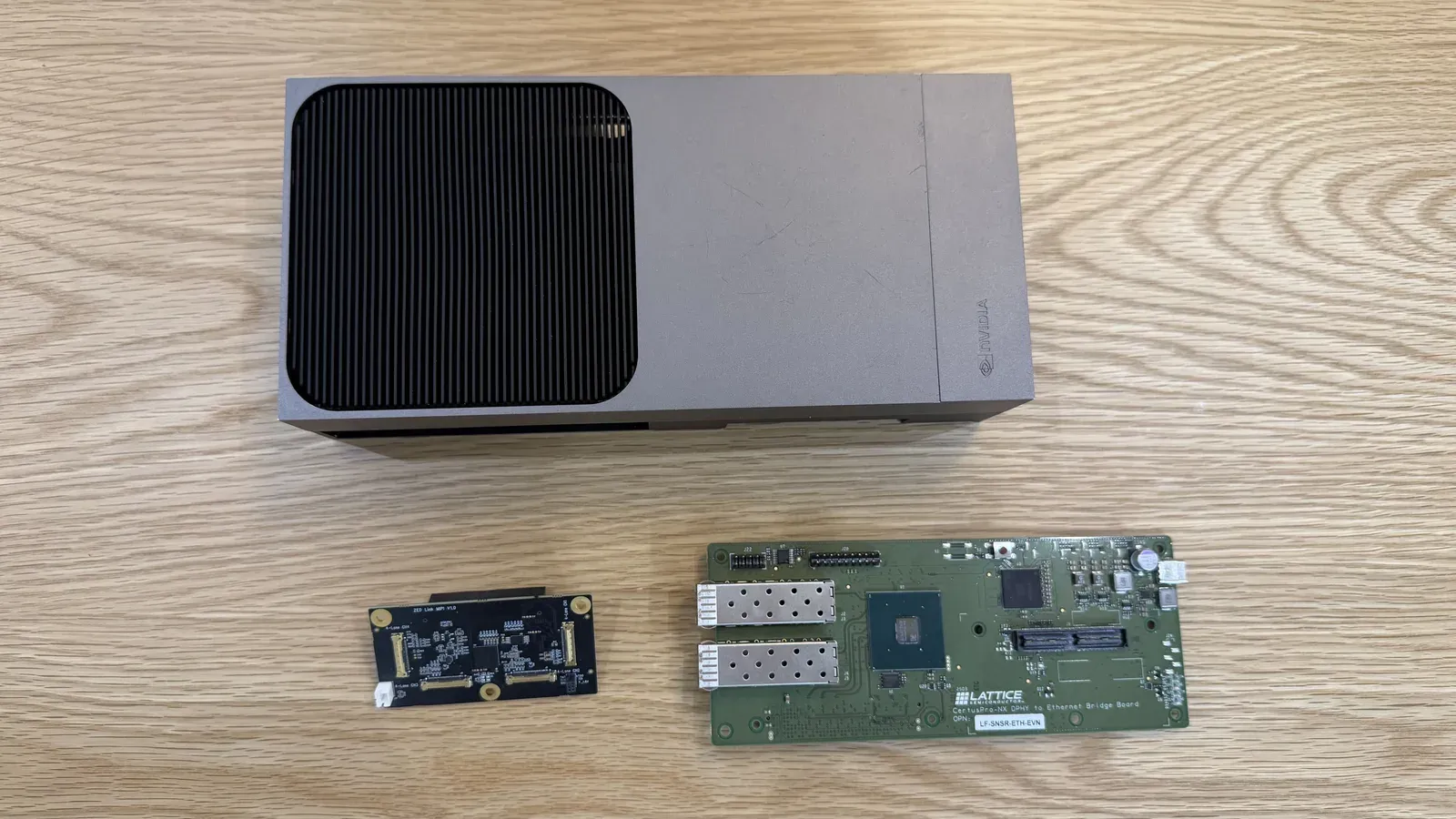
Make sure that you have the following items before starting this guide:
* 1x NVIDIA® Jetson AGX Thor™ Developer Kit, with a **QSFP+** port
* 1x **NVIDIA® Holoscan Sensor Bridge**, Lattice `CPNX100-ETH-SENSOR-BRIDGE` board (also referred to as *HSB Lite* by the NVIDIA® firmware tools)
* 1x **[ZED Link MIPI Quad](https://www.stereolabs.com/store/products/zed-link-mipi-quad)** capture card
* 1x or 2x **[ZED X One Core](/docs/products/cameras/zedxone-core/)** cameras
* 1x MIPI I-PEX cable per camera (one cable is included with each ZED X One Core)
* 1x **QSFP+ to 4x SFP+ breakout cable**
* 1x USB-C power supply for the Holoscan Sensor Bridge, or a free USB-C port on the Developer Kit (see [Power up](#power-up))
* 1x NVIDIA® power supply to power the Developer Kit (included with the Developer Kit)
> **Warning**
>
> A standard RJ45 Ethernet cable **will not work**. The Jetson AGX Thor™ exposes a QSFP+ cage and the Holoscan Sensor Bridge exposes SFP+ cages, so a QSFP+ to 4x SFP+ breakout cable is mandatory.
### Software
| Requirement | Where it comes from | How to check it |
| :----------------------------------------------------------------------------------- | :------------------------------------------------------------------------------------------- | :-------------------------------------------------------------------------------------- |
| **JetPack 7.2** (Jetson Linux **R39.2.0**) or newer, with the NVIDIA® Camera package | Already flashed on the Developer Kit | `cat /etc/nv_tegra_release` returns `R39 ... REVISION: 2.0` `dpkg -l nvidia-l4t-camera` |
| **ZED Link MIPI driver for Holoscan Sensor Bridge** | StereoLabs delivery archive, contact [support@stereolabs.com](mailto:support@stereolabs.com) | [Install the driver](#step-4-install-the-zed-link-mipi-driver) |
| **ZED SDK v5.5** or newer, for L4T 39.2 | [StereoLabs developer page](https://www.stereolabs.com/developers/release) | [Install the ZED SDK](#step-5-install-the-zed-sdk) |
| **HSB FPGA firmware** `0x2510` or newer | Preloaded on the bridge board, upgradable | [Check the FPGA firmware version](#step-3-check-the-fpga-firmware-version) |
> **Warning**
>
> The driver package is **tied to your Jetson Linux release**. The `R392` suffix in its filename means *L4T R39.2 / JetPack 7.2*. If `/etc/nv_tegra_release` reports a different release, ask StereoLabs for the matching package instead of installing this one: a mismatch shows up as a camera that is never detected.
You do **not** need the ZED SDK sources, the CUDA development packages, or the Holoscan SDK to complete this guide. The only software built from source is a set of small NVIDIA® firmware tools, in [Step 3](#step-3-check-the-fpga-firmware-version).
If you encounter any issues during the installation process, please refer to the [MIPI Troubleshooting](/docs/products/embedded/zed-link-capture-card/mipi/troubleshooting) page, which has a [section dedicated to the Holoscan Sensor Bridge](/docs/products/embedded/zed-link-capture-card/mipi/troubleshooting#holoscan-sensor-bridge-on-jetson-agx-thor), or contact [support@stereolabs.com](mailto:support@stereolabs.com).
## Step 1: Assemble the hardware
> **Warning**
>
> Please make sure the Developer Kit and the Holoscan Sensor Bridge are **switched off and disconnected from any power source** before beginning the installation process.
### The Holoscan Sensor Bridge at a glance
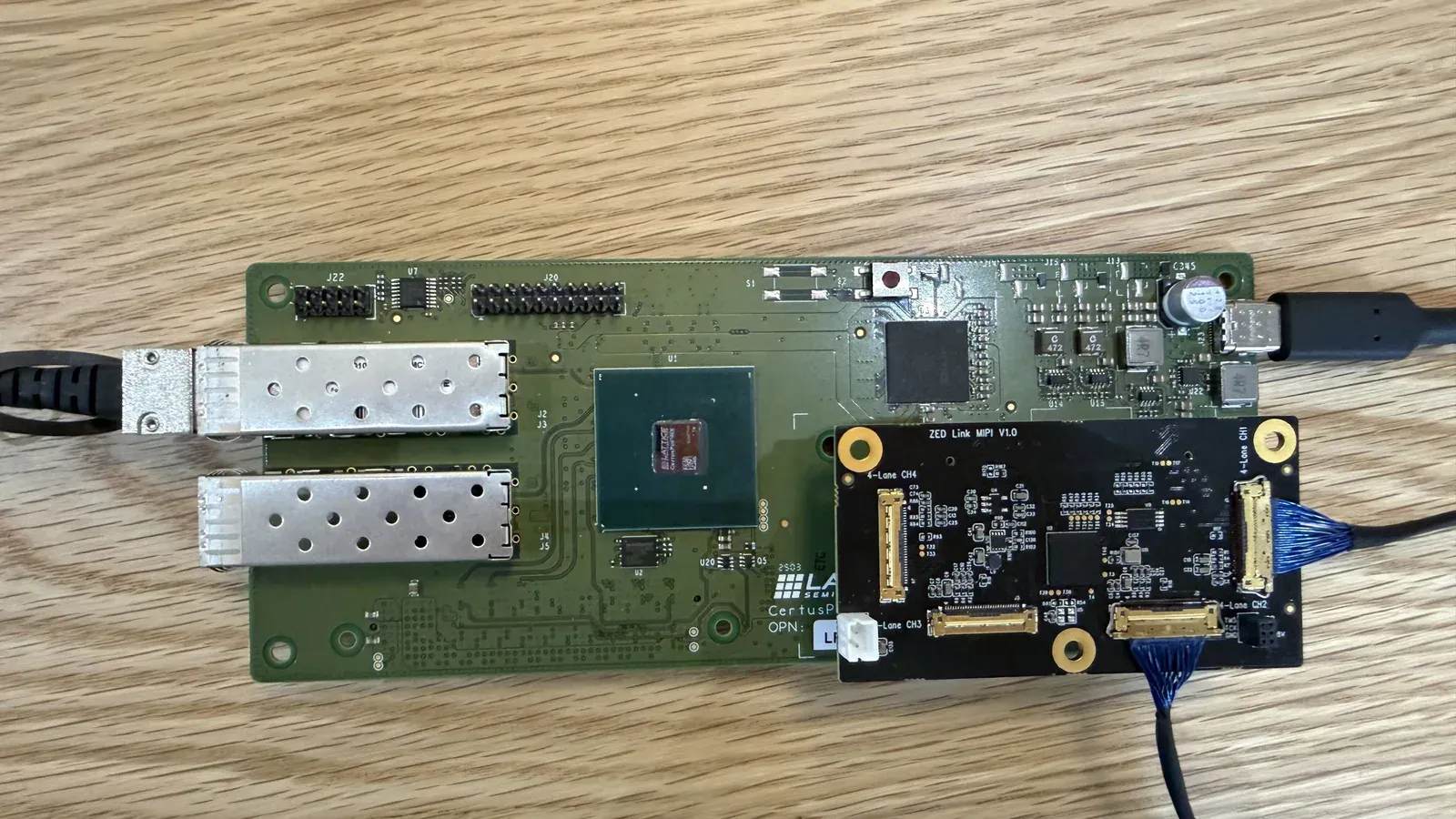
Three interfaces of the bridge board are used in this guide: the **Camera Connector**, where the ZED Link MIPI Quad is mounted; the **top SFP+ cage**, which carries the video to the Jetson; and the **USB-C power input**.
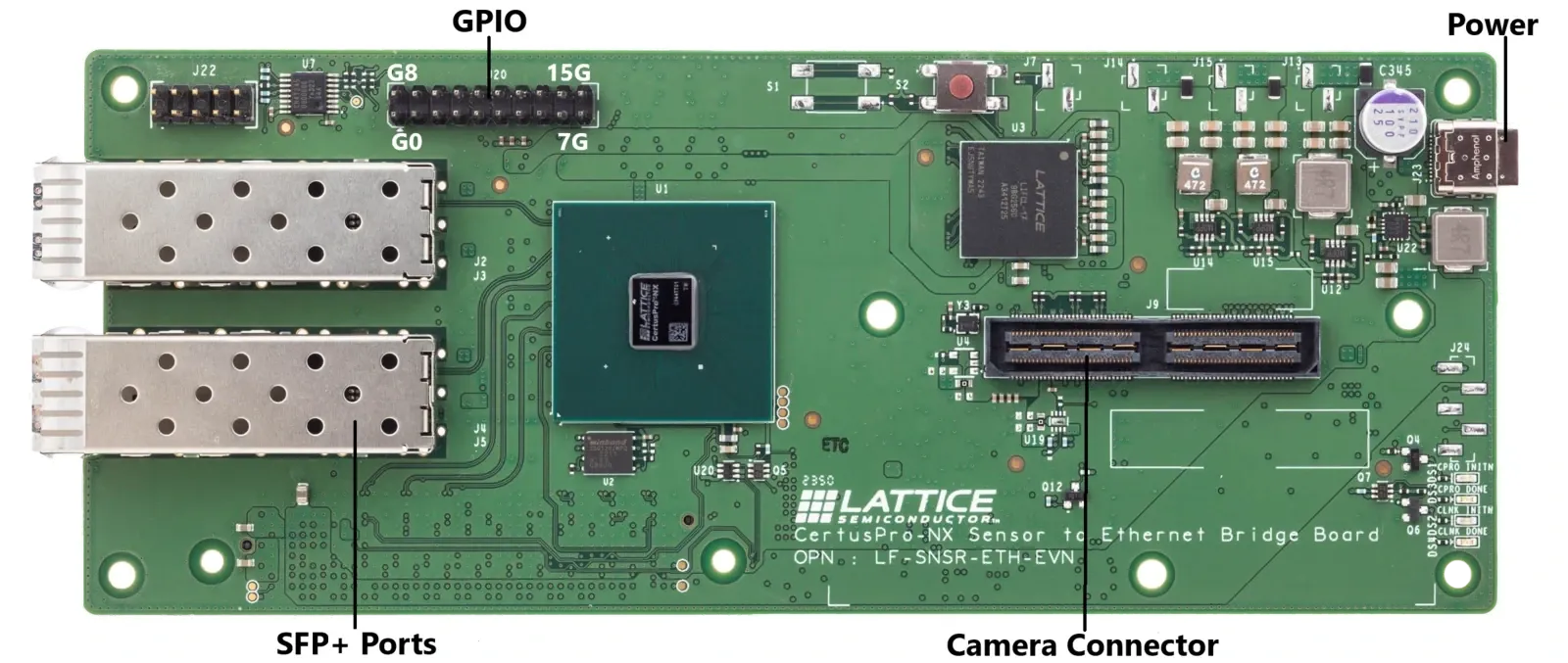
| Interface | Silkscreen | Used in this guide |
| :------------------------------- | :------------ | :---------------------------------------------------------- |
| Camera connector, board-to-board | `J9` | ✔️ mates with the `J10` connector of the ZED Link MIPI Quad |
| SFP+ cage, **top** | `J2` / `J3` | ✔️ 10 GbE link to the Jetson AGX Thor |
| SFP+ cage, bottom | `J4` / `J5` | ❌ not used |
| USB-C power input | `J23` | ✔️ powers the bridge board and the capture card |
| GPIO header | `G0` to `G15` | ❌ not used |
> **Note**
>
> The designators of the SFP+ cages belong to the **bridge board**. Do not confuse them with the `J1` and `J2` **camera connectors** of the ZED Link MIPI Quad, described further down.
### Mount the capture card on the Holoscan Sensor Bridge
Align the 120-pin `J10` Samtec connector on the bottom of the ZED Link MIPI Quad with the **Camera Connector** (`J9`) of the Holoscan Sensor Bridge, then press the card down firmly until the two connectors are fully mated. This is the only connector the capture card mates with, and it also powers the card.
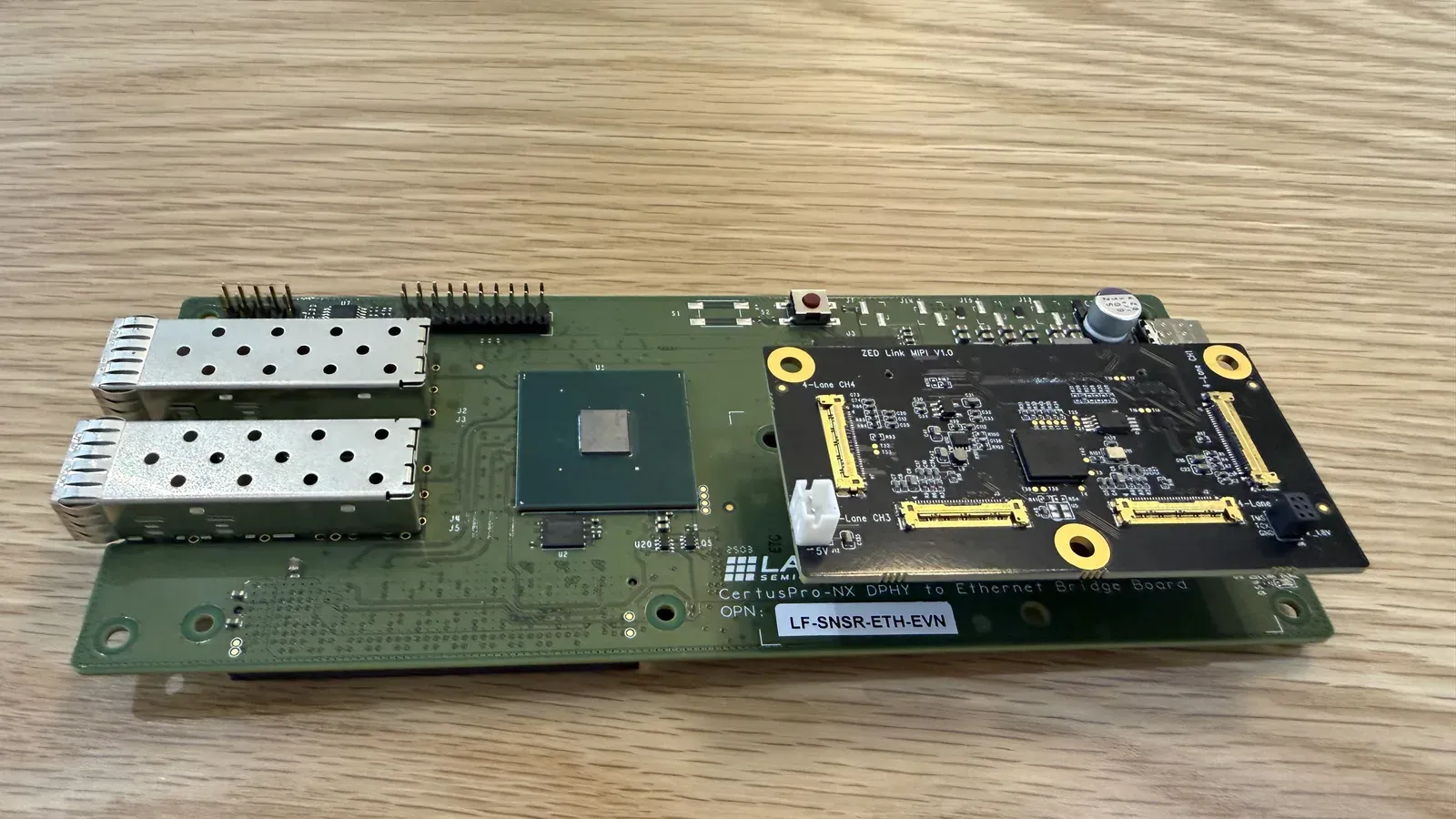
The capture card sits over the right half of the bridge board, with its four camera connectors facing up.
### Connect the cameras
Each camera channel of the ZED Link MIPI Quad uses a 30-pin, 0.4 mm pitch Micro I-PEX receptacle. Insert the plug of the MIPI I-PEX cable into the receptacle and press it down gently until it is fully seated.
> **Warning**
>
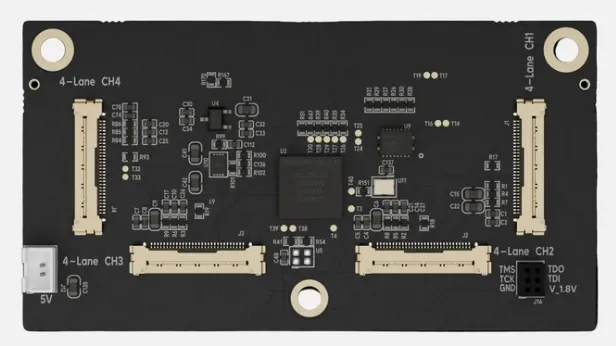
> With the Holoscan Sensor Bridge, only the `J1` (**4-Lane CH1**) and `J2` (**4-Lane CH2**) channels are wired through. A camera plugged into `J3` or `J4` is **never detected**, which limits this configuration to **two cameras**.
The four channels are silkscreened `4-Lane CH1` to `4-Lane CH4` on the front side of the card:
| Connector | Silkscreen label | Position on the card | Usable with the Holoscan Sensor Bridge |
| :-------- | :--------------- | :------------------- | :------------------------------------- |
| `J1` | `4-Lane CH1` | top right | ✔️ |
| `J2` | `4-Lane CH2` | bottom right | ✔️ |
| `J3` | `4-Lane CH3` | bottom left | ❌ |
| `J4` | `4-Lane CH4` | top left | ❌ |
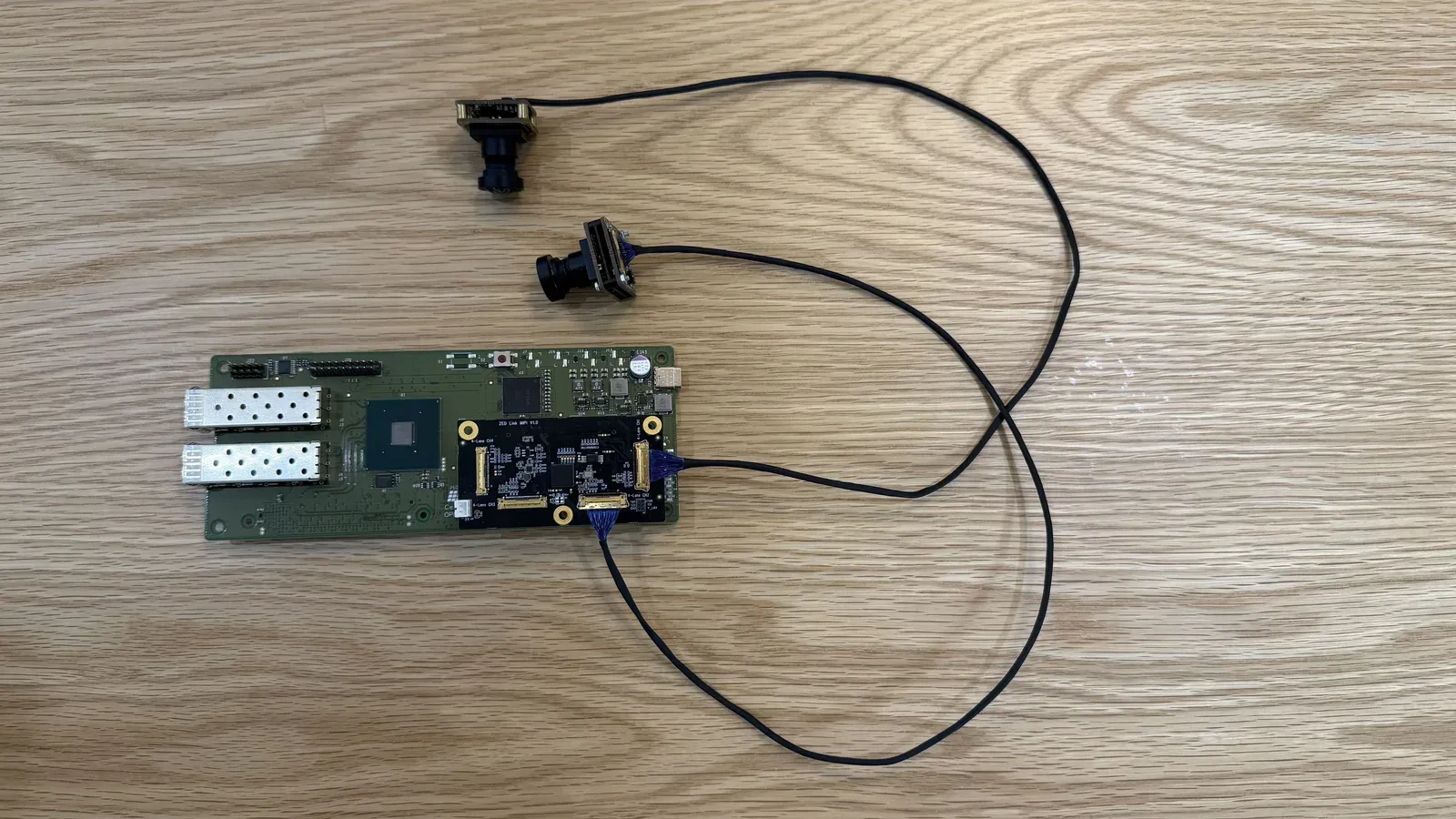
Connect the first camera to `J1`, and the second one, if any, to `J2`.
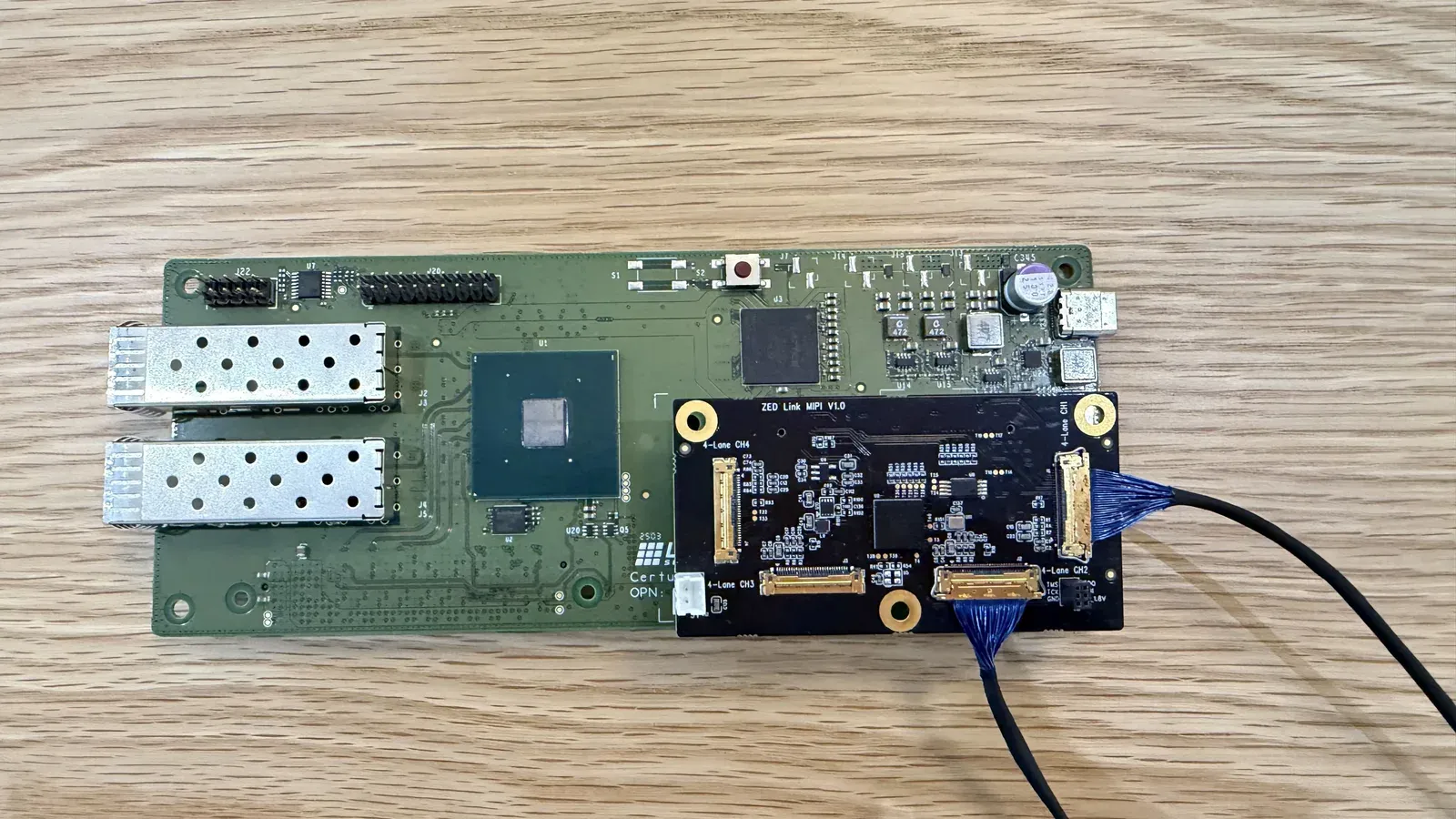
Then connect the free end of each cable to the [connector on the back of the ZED X One Core](/docs/products/cameras/zedxone-core/interfaces):
> **Warning**
>
> Micro I-PEX connectors are **fragile**. Never force the plug, never insert it at an angle, and never pull on the wires to disconnect it: always handle the plug body. Damaged connectors are not covered by the warranty.
### Cable the bridge to the Jetson AGX Thor
The link between the bridge and the Jetson uses the **top** SFP+ cage of the bridge. The silkscreen labels of the two cages are printed on the board, just to the right of each of them.
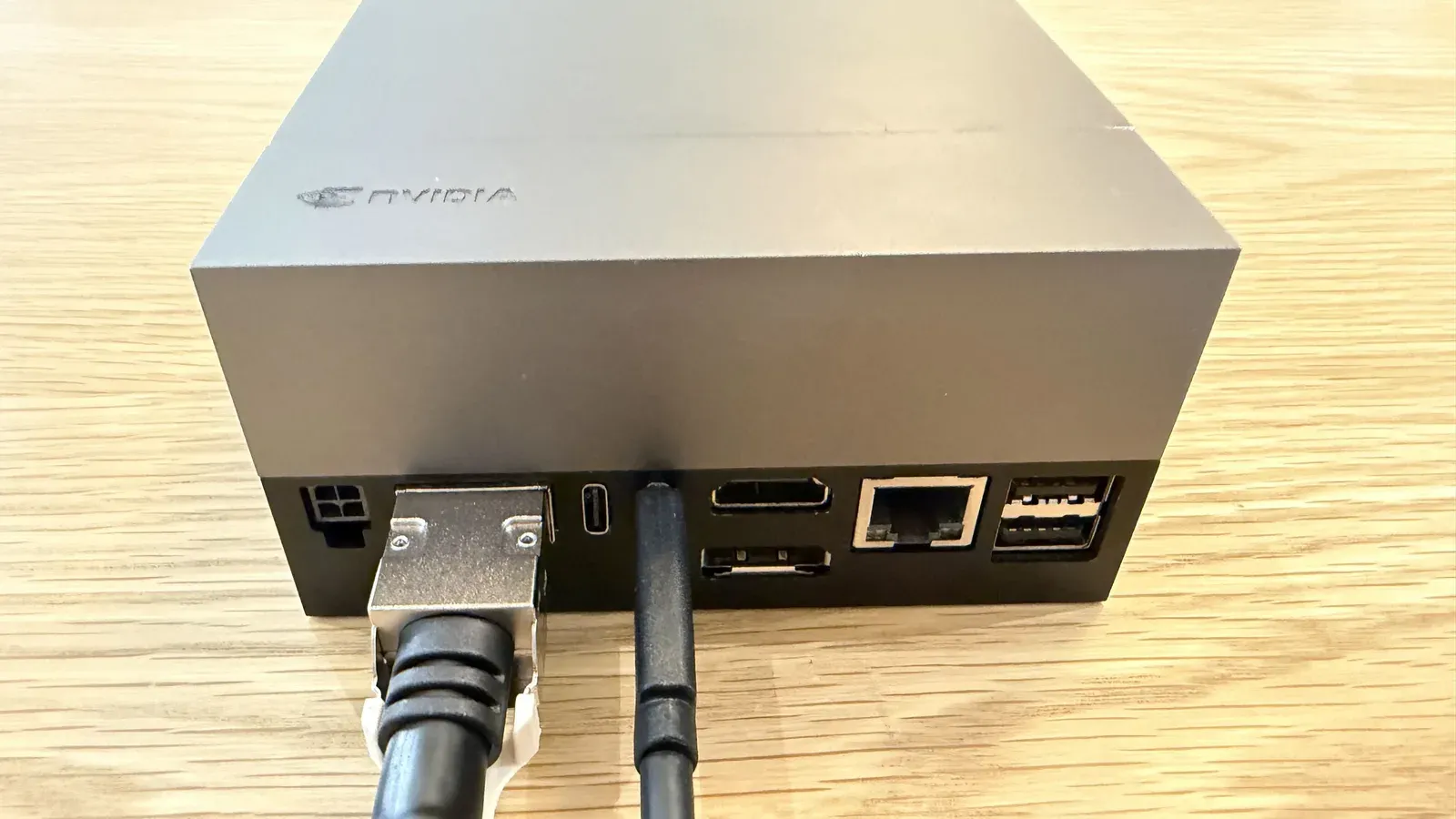
On the Developer Kit, the QSFP+ cage is the wide port on the connection panel, between the power connector and the two USB-C ports:
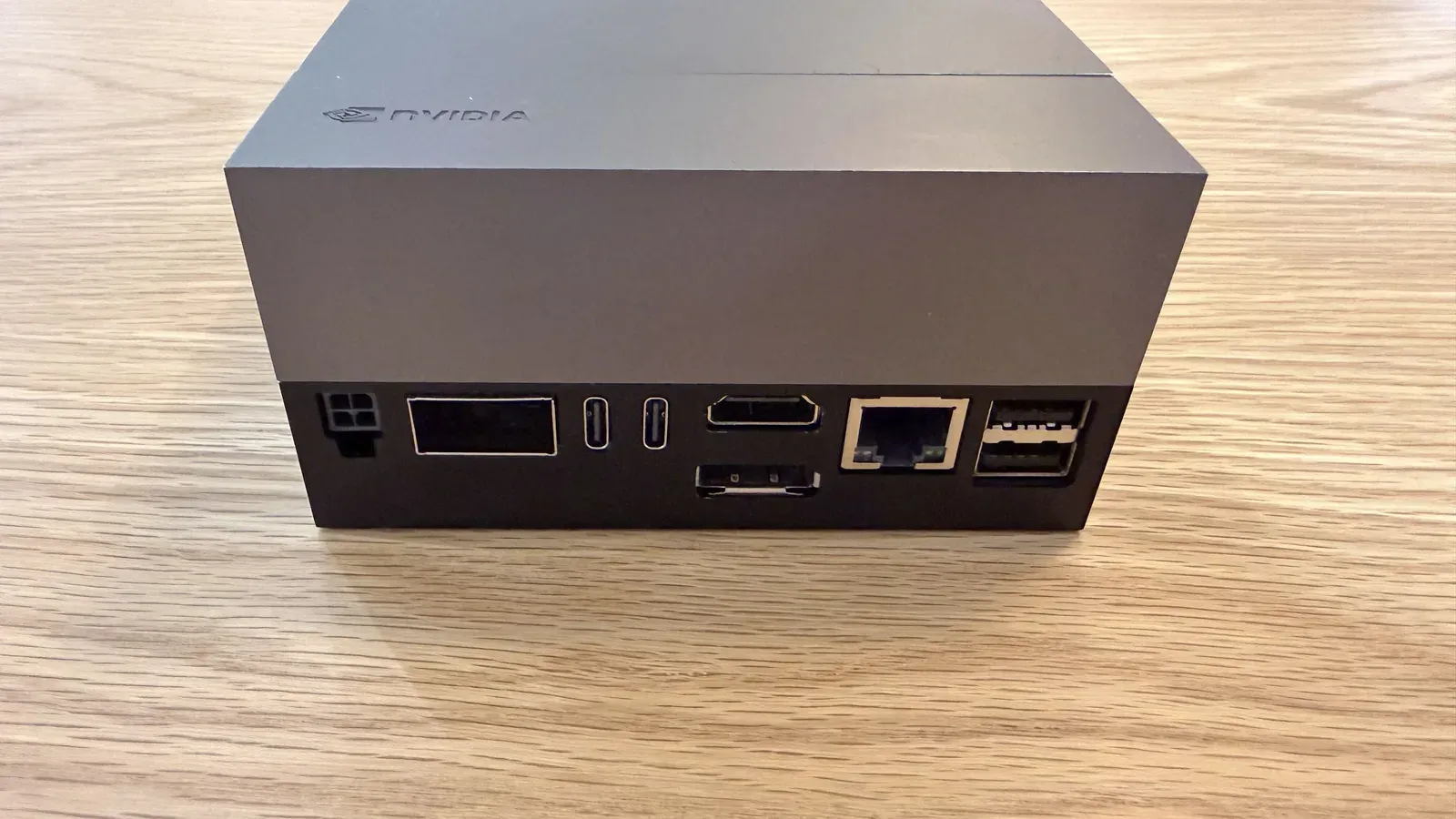
1. Plug the **QSFP+ end** of the breakout cable into the QSFP+ port of the Jetson AGX Thor™ Developer Kit.
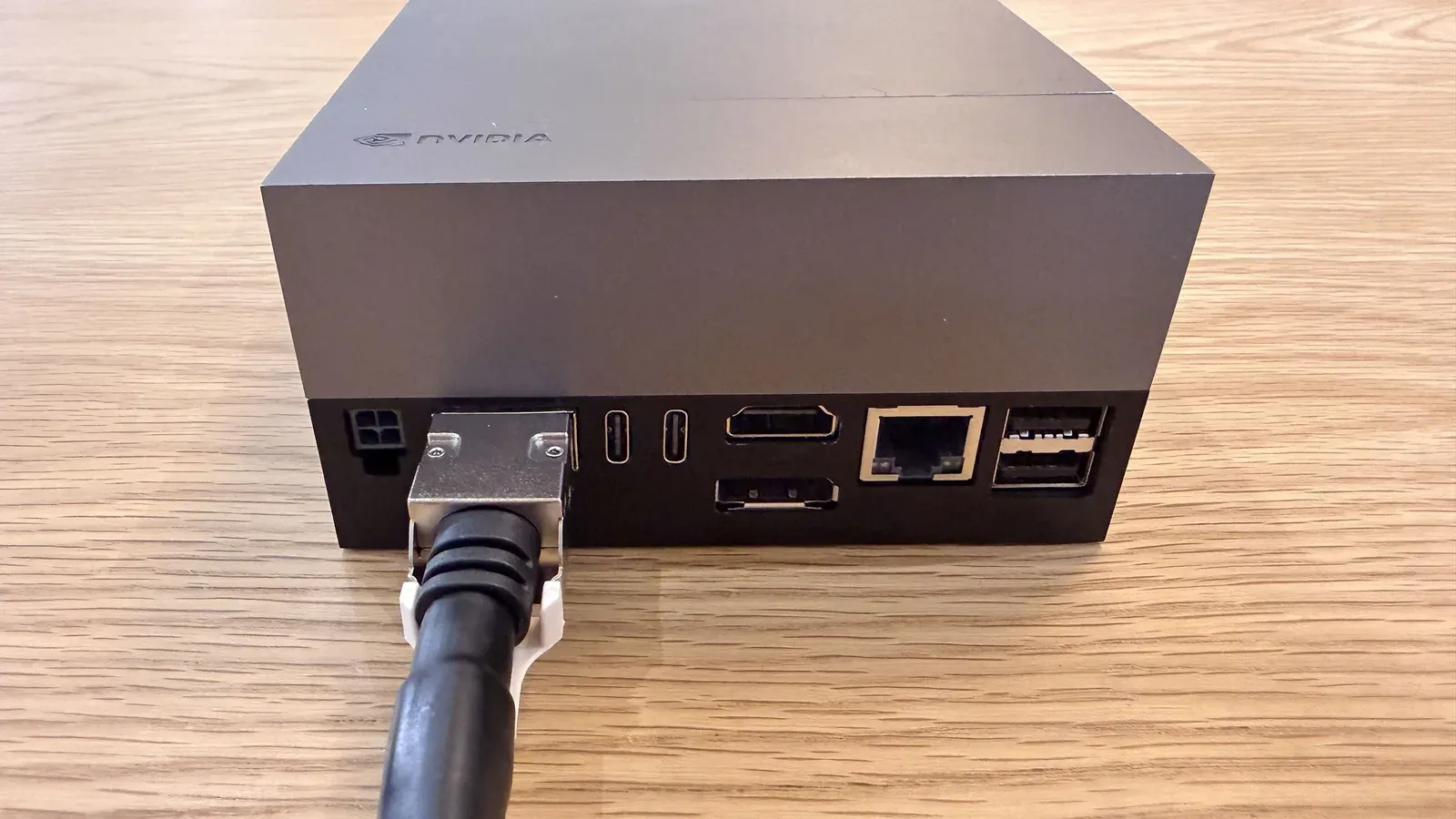
2. Plug one **SFP+ leg** of the breakout cable, preferably the first one, into the **top SFP+ port** of the bridge, labeled `J2`/`J3`, shown in the [board photo above](#the-holoscan-sensor-bridge-at-a-glance).
Each leg of the breakout cable appears as a separate `mgbe*` network interface on the Jetson. You do not need to know which one in advance: [Step 2](#step-2-configure-the-host-network) detects the interface the bridge is plugged into, and [Step 4](#step-4-install-the-zed-link-mipi-driver) writes it into the camera configuration files.
### Power up
Connect the USB-C power supply to the Holoscan Sensor Bridge, plug in the NVIDIA® power supply of the Developer Kit, connect the optional HDMI, keyboard, and mouse, then power up both boards. The cameras are powered through the MIPI I-PEX cables, so they need no additional power supply.
Once cabled, the bridge board carries the SFP+ leg on its top cage and the USB-C power cable on the opposite side:
> **Tip**
>
> The bridge board can also be powered from one of the **USB-C ports of the Developer Kit**, as shown below, which avoids a second power supply on the bench.
> **Warning**
>
> The ZED X One Core does **not** support hot-plugging. Cameras must be connected and disconnected **only when the host is powered off**, and any change to the hardware configuration requires a **full reboot** of the host to take effect.
## Step 2: Configure the host network
The bridge board has a fixed IP address of `192.168.0.2`. The Jetson interface it is plugged into must be on the same subnet.
Which `mgbe*` interface that is depends on the breakout leg you used and on how your board enumerates the interfaces. Rather than guessing, the first block below **detects** the bridge: the board broadcasts a 1 Hz enumeration beacon on UDP port `12267`, which can be heard before any IP address is configured. Paste the three blocks in order, in the **same shell**, since `$EN0` is reused:
```bash
# 1. Detect the interface the sensor bridge is on.
# The HSB broadcasts a 1 Hz enumeration beacon on UDP 12267, which we can
# hear before any IP is configured, so this works on a fresh board and does
# not care whether the port is called mgbe0, mgbe0_0, mgbe3, ...
EN0=$(sudo python3 - <<'PY'
import glob, os, socket, struct, time
def carrier(i):
try: return open(f"/sys/class/net/{i}/carrier").read().strip() == "1"
except OSError: return False
cands = [os.path.basename(p) for p in sorted(glob.glob("/sys/class/net/mgbe*"))]
for i in cands:
os.system(f"ip link set {i} up 2>/dev/null")
time.sleep(2)
up = [i for i in cands if carrier(i)]
hit = None
for i in up:
try:
s = socket.socket(socket.AF_PACKET, socket.SOCK_RAW, socket.ntohs(3))
s.bind((i, 0)); s.settimeout(2.5)
except OSError:
continue
t0 = time.time()
while time.time() - t0 < 2.5:
try: d = s.recv(2048)
except Exception: break
if (len(d) >= 42 and struct.unpack("!H", d[12:14])[0] == 0x0800
and d[23] == 17 and struct.unpack("!H", d[36:38])[0] == 12267):
hit = i; break
s.close()
if hit: break
print(hit or (up[0] if len(up) == 1 else ""))
PY
)
if [ -n "$EN0" ]; then echo "Sensor bridge is on $EN0"
else echo "No sensor bridge found. Is it powered and cabled?"; fi
```
```bash
# 2. Create the network profile on the detected interface
sudo nmcli con add con-name hololink-$EN0 ifname $EN0 type ethernet ip4 192.168.0.101/24
sudo nmcli connection modify hololink-$EN0 +ipv4.routes 192.168.0.2/32
sudo nmcli connection up hololink-$EN0
```
```bash
# 3. Check that the board answers
ping -c 3 192.168.0.2
```
If `ping` succeeds, the link is good.
If block 1 prints `No sensor bridge found`, the bridge is not transmitting on any `mgbe*` port: check that it is powered, that the SFP+ leg is in the **top** cage (`J2`/`J3`), and that `ip -br link` shows the port as `UP`, then run the block again.
> **Note**
>
> The rest of this guide spells the interface as `mgbe0_0` in its example commands. If the detection picked a different port, substitute yours, or keep using `$EN0`.
## Step 3: Check the FPGA firmware version
The Holoscan Sensor Bridge runs its own FPGA firmware, called the **HSB IP**, which is completely independent of the software installed on the Jetson. It must be recent enough before anything can stream.
> **Warning**
>
> The ZED X One Core requires **HSB IP version `0x2510` or newer**. Older firmware versions are not supported. The version is encoded as `0xYYMM`, so `0x2510` corresponds to the NVIDIA® 25.10 release.
### Build the Holoscan Sensor Bridge tools
`hololink-enumerate`, `hololink-read`, and `hsb_flasher` are NVIDIA® tools from the **Holoscan Sensor Bridge** project. They are not part of the StereoLabs driver package, so they must be built once on the Jetson. Only the small native C++ tools are needed, not the Holoscan SDK, so the build takes only a couple of minutes.
Install the build dependencies:
```bash
sudo apt update
sudo apt install -y build-essential git cmake \
libfmt-dev libssl-dev libcurl4-openssl-dev libyaml-cpp-dev python3-dev
```
Clone the release this guide is written against:
```bash
git clone --branch 2.7.0 --depth 1 \
https://github.com/nvidia-holoscan/holoscan-sensor-bridge.git
cd holoscan-sensor-bridge
```
Configure a tools-only build and build the three tools:
```bash
cmake -B build \
-DHOLOLINK_BUILD_ONLY_NATIVE=ON \
-DHOLOLINK_BUILD_EXAMPLES=OFF \
-DHOLOLINK_BUILD_TESTS=OFF \
-DHOLOLINK_BUILD_PYTHON=OFF \
-DHOLOLINK_BUILD_ROCE=OFF \
-DHOLOLINK_BUILD_EMULATOR=OFF
cmake --build build -j$(nproc) \
--target hololink-enumerate hololink-read hsb_flasher
```
> **Note**
>
> `HOLOLINK_BUILD_ONLY_NATIVE=ON` is the option that keeps the Holoscan SDK and CUDA compilation out of the build. Without it, CMake requires Holoscan 4.x. The configure step downloads `pybind11`, so the Jetson needs internet access at this point. CMake **3.24 or newer** is required; the version shipped with Ubuntu 24.04 is recent enough.
The binaries are produced in the build tree, relative to the `holoscan-sensor-bridge` folder:
| Tool | Path |
| :------------------- | :----------------------------------------- |
| `hololink-enumerate` | `build/tools/enumerate/hololink-enumerate` |
| `hololink-read` | `build/tools/read/hololink-read` |
| `hsb_flasher` | `build/tools/hsb_flasher/hsb_flasher` |
The two read-only tools are self-contained and can be installed system-wide:
```bash
sudo install -m 755 build/tools/enumerate/hololink-enumerate \
build/tools/read/hololink-read /usr/local/bin/
```
> **Warning**
>
> Leave `hsb_flasher` in its build folder and run it in place. It locates its firmware manifests and flash strategies next to its own executable, so copying the binary elsewhere breaks it.
### Read the current version
The bridge board broadcasts its identity once per second, so `hololink-enumerate` only needs to listen: no control connection is required and nothing has to be streaming.
```bash
hololink-enumerate -i mgbe0_0 -t 10
```
```
mac_id=48:B0:2D:EE:84:DA hsb_ip_version=0x2510 fpga_crc=0xffff ip_address=192.168.0.2
fpga_uuid=889b7ce3-65a5-4247-8b05-4ff1904c3359 serial_number=1003003282811 interface=mgbe0_0 board=hololink-lite
```
`hsb_ip_version` is the value to check. The `board=hololink-lite` field confirms that the board is the Lattice `CPNX100-ETH-SENSOR-BRIDGE`.
On a board that already answers `ping`, the version register can also be read directly:
```bash
hololink-read -H 192.168.0.2 0x80 # HSB_IP_VERSION
hololink-read -H 192.168.0.2 0x84 # FPGA datecode
```
If `hololink-enumerate` prints nothing at all, no board is broadcasting: check that the bridge is powered, that `ip -br link` shows `mgbe0_0` as `UP`, then redo [Step 2](#step-2-configure-the-host-network).
### Upgrade the firmware
`hsb_flasher` recognizes the board from its FPGA UUID and selects the right flash routine and images automatically, so no board-specific option is needed:
```bash
# 1. Confirm that the board is reachable
ping -c 3 192.168.0.2
# 2. Flash, from the holoscan-sensor-bridge folder. Omit -t to take the newest
# firmware available, or pin the version validated by StereoLabs (hex, no 0x prefix)
./build/tools/hsb_flasher/hsb_flasher -H 192.168.0.2 -t 2510
# 3. POWER CYCLE the bridge board: the new image only takes effect after a full power-off
# 4. Confirm the new version
hololink-enumerate -i mgbe0_0 -t 10
```
> **Warning**
>
> The power cycle in the commands above is **mandatory**. A reboot of the Jetson is not enough: the bridge board itself has to be fully powered off and on again.
Points to keep in mind before flashing:
* **No other client may be connected to the board.** The control plane accepts exactly one client, so close ZED Studio and any other tool first.
* **The Jetson needs internet access.** `hsb_flasher` downloads the CLNX and CPNX images from the NVIDIA® server and verifies their MD5 checksum. If the Jetson is offline, fetch the two `.bit` files on another machine and pass them explicitly:
```bash
./build/tools/hsb_flasher/hsb_flasher -H 192.168.0.2 \
--clnx fpga_clnx_v2510.bit --bitfile fpga_cpnx_v2510.bit
```
* **If the board already runs the target version**, the tool exits without doing anything. Add `--reapply` to force a reflash.
* **Firmware older than `0x2407` is not handled by this flasher.** Follow the NVIDIA® HSB 2.0 update procedure first, then come back to this step.
The complete upstream procedure is available in the [NVIDIA® Holoscan Sensor Bridge documentation](https://docs.nvidia.com/holoscan/sensor-bridge/2-7-latest/firmware/firmware-setup#holoscan-sensor-bridge-fpga-firmware-update).
> **Note**
>
> A **blank board cannot be flashed this way**. Depending on the vendor, the bridge may ship with no FPGA image at all, in which case it answers neither `ping` nor `hololink-enumerate`, because flashing over Ethernet requires working firmware to begin with. Such a board has to be programmed over **JTAG** with the Lattice Radiant Programmer first: please check with your board vendor.
## Step 4: Install the ZED Link MIPI driver
This package contains everything the Jetson needs to see the camera: the AR0234 sensor driver, the Camera-over-Ethernet transport driver, the camera configuration, and the ISP tuning. There is nothing to build and nothing to copy by hand: once the package is installed, only the host interface name has to be set.
> **Note**
>
> The driver package for the Holoscan Sensor Bridge configuration is **different** from the ZED Link MIPI driver used on the AGX Orin Developer Kit. It is delivered by StereoLabs on request: please contact [support@stereolabs.com](mailto:support@stereolabs.com).
Unpack the archive sent by StereoLabs and install the Debian package:
```bash
sudo dpkg -i sipl-uddf-drivers_-R392_arm64.deb
```
Check that the five files are correctly installed:
```bash
dpkg -L sipl-uddf-drivers | grep -E '\.so$|\.json$|\.nito$'
```
```
/usr/lib/nvsipl_drv/libar0234_library.so
/usr/lib/nvsipl_drv/libhsb_transport_library.so
/var/nvidia/nvcam/settings/sipl/nova0_camera.json
/var/nvidia/nvcam/settings/sipl/nova1_camera.json
/var/nvidia/nvcam/settings/sipl/ZED_AR0234CS_HAWK.nito
```
If any of them is missing, the installation failed: run `dpkg -i` again and read its output.
### Point the camera configuration to the host interface
The camera configuration files name the Jetson interface the bridge is plugged into. Set it to the interface detected in [Step 2](#step-2-configure-the-host-network):
```bash
# Recover the interface from the network profile created in Step 2,
# in case this is a new shell
[ -n "$EN0" ] || EN0=$(nmcli -t -f NAME con show | sed -n 's/^hololink-//p' | head -n 1)
echo "Using $EN0"
sudo python3 - "$EN0" <<'PY'
import glob, re, sys
ifname = sys.argv[1]
for p in sorted(glob.glob("/var/nvidia/nvcam/settings/sipl/nova*_camera.json")):
src = open(p).read()
new, n = re.subn(r'("if_name"\s*:\s*")[^"]*(")',
lambda m: m.group(1) + ifname + m.group(2), src)
if new != src:
open(p, "w").write(new)
print("%s: %d if_name field(s) -> %s" % (p, n, ifname))
PY
```
Each file should report at least one `if_name` field set to your interface. If `Using` prints an empty name, no network profile was found: redo [Step 2](#step-2-configure-the-host-network) and run this block again in the same shell. If a file reports `0 if_name field(s)`, it was not installed correctly: reinstall the driver package.
> **Note**
>
> The IP address (`192.168.0.2`) and the subnet also come from `/var/nvidia/nvcam/settings/sipl/nova0_camera.json`, and must match the network profile created in Step 2.
> **Warning**
>
> Reinstalling or upgrading the driver package can restore the default interface name: run this block again after every `dpkg -i`.
To remove or upgrade the package later:
```bash
sudo dpkg -r sipl-uddf-drivers # remove
sudo dpkg -i sipl-uddf-drivers_-R392_arm64.deb # upgrade in place
```
## Step 5: Install the ZED SDK
The ZED SDK turns the SIPL pipeline into a regular ZED camera, accessible through the `sl::CameraOne` API, and includes ZED Studio. Camera-over-Ethernet support is built into the **v5.5** release.
Download the installer matching your Jetson Linux version from the [StereoLabs developer page](https://www.stereolabs.com/developers/release), then run it:
```bash
chmod +x ZED_SDK_Tegra_L4T39.2_v5.5.0.zstd.run
./ZED_SDK_Tegra_L4T39.2_v5.5.0.zstd.run
```
The `L4T39.2` part of the filename must match the release reported by `/etc/nv_tegra_release`. Answer the prompts of the installer and accept the license; the optional AI models and the Python API are not required for this guide. The SDK is installed in `/usr/local/zed/`.
More details are available in the [Install the ZED SDK on NVIDIA® Jetson](/docs/development/zed-sdk/linux/work-with-nvidia-jetson/) guide.
> **Tip**
>
> Install the ZED SDK **after** the driver package. Both orders work, but this way the first detection test you run is already meaningful.
## Step 6: Verify the installation
Check that the cameras are detected:
```bash
ZED_Studio --list
```
Each connected ZED X One Core is listed with its serial number and an `Input type: HOLOLINK` field. `ZED_Explorer --all` lists them as well. If nothing is listed, see the [MIPI Troubleshooting](/docs/products/embedded/zed-link-capture-card/mipi/troubleshooting#holoscan-sensor-bridge-on-jetson-agx-thor) page.
Open ZED Studio to get a live view and select the camera in the device list:
```bash
ZED_Studio
```
The ISP tuning shipped in the driver package is applied automatically, so the image arrives fully processed, with auto exposure and auto white balance already running.
A camera can also be opened directly at a given resolution and frame rate, using the serial number printed by `--list`:
```bash
ZED_Studio --camera HD1200 30
ZED_Studio --camera HD1080 60
```
In this configuration, the ZED X One Core supports the following video modes, each at 15, 30, or 60 fps:
| Value | Resolution | Notes |
| :------- | :--------- | :----------------- |
| `HD1200` | 1920x1200 | native AR0234 |
| `HD1080` | 1920x1080 | center-cropped |
| `SVGA` | 960x600 | binned and cropped |
Any other value falls back to the closest supported mode.
> **Note**
>
> The `960x600 @120 fps` binning mode listed in the [ZED X One Core specifications](/docs/products/cameras/zedxone-core/specifications) is **not available** in this configuration: over Camera-over-Ethernet, every resolution is capped at 60 fps. The full set of modes is available on an [NVIDIA® Jetson AGX Orin™ Developer Kit](/docs/products/embedded/zed-link-capture-card/mipi/zed-link-mipi-quad/jetson-orin-agx-devkit-setup).
> **Note**
>
> The `-r` option of ZED Studio is `--recording`, not the resolution. The resolution is the second positional argument of `--camera`, as shown above. Run `ZED_Studio --help` for the complete list of options.
## Multi-camera configuration
Only the `J1` and `J2` channels of the ZED Link MIPI Quad are wired through the Holoscan Sensor Bridge, so this configuration supports a maximum of **two cameras**.
| Camera type | Camera model | Max number of cameras | Max resolution/FPS **per channel** |
| :---------- | :------------- | :-------------------- | :-------------------------------------- |
| Monocular | ZED X One Core | 2 cameras | HD1200\@60fps HD1080\@60fps SVGA\@60fps |
The two cameras are hardware-synchronized by the FPGA of the capture card, with a precision of **15 µs**, so no jumper or external wiring is required. They can be used as a **virtual stereo camera** in the ZED SDK, after calibration: see [Setting up the ZED X One Stereo](/docs/products/cameras/zedxone/dual-camera-stereo-vision/).
> **Note**
>
> Although frames are hardware-synchronized with 15 µs precision, software timestamps are assigned when the driver receives the frames, and may show a slight millisecond-level jitter. Frames are considered synchronized if the timestamp difference is less than one frame period (`1000/FPS` ms).
## Quick reference
| Item | Value |
| :--------------------------- | :---------------------------------------------------------- |
| Bridge board IP address | `192.168.0.2` |
| Host interface | `mgbe*` port detected in Step 2 (`mgbe0_0` in the examples) |
| Minimum FPGA firmware | `0x2510` |
| Minimum Jetson Linux release | R39.2.0 (JetPack 7.2) |
| Minimum ZED SDK version | v5.5 |
| Usable camera channels | `J1` and `J2` only, two cameras maximum |
End-to-end command summary:
```bash
# 1. Host network (EN0 = interface detected in Step 2)
EN0=mgbe0_0
sudo nmcli con add con-name hololink-$EN0 ifname $EN0 type ethernet ip4 192.168.0.101/24
sudo nmcli connection modify hololink-$EN0 +ipv4.routes 192.168.0.2/32
sudo nmcli connection up hololink-$EN0
ping -c 3 192.168.0.2
# 2. FPGA firmware, must be 0x2510 or newer
hololink-enumerate -i $EN0 -t 10
# only if too old: flash, then POWER CYCLE the bridge board
./build/tools/hsb_flasher/hsb_flasher -H 192.168.0.2 -t 2510
# 3. Camera driver package, then set if_name in the camera config (Step 4)
sudo dpkg -i sipl-uddf-drivers_-R392_arm64.deb
sudo sed -i -E "s/(\"if_name\"[[:space:]]*:[[:space:]]*\")[^\"]*/\1$EN0/" \
/var/nvidia/nvcam/settings/sipl/nova*_camera.json
# 4. ZED SDK
chmod +x ZED_SDK_Tegra_L4T39.2_v5.5.0.zstd.run
./ZED_SDK_Tegra_L4T39.2_v5.5.0.zstd.run
# 5. Run
ZED_Studio --list # confirm the detection
ZED_Studio # live view
```
## Troubleshooting
The troubleshooting checks for this configuration are gathered on the [MIPI Troubleshooting](/docs/products/embedded/zed-link-capture-card/mipi/troubleshooting) page, alongside the ones shared with the AGX Orin Developer Kit:
* [Common checks and commands](/docs/products/embedded/zed-link-capture-card/mipi/troubleshooting#common-checks-and-commands), to list the cameras seen by the ZED SDK and inspect the capture pipeline.
* [Holoscan Sensor Bridge on Jetson AGX Thor](/docs/products/embedded/zed-link-capture-card/mipi/troubleshooting#holoscan-sensor-bridge-on-jetson-agx-thor), for the symptoms specific to this setup: no device listed, a single camera detected, firmware too old, black live view, recovering the Ethernet connection, and cleaning up the SIPL log output.
---
🎉 **Congratulations!** You have successfully assembled your StereoLabs **ZED Link MIPI Quad** capture card on an **NVIDIA® Holoscan Sensor Bridge** and connected it to your NVIDIA® Jetson AGX Thor™ Developer Kit. Now that the cameras are up and running, it is time to start experimenting and building your projects. **Happy coding!**