

Using the ZED with ROS 2 in Isaac™ Sim
This tutorial guides you through configuring the Isaac™ Sim ROS 2 Bridge to send simulated information to a ZED ROS 2 Wrapper node.
Install the dependencies
This installation guide is valid only for Ubuntu. For other operating systems, please refer to the official NVIDIA® documentation.
Some ROS 2 message types used by the Isaac™ Sim ROS 2 Bridge (such as Detection2DArray and Detection3DArray) depend on the Vision Messages ROS 2 package. We recommend installing it so that all message types are available:
IMPORTANT: do not permanently append the bridge’s internal ROS 2 libraries to LD_LIBRARY_PATH in your ~/.bashrc. Doing so creates conflicts between libraries that prevent rviz2 and other ROS 2 tools from starting. Source your ROS 2 workspace once per terminal instead, as shown below.
For additional details, we recommend reading the official NVIDIA® documentation.
Set up the environment variables for ROS 2
Ensure that the ROS 2 environment is sourced in the terminal before starting Isaac™ Sim:
You must run this command in the same terminal before launching Isaac™ Sim with ./isaac-sim.sh (located in the _build/linux-x86_64/release folder of your Isaac™ Sim build). Alternatively, add the line to your ~/.bashrc so the ROS 2 environment is configured automatically each time you open a terminal.
Enable the ROS 2 Bridge Extension
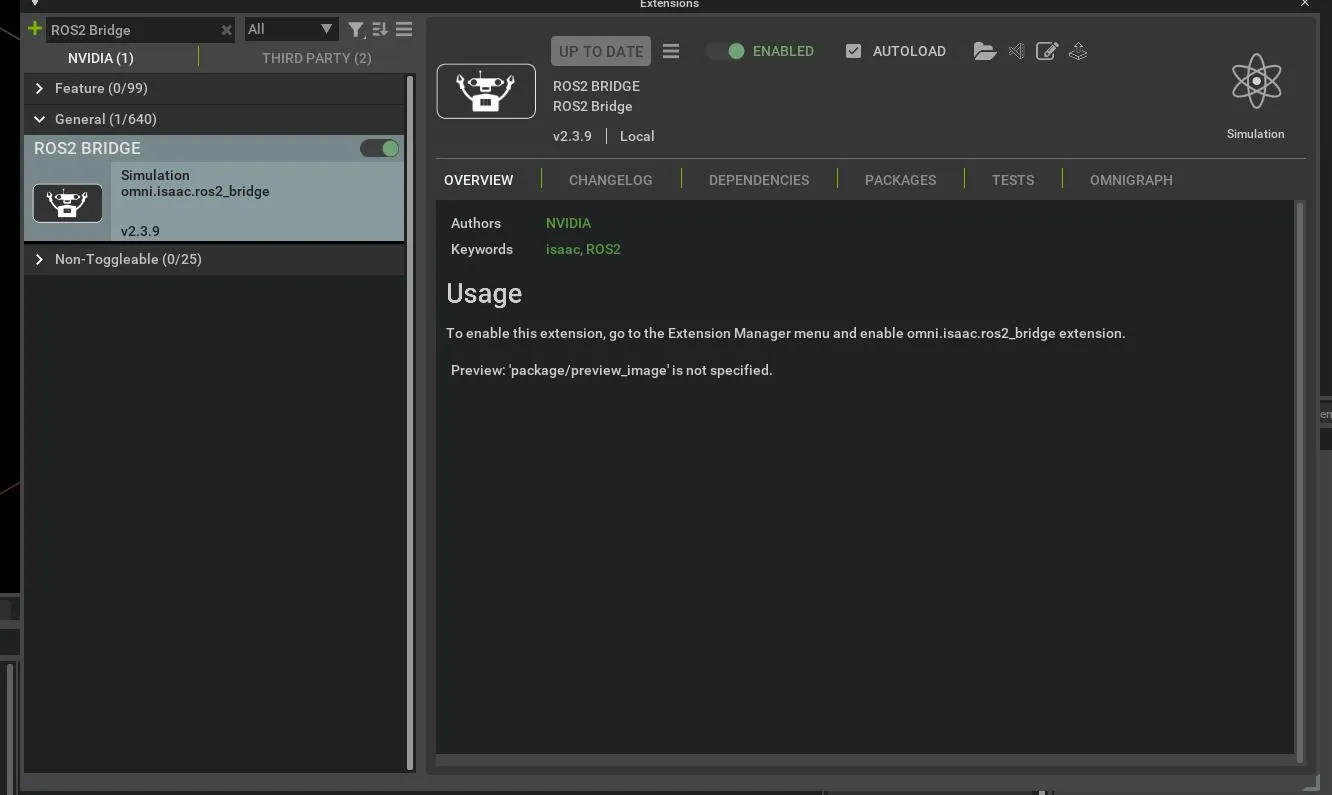
When Isaac™ Sim is ready, you must enable the isaacsim.ros2.bridge extension.
- Open the Extensions view from the menu, Window -> Extensions.
- Search for
isaacsim.ros2.bridgeusing the search form in the top left. - Toggle the switch to enable the extension.
- [Optional] Enable the
AUTOLOADoption to skip this step each time you start Isaac™ Sim.
Enable the ZED Camera Extension
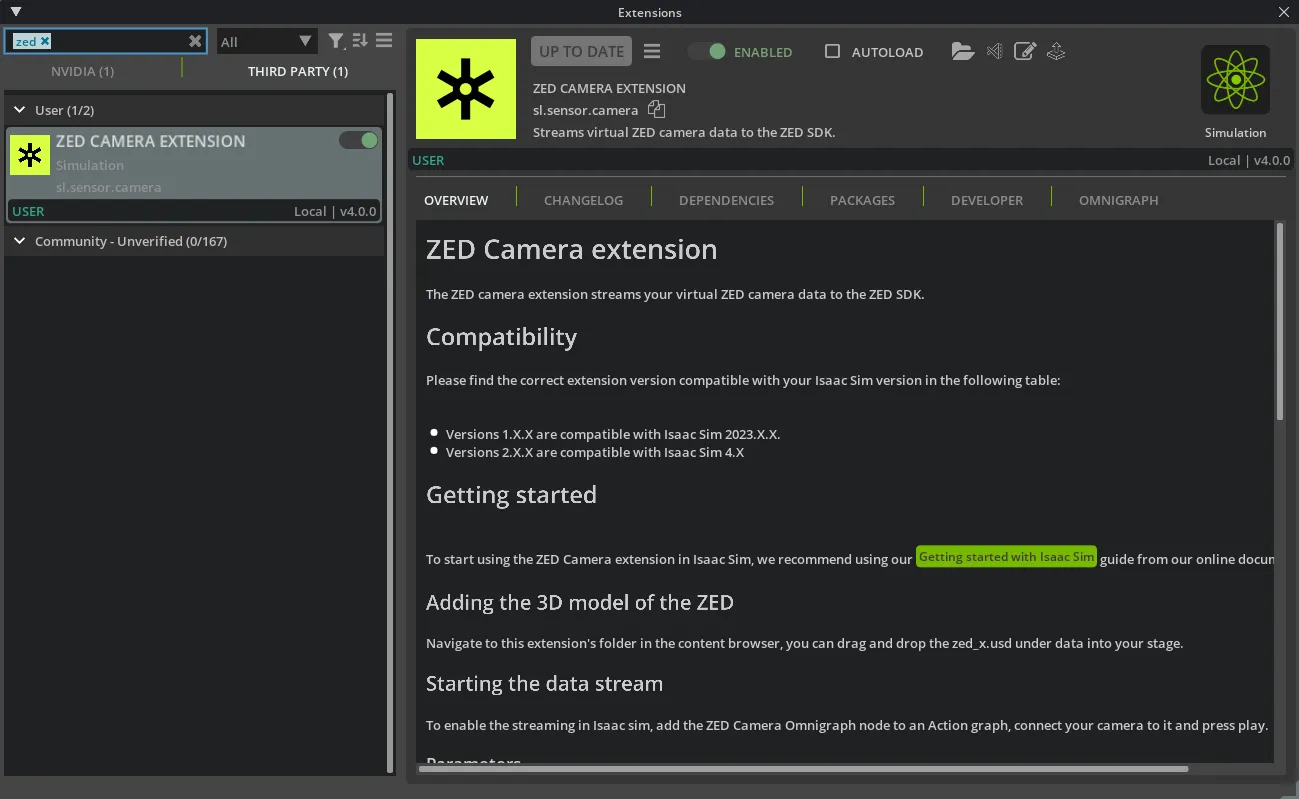
The ZED Camera extension is required to send the simulated ZED images to the ZED ROS 2 Wrapper.
- Open the Extensions view from the menu, Window -> Extensions.
- Search for
ZEDusing the search form in the top left.- Select the
THIRD PARTYtab if you installed the extension from the GitHub repository (see the installation instructions for adding the extension if it is not available).
- Select the
- Toggle the switch to enable the extension.
- [Optional] Enable the
AUTOLOADoption to skip this step each time you start Isaac™ Sim.
Add a scenario to the Stage
The ZED camera is a visual sensor, so it’s important to add an environment that is rich in visual features for a good simulation experience.
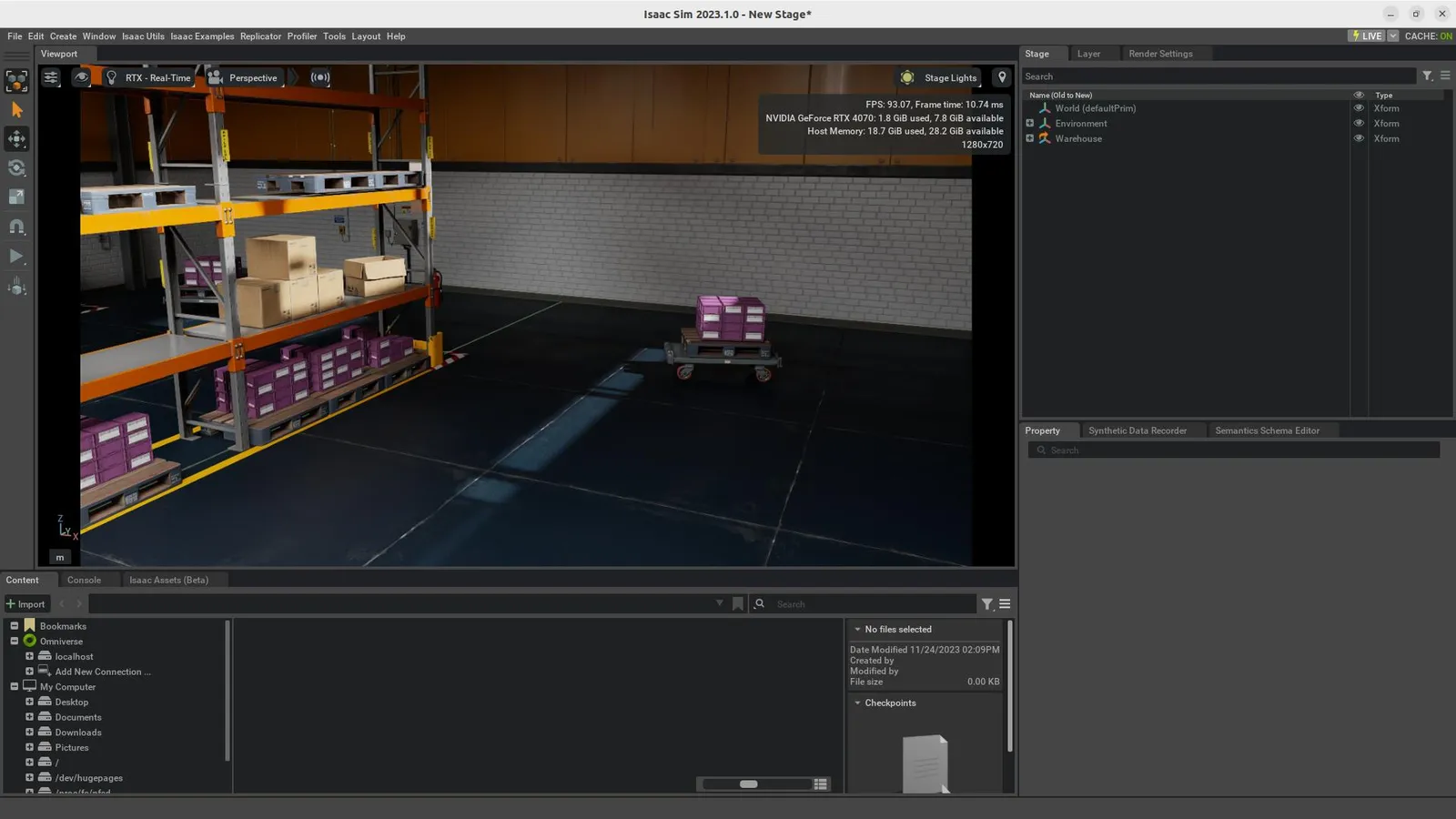
Isaac™ Sim provides ready-made environments to use. From Create -> Isaac -> Environments, you can select, for example, the environment named Small Warehouse with Multiple Shelves.
Wait for the simulator to load the environment. This task can take a while, depending on the size of the environment that you selected.
Once all the objects in the scene are finally loaded, the simulator will display the selected environment from the default point of view of the viewport camera.
Add a ZED camera to the scene
The USD files for the ZED camera models are bundled with the ZED Camera extension, in the exts/sl.sensor.camera/data/usd folder. If you don’t already have the extension locally, clone the GitHub repository:
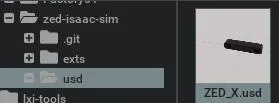
Select the model ZED_X.usdc and drag it into the Viewport to place it in the position that you prefer.
A new prim named ZED_X will appear in the Stage view as a child of World.
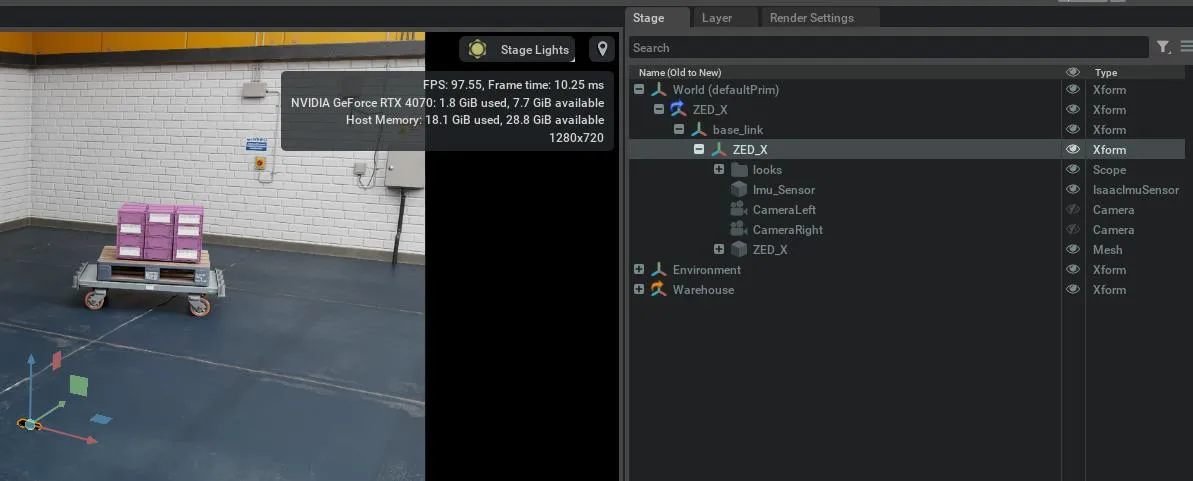
The ZED_X prim has an important XForm named base_link; this is the reference frame of the mounting point on the bottom of the camera.
Enable the ZED camera
The data streaming is activated using the OmniGraph node ZED Camera Helper.
- Create a new
Action Graph, Create -> Visual Scripting -> Action Graph. - Add a new node of type
On Playback Tickto the graph. You can easily search for it by writingTickin the search form. - Type
ZEDin the search form and drag theZED Camera Helpernode into the graph. - Connect the
ExecIninput ofZED Camera Helperto theTickoutput of theOn Playback Ticknode.
The ZED Camera extension also includes a lower-level ZED Stream node. For most use cases, make sure to use the ZED Camera Helper node (or the ZED Camera One Helper node for monocular ZED X One cameras).
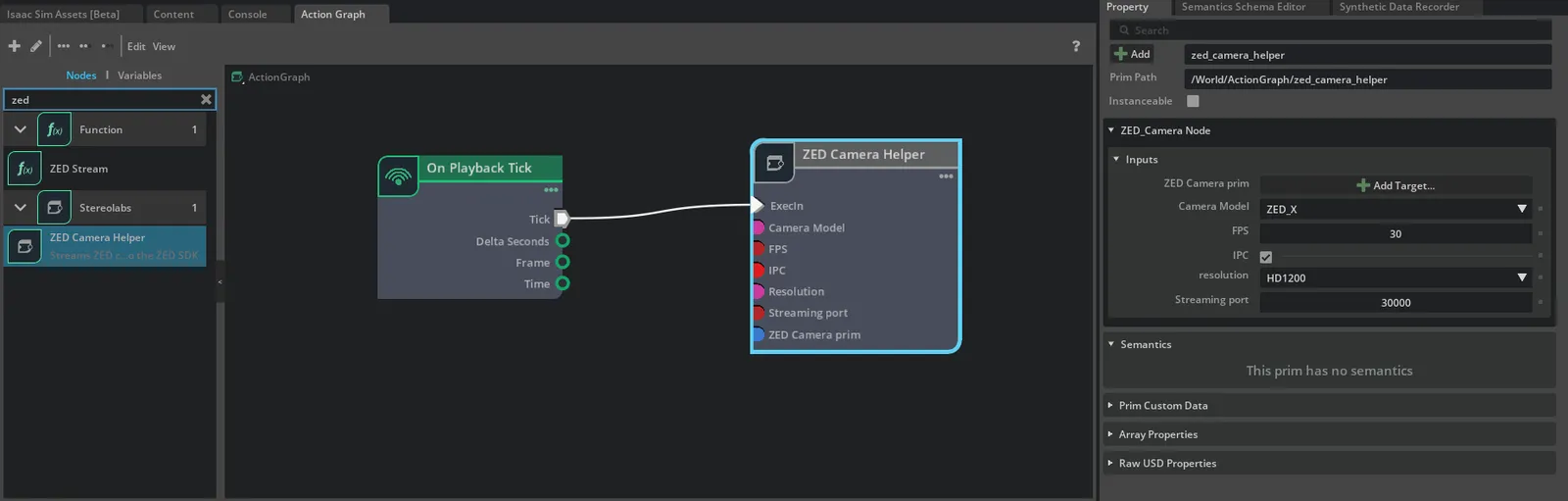
- Click on the
ZED Camera Helperin the graph and select thePropertytab on the right. - Click
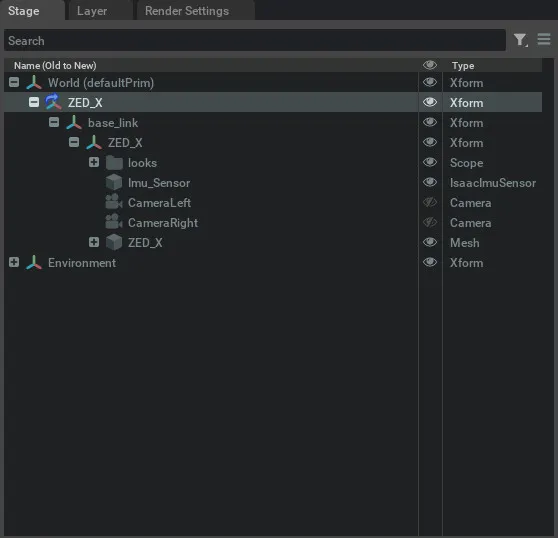
+ Add TargetnearZED Camera prim. - Select the root XForm named
ZED_Xand hitSelect.
Publish simulation time to ROS 2
When working with simulated data, the ROS 2 nodes cannot rely on the system clock to timestamp the data accurately. Instead, they have to use the simulation time, which can be faster or slower than real time.
To handle this behavior, the Isaac™ Sim ROS 2 Bridge provides a method to publish messages to the /clock topic with simulation time data.
All the ROS 2 nodes have a parameter named use_sim_time. When this parameter is set to true, each ROS 2 node subscribes to the /clock topic, and uses the simulation time as the reference for time instead of the system time.
- Select the
Action Graphtab in the bottom panel. - Add a new node of type
Isaac Read Simulation Time.- [Optional] Click on the
Isaac Read Simulation Time. - [Optional] Select the
Propertiestab in the right panel. - [Optional] Check the
Reset on stopoption to reset the simulation time to zero each time the simulation is stopped and restarted.
- [Optional] Click on the
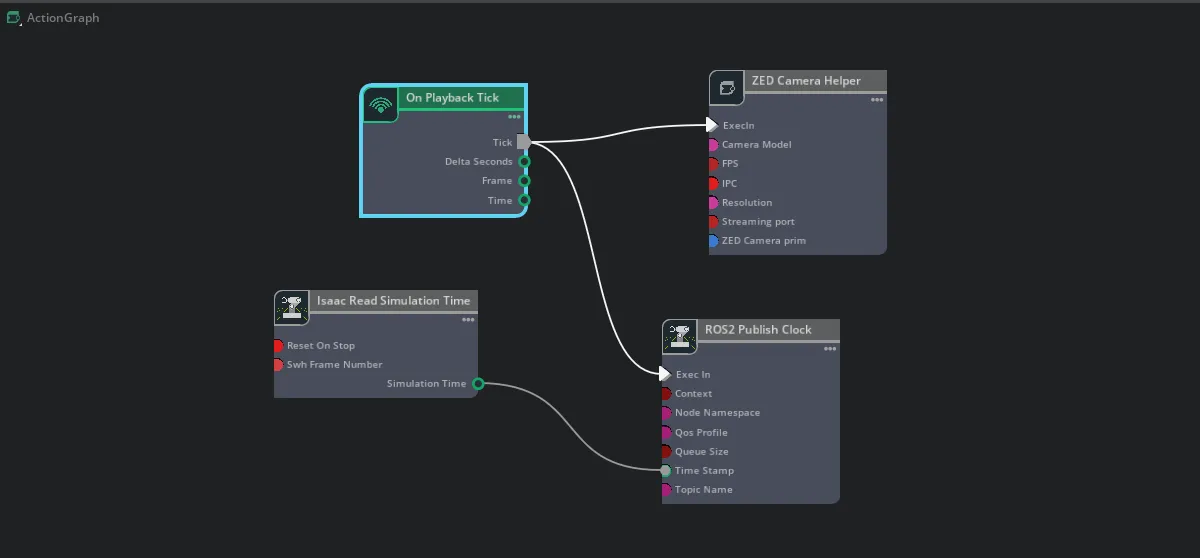
- Add a new node of type
ROS2 Publish Clock. - Connect the
Tickoutput of theOn Playback Ticknode to theExecIninput ofROS2 Publish Clock. - Connect the
Simulation Timeoutput of theIsaac Read Simulation Timenode to theTime Stampinput ofROS2 Publish Clock.
- Start the simulation by hitting the Play button on the left panel.
Now you can verify that the configuration is valid:
- Open a Terminal console (
Ctrl + Alt + t). - Enter the command
ros2 topic echo /clock. - Verify that the
/clocktopic is correctly published:
- Stop listening to the
/clocktopic withCtrl+c.
Start the ZED ROS 2 Wrapper node with simulated data
The ZED ROS 2 Wrapper enables connection to the ZED Camera extension, publishing ZED data in ROS 2 as if a real camera were present.
Prerequisites
The “ZED ROS 2 Wrapper” and the “ZED ROS 2 Examples” packages must be installed on the system.
Follow the relevant guides to install them if you have not already done so:
Launch the ZED ROS 2 node
Launch a standalone ZED ROS 2 node with simulated ZED data as input:
Launch options:
- [Mandatory]
sim_mode: start the ZED node in simulation mode iftrue. - [Mandatory]
use_sim_time: force the node to wait for valid messages on the topic/clock, and use the simulation time as the reference. - [Optional]
sim_address: set the address of the simulation server. Default is127.0.0.1and it’s valid if the node runs on the same machine as the simulator. - [Optional]
sim_port: set the port of the simulation server. It must match the value of the fieldStreaming Portof the properties of theZED Camera HelperAction Graph node. A differentStreaming Portvalue for each camera is required in multi-camera simulations.
Set
camera_modelto match the camera placed in the simulation. The ZED Camera extension supports the ZED X stereo family (zedx,zedxm,zedxnano), withzedxbeing the most thoroughly tested.
Starting from v5.5.0 of the ROS 2 Wrapper the monocular node supports simulation as well. Launch it with a ZED X One camera model, and pair it with a ZED Camera One Helper Action Graph node in the simulation, to publish images and IMU data from the simulated camera:
A simulated Virtual Stereo Camera (camera_model:=virtual) no longer requires serial_numbers or camera_ids, since the simulator streams the already paired stereo images.
The grab resolution and the frame rate are no longer forced to HD1080 @ 60 Hz: since v5.5.0 of the ROS 2 Wrapper they are read from the simulated camera, so a simulation running at the extension default of 30 FPS is reported and published correctly. This also removes the spurious general.grab_frame_rate value is not valid warning printed at every start-up. general.pub_frame_rate: 0 (“no limit”) now follows the real grab rate even when that rate is known only once the input is open.
You can also start a preconfigured instance of rviz2 to visualize all the information available in simulation by using the command:
The display_zed_cam.launch.py launch file includes the zed_camera.launch.py launch file, so it provides the same parameters.
You can get the list of all the available launch parameters by using the -s launch option:
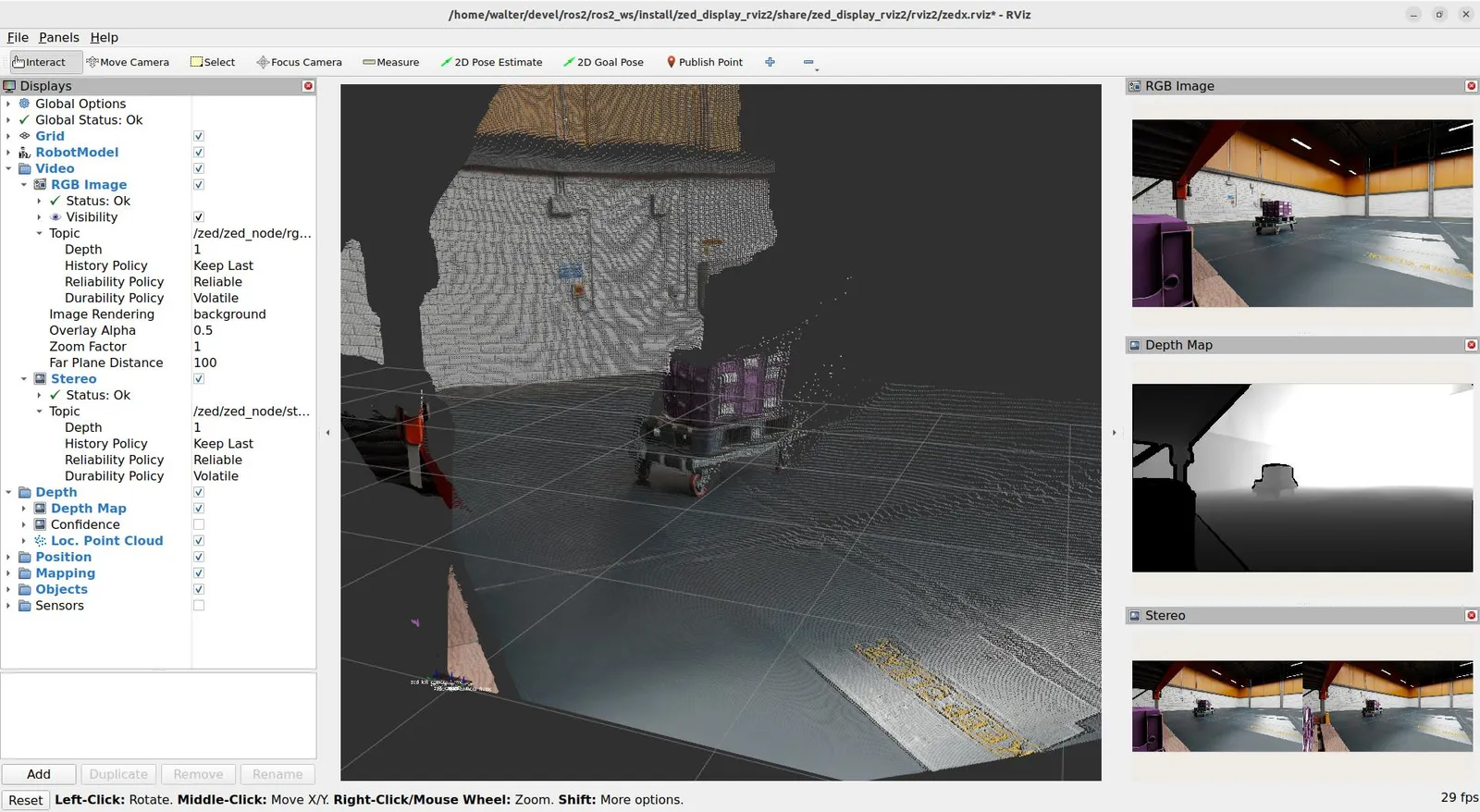
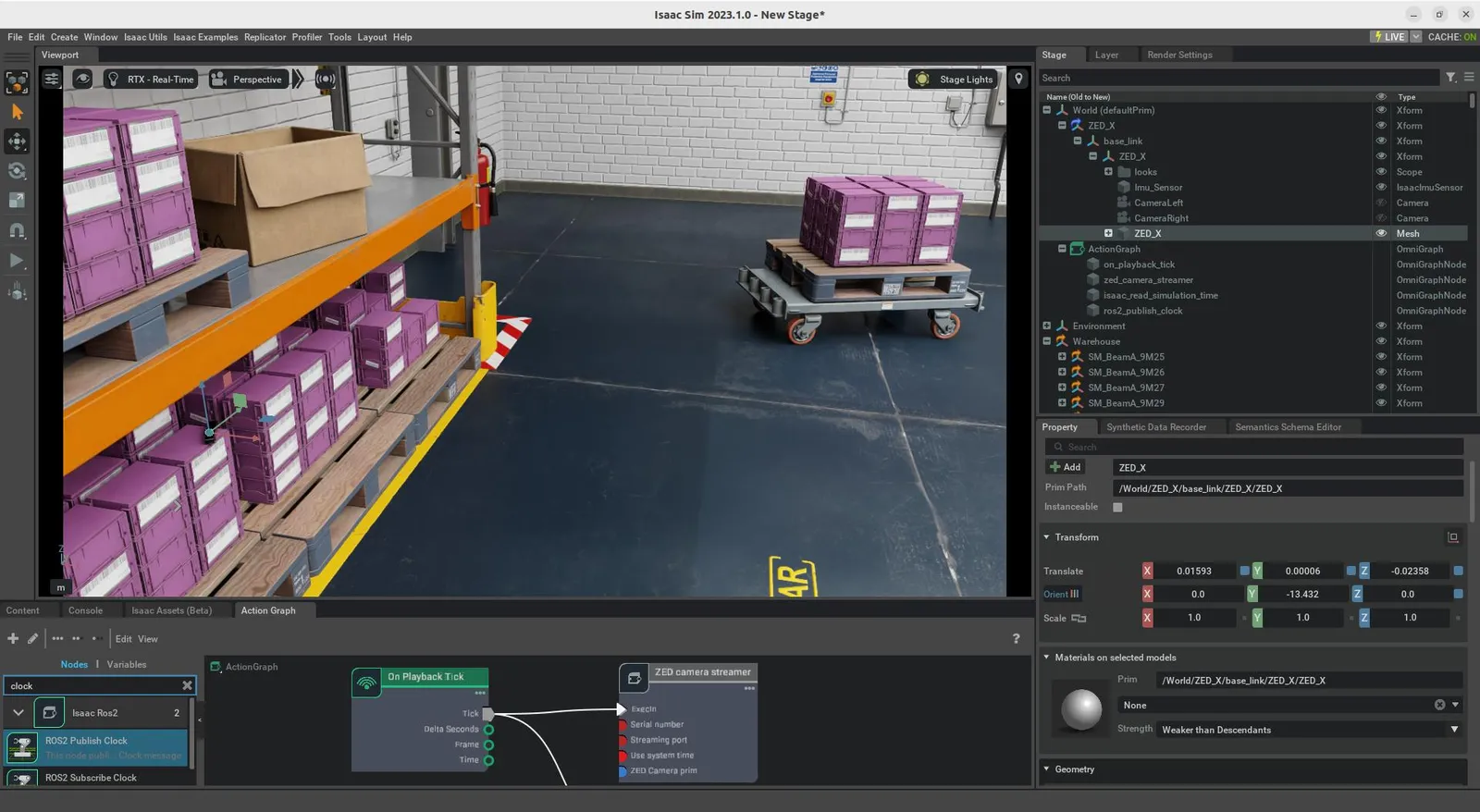
Here’s an example of rviz2 running with the simulated information obtained by placing the ZED camera on a shelf in a simulated warehouse:
See also
- Setting up the ZED in Isaac™ Sim: the full reference for adding a ZED camera, building the Action Graph, and configuring the ZED Camera Helper node.
- Getting Started with ROS 2 and ZED: the full ZED ROS 2 Wrapper documentation, covering parameters, topics, and available tools.
- Using the ZED in Isaac™ Lab: an alternative, SDK-free path to read stereo RGB and depth as in-process tensors for reinforcement learning and imitation learning.
- SDK-free depth capture: capture RGB and renderer depth directly in Isaac™ Sim, with no ZED SDK and no streaming.