Configuring your Unreal Project for AR/MR

Open in ClaudeOpen in ChatGPT

For the plugin to work, there are a number of configurations that have to be set properly. Let’s step through them. Go to Edit -> Project Settings. You’ll see this window:
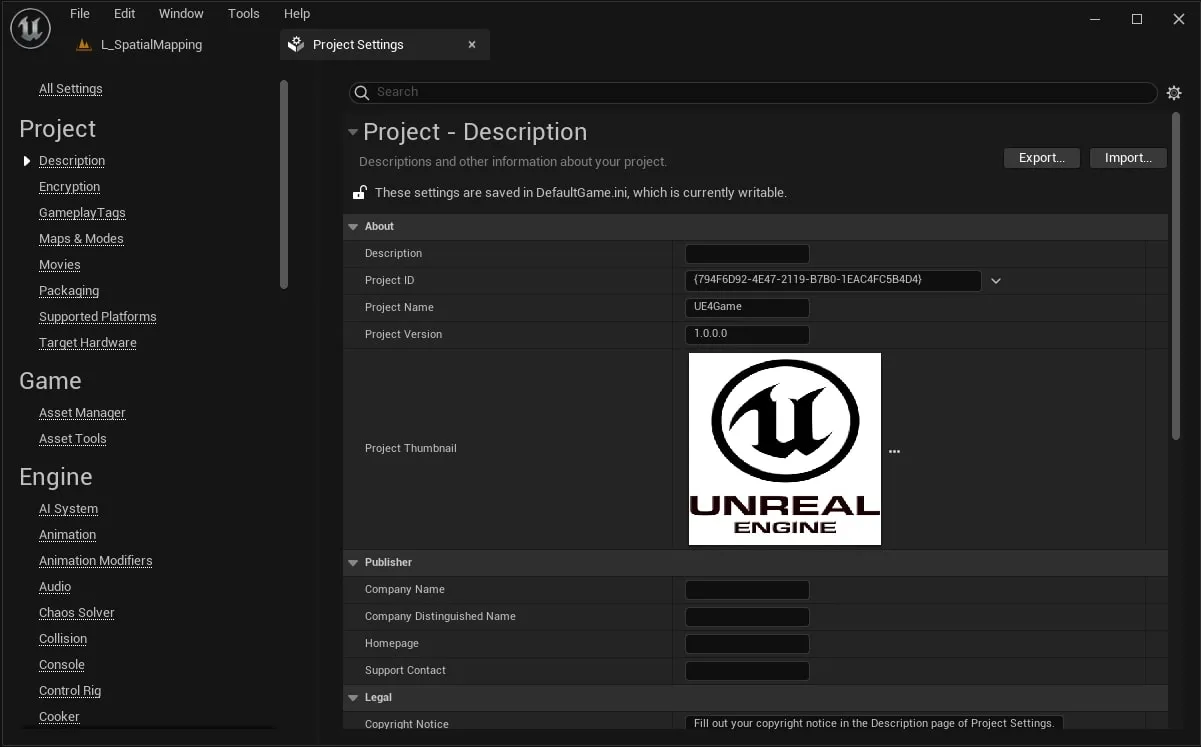
image

In Maps & Mode:

  • Change the GameMode to BP_ZED_GameMode
  • Change Game Instance Class to ZEDGameInstance
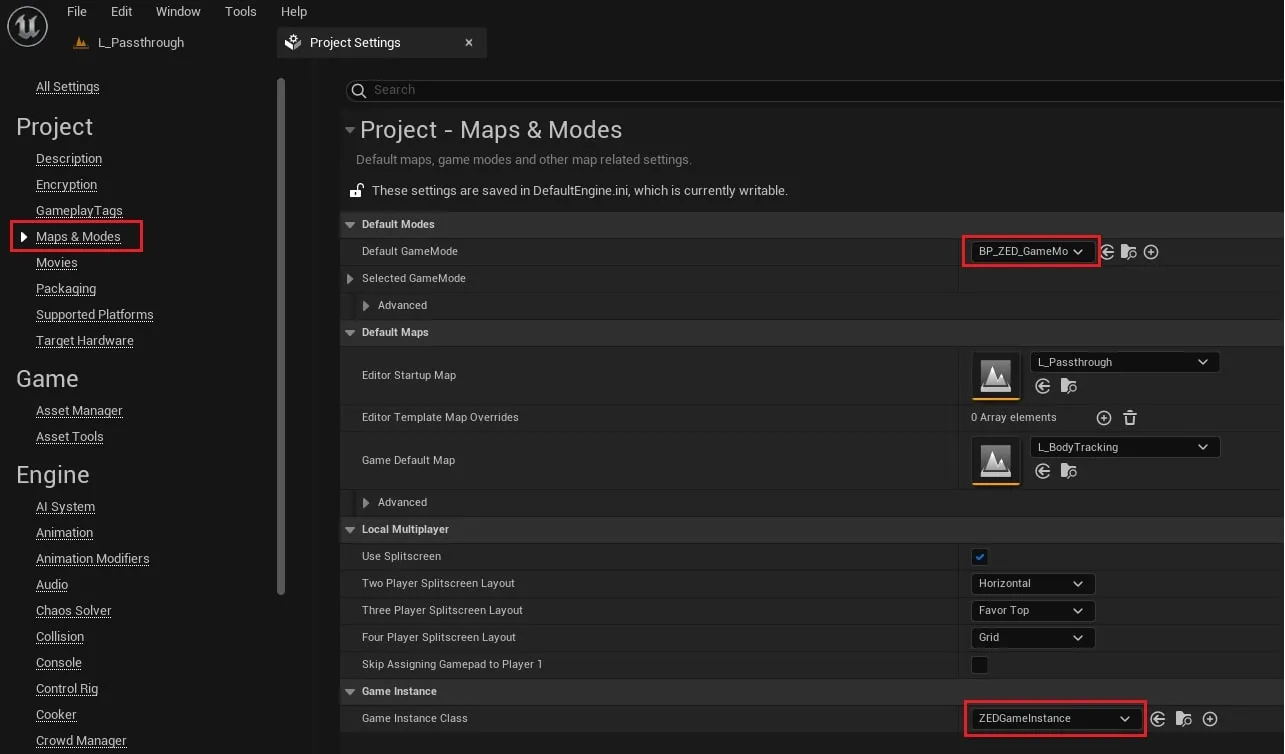
image

In General Settings:

  • Change the Game Viewport Client Class to ZEDGameViewportClient
  • Change LocalPlayerClass to ZEDLocalPlayer
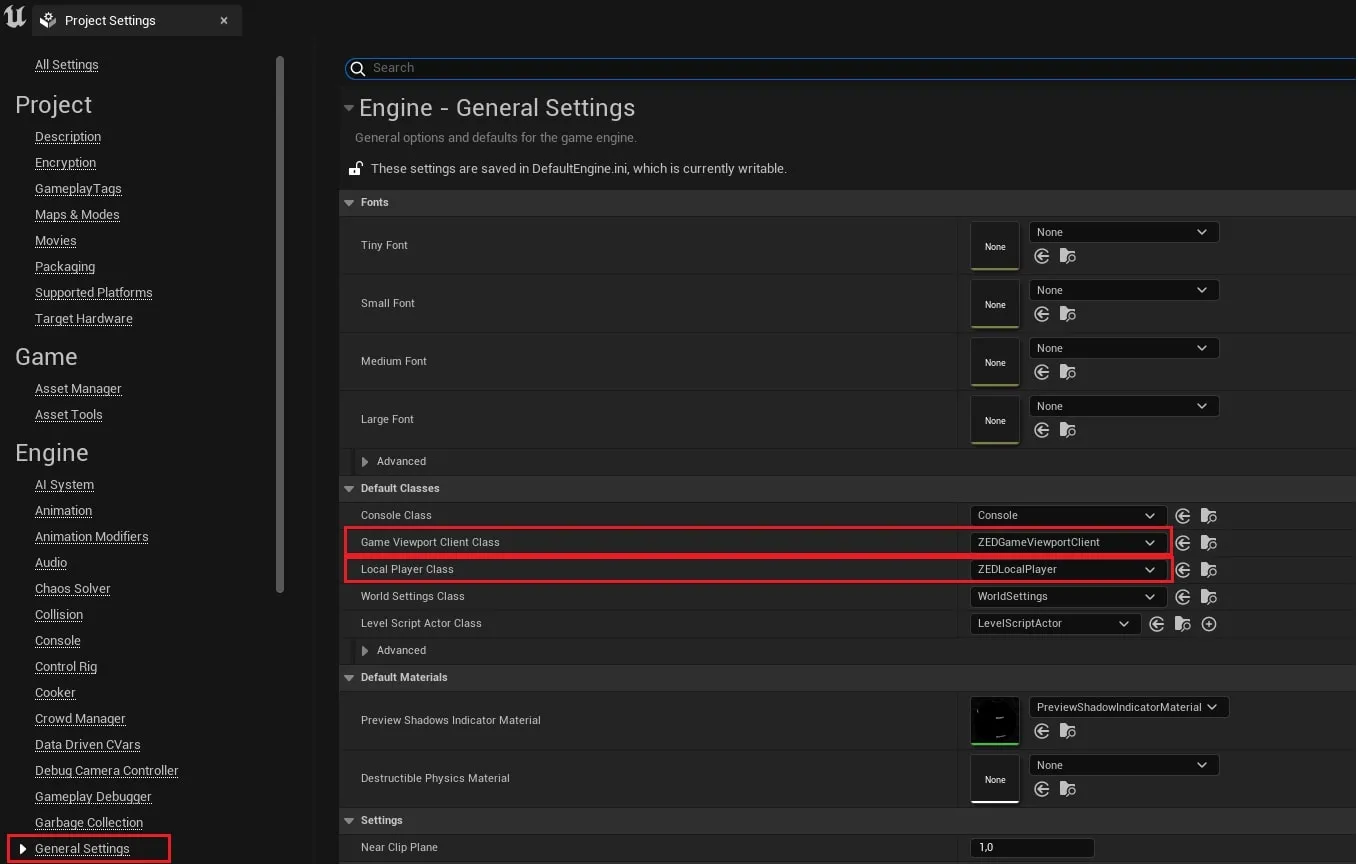
image

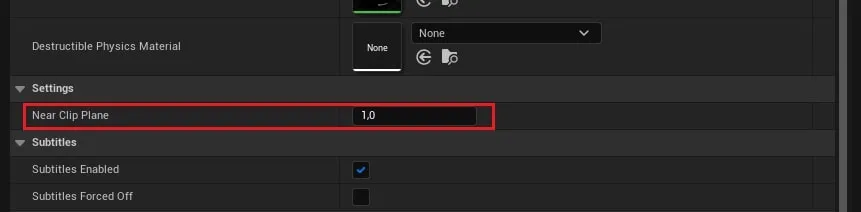
  • Set Near Clip Plane to 1.0.

image

Next we’ll change graphics settings so that your project is optimized for AR experience with the ZEDmini. In Windows Explorer, go to your project folder, open the Config folder, and open DefaultEngine.ini.
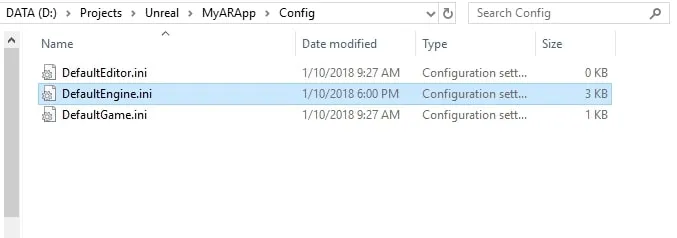
image

Open it and scroll down to [/Script/Engine.RendererSettings]. If you don’t find it just copy-paste the below lines at the end of your file. Otherwise there will be a few lines underneath it, erase them and then paste the following ones :

C++
1[/Script/Engine.RendererSettings]
2r.SceneRenderTargetResizeMethod=2
3r.ForwardShading=False
4r.DefaultFeature.AntiAliasing=1
5r.DefaultFeature.MotionBlur=0
6r.DefaultFeature.AmbientOcclusion=False
7r.DefaultFeature.AmbientOcclusionStaticFraction=False
8vr.InstancedStereo=False
9r.SeparateTranslucency=0
10r.HZBOcclusion=0
11r.EyeAdaptionQuality=0
12r.SSR.MaxRoughness=0
13r.rhicmdbypass=0
14r.TiledReflectionEnvironmentMinimumCount=10
15r.TranslucentSortPolicy=0
16r.PostProcessingColorFormat=0
17r.DontLimitOnBattery=1
18r.ScreenPercentage=100
19vr.SteamVR.UsePostPresentHandoff=0
20r.MaxQualityMode=0
21r.DefaultFeature.LensFlare=0
22t.UnacceptableFrameTimeThreshold=20
23t.TargetFrameTimeThreshold=12.5
24t.HitchFrameTimeThreshold=22.8
25r.DefaultFeature.AutoExposure=False
26r.TextureStreaming=False

Your DefaultEngine.ini file should look like this (you could also have some other sections in this file like [/Script/EngineSettings.GameMapsSettings] or [/Script/Engine.PhysicsSettings] for instance):
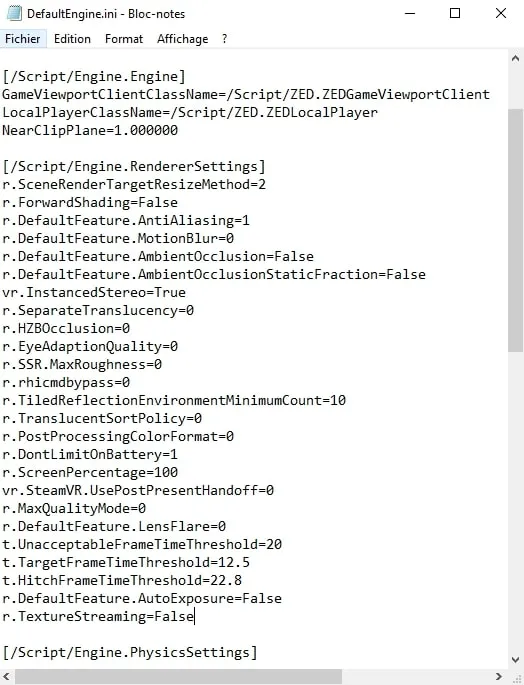
image

Now in the same folder than DefaultEngine.ini, create a new .txt file, rename it DefaultScalability.ini and open it. Paste the following lines inside:

1[AntiAliasingQuality@0]
2r.PostProcessAAQuality=0
3
4[AntiAliasingQuality@1]
5r.PostProcessAAQuality=2
6
7[AntiAliasingQuality@2]
8r.PostProcessAAQuality=3
9
10[AntiAliasingQuality@3]
11r.PostProcessAAQuality=3
12
13;-----------------------------------------------------------------------------------------------------------------
14
15[PostProcessQuality@0]
16r.MotionBlurQuality=0
17r.AmbientOcclusionLevels=0
18r.LensFlareQuality=0
19r.SceneColorFringeQuality=0
20r.DepthOfFieldQuality=0
21r.BloomQuality=1
22r.FastBlurThreshold=0
23
24[PostProcessQuality@1]
25r.MotionBlurQuality=0
26r.AmbientOcclusionLevels=0
27r.LensFlareQuality=0
28r.SceneColorFringeQuality=0
29r.DepthOfFieldQuality=0
30r.BloomQuality=2
31r.FastBlurThreshold=0
32
33[PostProcessQuality@2]
34r.MotionBlurQuality=0
35r.AmbientOcclusionLevels=0
36r.LensFlareQuality=0
37r.SceneColorFringeQuality=0
38r.DepthOfFieldQuality=0
39r.BloomQuality=3
40r.FastBlurThreshold=0
41
42[PostProcessQuality@3]
43r.MotionBlurQuality=0
44r.AmbientOcclusionLevels=0
45r.LensFlareQuality=0
46r.SceneColorFringeQuality=0
47r.DepthOfFieldQuality=0
48r.BloomQuality=4
49r.FastBlurThreshold=0
50
51;-----------------------------------------------------------------------------------------------------------------
52
53[TextureQuality@0]
54r.MaxAnisotropy=0
55
56[TextureQuality@1]
57r.MaxAnisotropy=2
58
59[TextureQuality@2]
60r.MaxAnisotropy=4
61
62[TextureQuality@3]
63r.MaxAnisotropy=8
64
65;-----------------------------------------------------------------------------------------------------------------
66
67[EffectsQuality@0]
68r.TranslucencyVolumeBlur=0
69r.TranslucencyLightingVolumeDim=4
70r.SceneColorFormat=2
71r.SSR.Quality=0
72
73[EffectsQuality@1]
74r.TranslucencyVolumeBlur=0
75r.TranslucencyLightingVolumeDim=4
76r.SceneColorFormat=2
77r.SSR.Quality=0
78
79[EffectsQuality@2]
80r.TranslucencyVolumeBlur=0
81r.TranslucencyLightingVolumeDim=8
82r.SceneColorFormat=2
83r.SSR.Quality=0
84
85[EffectsQuality@3]
86r.TranslucencyVolumeBlur=0
87r.TranslucencyLightingVolumeDim=16
88r.SceneColorFormat=2
89r.SSR.Quality=0

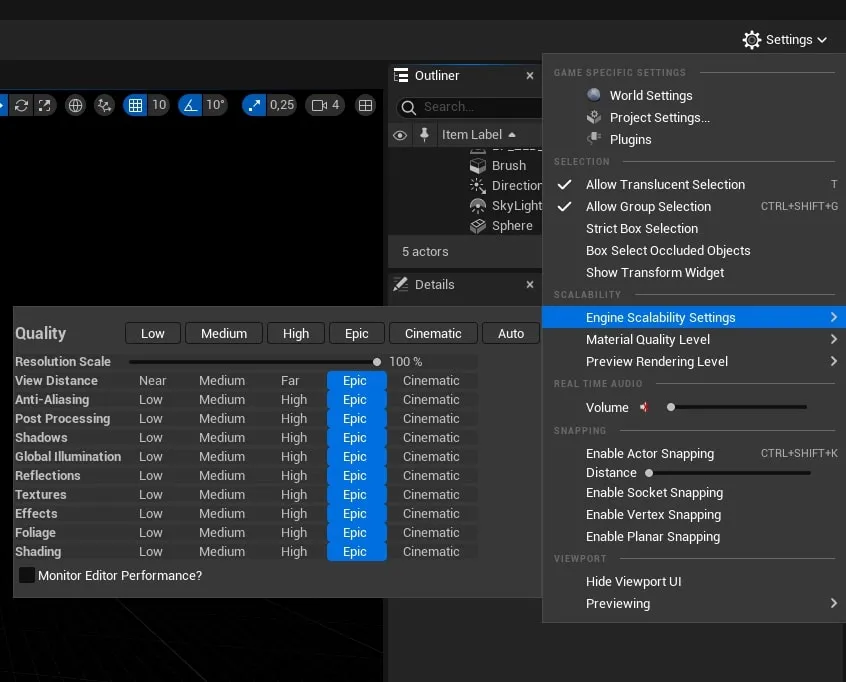
This file change the engine scalability settings configuration in order to be optimized for AR. If you have any performance trouble when developing your application, you can easily change the engine scalability settings in the editor. This might improve your performance a lot depending of your scene content.

image

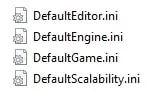
Your Config folder should now look like this :

image

Go back to the editor and you will see a notification at the bottom right that you need to restart it. Do so. Once you do, the skybox (background) in the editor may be different, but it’ll switch back to the white grid you saw before when it finishes building the shaders.