

ROS - ZED Node
The ZED ROS Wrapper packages are no longer maintained because ROS 1 reached end-of-life (EOL) on 2025-05-31 with the final Noetic release.
We recommend upgrading to ROS 2 to take advantage of the latest ZED SDK features for robotics applications.
To start a ZED ROS node you can use the following commands in a shell console:
- ZED:
- ZED Mini:
- ZED 2:
- ZED 2i:
- ZED X:
- ZED X Mini:
Each launch file starts the node zed_node in a namespace named after the camera model, so the topics are published as /<camera_name>/zed_node/<topic>, for example /zed/zed_node/odom with zed.launch or /zed2i/zed_node/odom with zed2i.launch.
Published Topics
The ZED node publishes data on the following topics:
-
Left camera
rgb/image_rect_color: Color rectified image (left RGB image by default)rgb/image_rect_gray: Grayscale rectified image (left RGB image by default)rgb_raw/image_raw_color: Color unrectified image (left RGB image by default)rgb_raw/image_raw_gray: Grayscale unrectified image (left RGB image by default)rgb/camera_info: Color camera calibration datargb_raw/camera_info: Color unrectified camera calibration dataleft/image_rect_color: Left camera color rectified imageleft/image_rect_gray: Left camera grayscale rectified imageleft_raw/image_raw_color: Left camera color unrectified imageleft_raw/image_raw_gray: Left camera grayscale unrectified imageleft/camera_info: Left camera calibration dataleft_raw/camera_info: Left unrectified camera calibration data
-
Right camera
right/image_rect_color: Color rectified right imageright_raw/image_raw_color: Color unrectified right imageright/image_rect_gray: Grayscale rectified right imageright_raw/image_raw_gray: Grayscale unrectified right imageright/camera_info: Right camera calibration dataright_raw/camera_info: Right unrectified camera calibration data
-
Stereo pair
stereo/image_rect_color: Stereo rectified pair images side-by-sidestereo_raw/image_raw_color: Stereo unrectified pair images side-by-side
To retrieve the camera parameters, you can subscribe to the topics
left/camera_info,right/camera_info,left_raw/camera_infoandright_raw/camera_info. -
Depth and point cloud
depth/depth_registered: Depth map image registered on the left image (32-bit float in meters by default)depth/camera_info: Depth camera calibration datapoint_cloud/cloud_registered: Registered color point cloudconfidence/confidence_map: Confidence image (floating point values to be used in your own algorithms)disparity/disparity_image: Disparity image
-
Tracking
odom: Absolute 3D position and orientation relative to the Odometry frame (visual odometry for the ZED, visual-inertial odometry for the other camera models whenpos_tracking/imu_fusionistrue)pose: Absolute 3D position and orientation relative to the Map frame (Sensor Fusion algorithm + SLAM + Loop closure)pose_with_covariance: Camera pose referred to Map frame with covarianceodom/status: Status of the odometry trackingpose/status: Status of the pose trackingpath_odom: Sequence of camera odometry poses in Map framepath_map: Sequence of camera poses in Map frame
-
Mapping
mapping/fused_cloud: Fused color point cloud
Published only if mapping is enabled, see the
mapping/mapping_enabledparameter. -
Plane detection
plane: Detected plane (see Plane Detection)plane_marker: Markers of the detected plane to be rendered in RViz
-
Sensor Data (not available for the ZED)
imu/data: Accelerometer, gyroscope, and orientation data in Earth frameimu/data_raw: Accelerometer and gyroscope data in IMU frametemperature/imu: Temperature of the IMU sensor [not available for the ZED Mini]imu/mag: Calibrated magnetometer data [only ZED 2 and ZED 2i]atm_press: Atmospheric pressure data [only ZED 2 and ZED 2i]temperature/left: Temperature of the left camera sensor [only ZED 2 and ZED 2i]temperature/right: Temperature of the right camera sensor [only ZED 2 and ZED 2i]left_cam_imu_transform: Transform from the left camera sensor to IMU sensor position
-
Object Detection (not available for the ZED)
obj_det/objects: Array of the detected/tracked objects for each camera frame
-
Diagnostic
/diagnostics: ROS diagnostic message for ZED cameras
ZED parameters
You can specify the parameters to be used by the ZED node by modifying the values in the files:
params/common.yaml: common parameters to all camera modelsparams/zed.yaml: parameters for the ZED cameraparams/zedm.yaml: parameters for the ZED Mini cameraparams/zed2.yaml: parameters for the ZED 2 cameraparams/zed2i.yaml: parameters for the ZED 2i cameraparams/zedx.yaml: parameters for the ZED X cameraparams/zedxm.yaml: parameters for the ZED X Mini camera
General parameters
Parameters with prefix general
Depth parameters
Parameters with prefix depth
Position parameters
Parameters with prefix pos_tracking
Mapping parameters
Parameters with prefix mapping
Sensors parameters (not available for the ZED)
Parameters with prefix sensors
Object Detection parameters (not available for the ZED)
Parameters with prefix object_detection
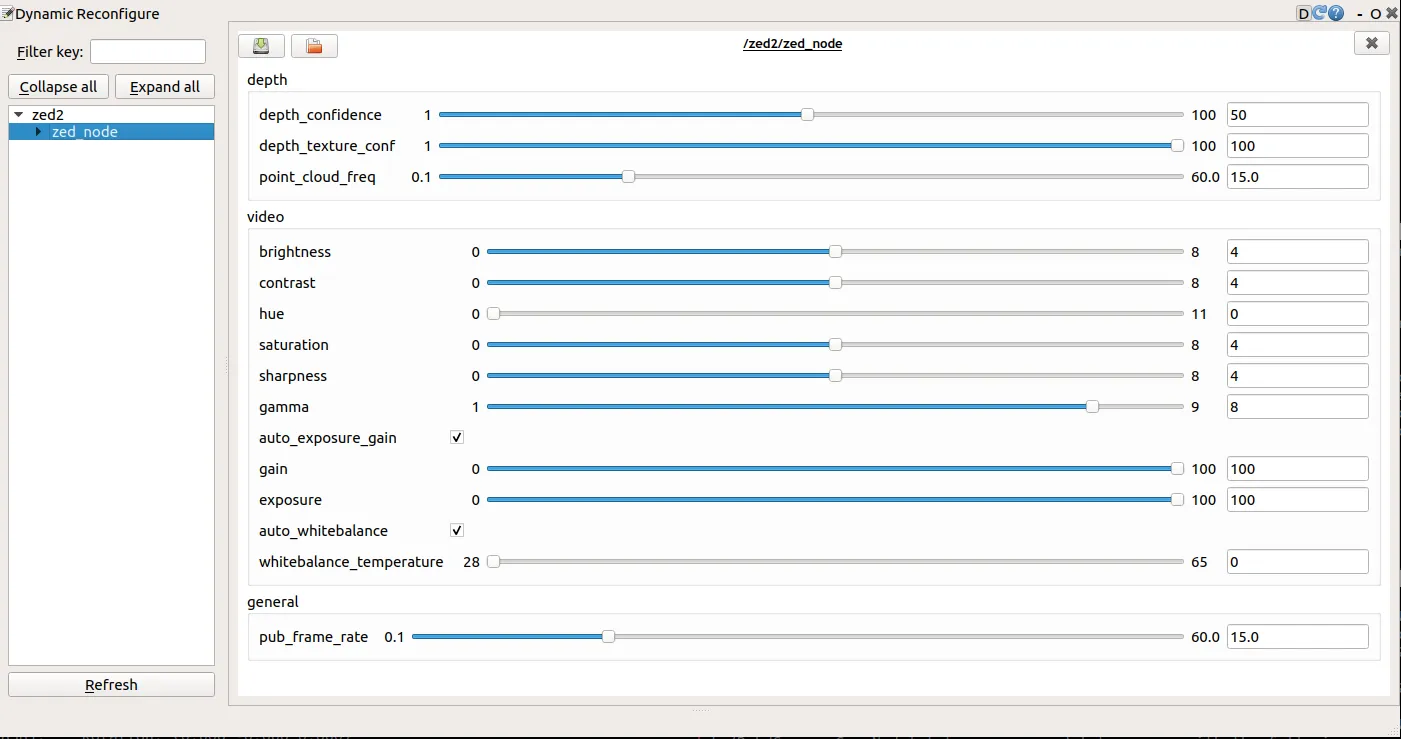
Dynamic parameters
The ZED node lets you reconfigure these parameters dynamically:
To modify a dynamic parameter, you can use the GUI provided by the rqt stack:
Transform frames
The ZED ROS wrapper broadcasts multiple coordinate frames that each provide information about the camera’s position and orientation. If needed, the reference frames can be changed in the launch file.
base_frameis the current position and orientation of the reference base of the robot<camera_name>_camera_centeris the current position and orientation of ZED, determined by visual odometry and the tracking module<camera_name>_right_camera_frameis the position and orientation of the ZED’s right camera<camera_name>_right_camera_optical_frameis the position and orientation of the ZED’s right camera optical frame<camera_name>_left_camera_frameis the position and orientation of the ZED’s left camera<camera_name>_left_camera_optical_frameis the position and orientation of the ZED’s left camera optical frame<camera_name>_imu_linkis the origin of the inertial data frame (not available for the ZED)<camera_name>_mag_linkis the origin of the magnetometer frame (ZED 2 and ZED 2i only)<camera_name>_baro_linkis the origin of the barometer frame (ZED 2 and ZED 2i only)<camera_name>_temp_left_linkis the origin of the left temperature frame (ZED 2 and ZED 2i only)<camera_name>_temp_right_linkis the origin of the right temperature frame (ZED 2 and ZED 2i only)
For RViz compatibility, the root frame map_frame is called map.
The TF tree generated by the zed_wrapper reflects the standard described in REP105.
The odometry frame is updated using the visual odometry information, fused with the inertial data when the camera has an IMU and pos_tracking/imu_fusion is true.
The map frame is updated using the Tracking algorithm provided by the StereoLabs SDK, which also uses the spatial memory for loop closure and fuses the inertial information from the IMU sensor for the camera models that have one.
ZED Mini, ZED X and ZED X Mini
The ZED Mini, ZED X and ZED X Mini provide the same information as the ZED, plus the inertial data from the IMU sensor. The ZED X and ZED X Mini also provide the temperature of the IMU sensor. The IMU data are used internally to generate the pose in the Map frame with the Tracking sensor fusion algorithm.
The initial pose in Odometry frame can be set to the first pose received by the Tracking module by setting the parameter init_odom_with_first_valid_pose to true.
ZED 2 / ZED 2i
The ZED 2 and ZED 2i provide the same information as the ZED and the ZED Mini, plus the data from a new set of sensors. The ZED 2 and ZED 2i provide magnetometer data to get better and absolute information about the YAW angle, atmospheric pressure information to be used to estimate the height of the camera with respect to a reference point and temperature information to check the camera health in a complex robotic system.
Services
The ZED node provides the following services:
reset_tracking: Restarts the Tracking module setting the initial pose to the value available in the param server.reset_odometry: Resets the odometry values eliminating the drift due to the Visual Odometry algorithm, setting the newodometryvalue to the latest cameraposereceived from the tracking module.set_pose: Sets the current pose of the camera to the values passed as parameters ->X, Y, Z[m],R, P, Y[rad].save_area_memory: Triggers the saving of the current area memory used for relocalization, if area memory is enabled.set_led_status: Sets the status of the blue LED ->True: LED ON,False: LED OFF.toggle_led: Toggles the status of the blue LED, returning the new status.start_svo_recording: Starts recording an SVO file. If no filename is provided the defaultzed.svois used. If no path is provided with the filename the default recording folder is~/.ros/.stop_svo_recording: Stops an active SVO recording.start_remote_stream: Starts streaming over the network to allow processing of ZED data on a remote machine. See Remote streaming.stop_remote_stream: Stops streaming over the network.start_3d_mapping: Starts the Spatial Mapping processing. See Spatial Mapping.stop_3d_mapping: Stops the Spatial Mapping processing (works even with an automatic start from the configuration file).save_3d_map: Triggers the saving of the current 3D fused point cloud if the mapping module is enabled.enable_object_detection: Starts (true) or stops (false) the Object Detection processing (std_srvs/SetBool). See Object Detection.set_roi: Sets a region of interest, as a polygon with normalized coordinates, for the ZED SDK processing.reset_roi: Resets the region of interest to the full image.
Currently the H26x SVO compression uses the resolution and the real FPS to calculate the bitrate. This feature can lead to some issues of quality when FPS is low. On NVIDIA® Jetson™ TX1 and NVIDIA® Jetson™ TX2, the FPS is quite low at the beginning of the grab loop, therefore it could be better to wait for some grab calls before calling start_svo_recording so that the camera FPS is stabilized at the requested value (15fps or more).
Remote streaming
SDK v2.8 introduced the capability to acquire ZED data and stream it on a remote machine over the network. This feature is useful when the ZED is connected to a machine with limited CUDA capabilities while a high-definition analysis is required. Starting the streaming without activating any other feature (i.e. depth processing, positional tracking, point cloud publishing, …) requires only the computing power needed for the H264 or H265 compression.
To start streaming the service start_remote_stream must be called with the following parameters:
codec(def. 0): Defines the codec used for streaming (0: AVCHD [H264],1: HEVC [H265])If HEVC (H265) is used, make sure the receiving host is compatible with HEVC decoding (basically a Pascal NVIDIA® card). If not, prefer to use AVCHD (H264) since every compatible NVIDIA® card supports AVCHD decoding.
port(def. 30000): Defines the PORT the data will be streamed on.The port must be an even number. Any odd number will be rejected.
bitrate(def. 2000): Defines the streaming BITRATE in Kbits/sgop_size(def. -1): Defines the GOP SIZE in frame unit.If the value is set to -1, the gop size will match 2 seconds, depending on the camera fps. The gop size determines the maximum distance between IDR/I-frames. Very high GOP size will result in slightly more efficient compression, especially on static scene. But it can result in more latency if IDR/I-frame packet are lost during streaming. Maximum allowed value is 256 (frames)
adaptative_bitrate(def. False): Enable/Disable adaptive bitrate.Bitrate will be adjusted regarding the number of packet loss during streaming. If activated, bitrate can vary between [bitrate/4, bitrate]. Currently, the adaptive bitrate only works when “sending” device is a NVIDIA® Jetson (X1, X2, Xavier, Nano)
Receive a remote stream
To acquire the streaming on a remote machine start a ZED node with the following command:
For example:
The stream contains only visual information. When using a ZED Mini camera, the inertial topics are not available unless they are subscribed to using the standard ROS methods.
Spatial Mapping
The ZED node provides a basic mapping module publishing a 3D map of the environment as a 3D color point cloud (mapping/fused_cloud).
Spatial Mapping is disabled by default because it is computationally heavy. It can be enabled by setting to true the parameter mapping/mapping_enabled in the file params/common.yaml.
Spatial Mapping can be enabled manually at any time using the start_3d_mapping service.
To reduce the computational power requirements, use a value higher than 0.1 m for resolution and decrease the value of fused_pointcloud_freq to reduce the frequency of the point cloud topic publishing.
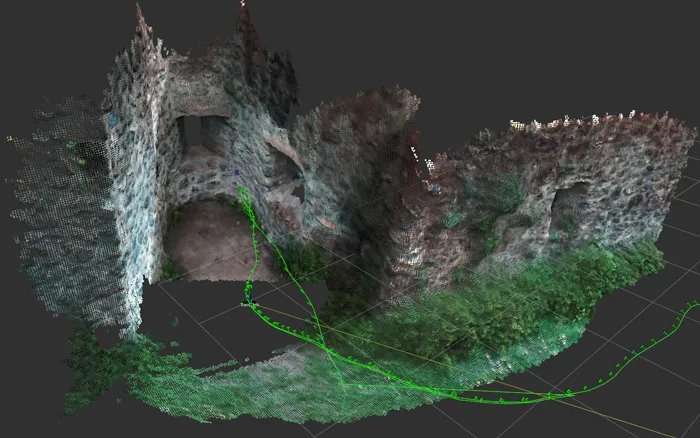
It is possible to save the generated 3D map as a point cloud in the PLY, binary PLY or OBJ format, by calling the save_3d_map service.
Object Detection
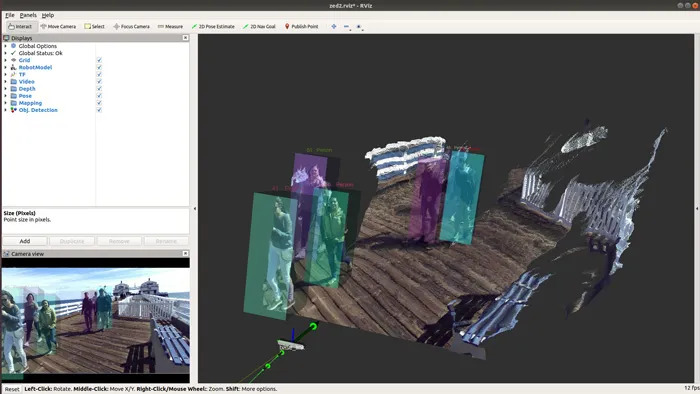
The Object Detection module allows the detection and tracking of Objects.
Object detection is disabled by default because it is computationally heavy. It can be automatically enabled when the node starts by setting to true the parameter object_detection/od_enabled in the file params/common.yaml.
If Object Detection is disabled, it can be manually enabled at any time by calling the enable_object_detection service with true.
The list of the detected objects is published on the obj_det/objects topic as a custom message of type zed_interfaces/ObjectsStamped. For details about the message fields, please read the Object Detection tutorial and the Object Detection module documentation.
Object Tracking
Enabling Object Tracking allows getting information frame by frame about the status of each detected object. The same object is identified with the same ID in all the frames after its first detection and its position is estimated if an occlusion occurs.
Each detected object can get four different values about its Tracking Status:
- OFF - The tracking is not yet initialized, and the object ID is not usable
- OK - The object is tracked
- SEARCHING - The object couldn’t be detected in the image and is potentially occluded, the trajectory is estimated
- TERMINATE - This is the last searching state of the track, the track will be deleted in the next
retrieveObjects
Diagnostic
The ZED node publishes diagnostic information that can be used by the robotics system using a diagnostic_aggregator node.
Using the Runtime monitor plugin of rqt it is possible to get all the diagnostic information and check that the node is working as expected:
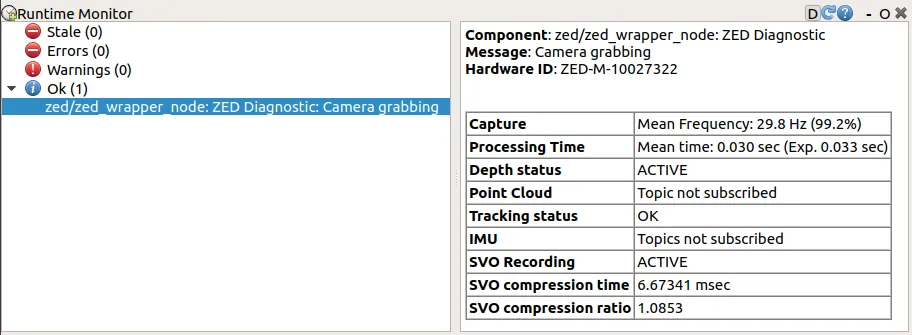
A brief explanation of each field:
Component: name of the diagnostic componentMessage: summary of the status of the ZED nodeHardwareID: Model of the ZED camera and its serial numberCapture: grabbing frequency (if video or depth data are subscribed) and the percentage with respect to the camera frame rateProcessing time: time in seconds spent processing data and the time limit to achieve max frame ratePlaying SVO: (visible only if playing an SVO file) current frame position in the SVO file over the total frame countDepth status: indicates if the depth processing is performedPoint Cloud: point cloud publishing frequency (if there is at least a subscriber) and the percentage with respect to the camera frame rateFloor Detection: if the floor detection is enabled, indicates if the floor has been detected and the camera position correctly initializedTracking status: indicates the status of the positional tracking if enabledObject data processing: if Object Detection is enabled indicates the time required to process the data relative to detected objectsIMU: the publishing frequency of the IMU topics, if the camera has an IMU and there is at least a subscriberLeft CMOS Temp.: (only ZED 2 and ZED 2i) the temperature of the CMOS of the left camera sensor [-273.15°C if not valid]Right CMOS Temp.: (only ZED 2 and ZED 2i) the temperature of the CMOS of the right camera sensor [-273.15°C if not valid]SVO Recording: indicates if the SVO recording is activeSVO Compression time: average time spent on frame compressingSVO Compression ratio: average frame compression ratio
Using multiple ZEDs
It is possible to use multiple ZED cameras with ROS. Simply launch the nodes with the zed_multi_cam.launch file:
Assigning a GPU to a camera
To improve performance, you can specify the gpu_id of the graphic card that will be used for the depth computation in the launch file. The default value (-1) will select the GPU with the highest number of CUDA cores. When using multiple ZEDs, you can assign each camera to a GPU to increase performance.
Limitations
Performance
This wrapper lets you quickly prototype applications and interface the ZED with other sensors and packages available in ROS. However, the ROS layer introduces significant latency and a performance hit. If performance is a major concern for your application, please consider using the ZED SDK library.
Multiple ZEDs
The ZED camera uses the maximum bandwidth provided by USB 3.0 to output video. When using multiple ZEDs, you may need to reduce camera framerate and resolution to avoid corrupted frames (green or purple frames). You can also use multiple GPUs to load-balance computations and improve performance.