

How to Install ZED SDK on Windows
Download the ZED SDK
The ZED SDK for Windows contains all the drivers and libraries that power your camera along with tools that let you test its features and settings.
Download the ZED SDK for Windows. Multiple versions of CUDA are available; if you have no preference, pick the latest one.
Install the ZED SDK
Run the installer.
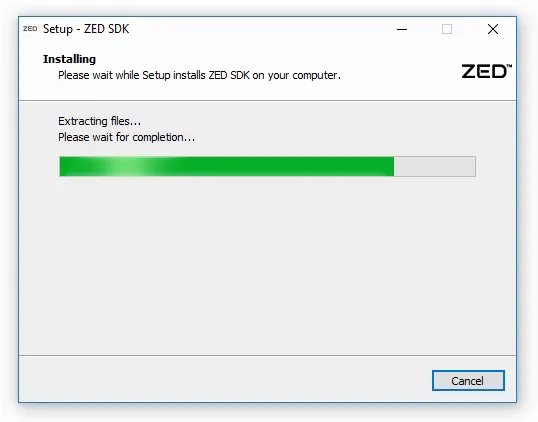
Setup CUDA
CUDA is an NVIDIA® library used by the ZED SDK to run fast AI and computer vision tasks on your graphics card. During the ZED SDK installation, if CUDA is not detected on your computer, the installer will prompt you to download and install CUDA.
You can skip this step and install CUDA manually from the NVIDIA® CUDA Toolkit archive.
- Is a GPU required? Yes. The ZED SDK requires an NVIDIA® GPU with Compute Capability 7.5 or higher, based on the Turing micro-architecture or more recent. See the recommended specifications for the complete requirements.
- WSL or native Windows? Use the native Windows installer. WSL (Windows Subsystem for Linux) is not an officially supported platform: USB camera passthrough is unreliable, and the camera is often not detected by the SDK even when the device has been forwarded to the WSL instance.
Restart your computer
At the end of the installation, a system restart is required to update the Windows environment variables.
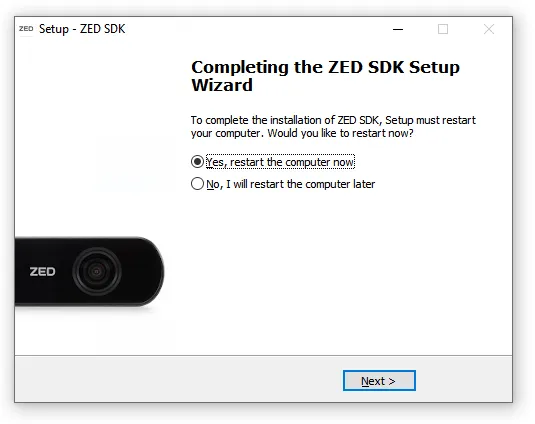
Skipping this step could lead to library not found errors. Make sure to restart your computer, especially if it is the first time the SDK is installed on your machine.
Upgrade the ZED SDK
To upgrade the ZED SDK, download the latest installer from the ZED SDK Download page and run it, as described in Install the ZED SDK. There is no need to uninstall the previous version first: the installer replaces the installed version with the new one.
The same procedure also works to downgrade the ZED SDK: download the installer of the older version you need and run it. The installer replaces the currently installed version with the selected one.
For each minor release (for example, 5.0.x or 5.1.x), the ZED SDK Download page only offers the latest patch release. Patch releases fix bugs and issues found in the previous patch releases of the same minor version, so the latest one is always the recommended choice.
Uninstall the ZED SDK
To remove the ZED SDK from your computer:
-
Open the Windows Settings, then go to Apps › Installed apps (or Add or remove programs on older Windows versions).
-
Find ZED SDK in the list, open its menu, select Uninstall, and follow the prompts.
Alternatively, run the uninstaller located at C:\Program Files (x86)\ZED SDK\unins000.exe.
CUDA is installed separately and is not removed together with the ZED SDK. If you no longer need it, you can uninstall it from Apps › Installed apps as well.