

ZED Diagnostic
ZED Diagnostic is a tool designed to help you troubleshoot issues with your ZED camera. It provides detailed information about the camera’s hardware and software status, allowing you to identify potential problems and ensure optimal performance.
How to use ZED Diagnostic
Connect your ZED camera to your computer and launch the ZED Diagnostic tool from the ZED SDK installation directory or through the Start menu (Windows) or terminal (Linux).
- Under Windows, you can find ZED Diagnostic in the Start menu under the ZED SDK folder. You can also run it from the command line by navigating to the ZED SDK installation directory:
C:\Program Files (x86)\ZED SDK\tools\ZED Diagnostic.exe - Under Ubuntu, you can run ZED Diagnostic from the terminal by typing
ZED_Diagnosticor by navigating to the ZED SDK installation directory:/usr/local/zed/tools/ZED_Diagnostic.
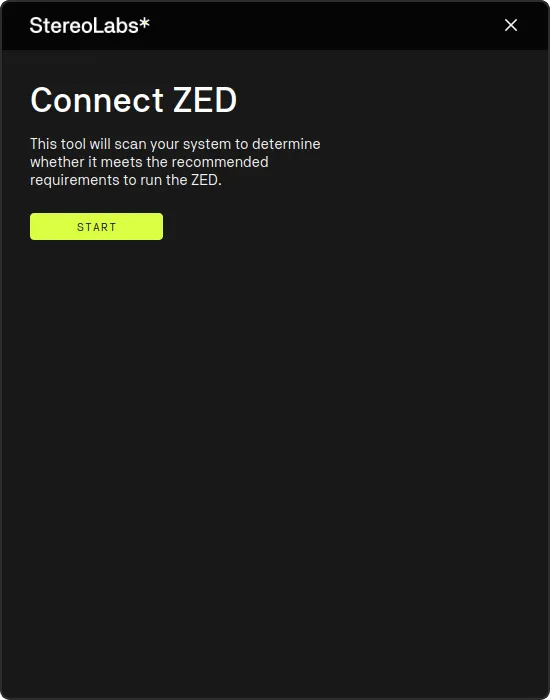
After pressing the Start button, the tool will automatically detect the connected ZED camera and start gathering diagnostic information.
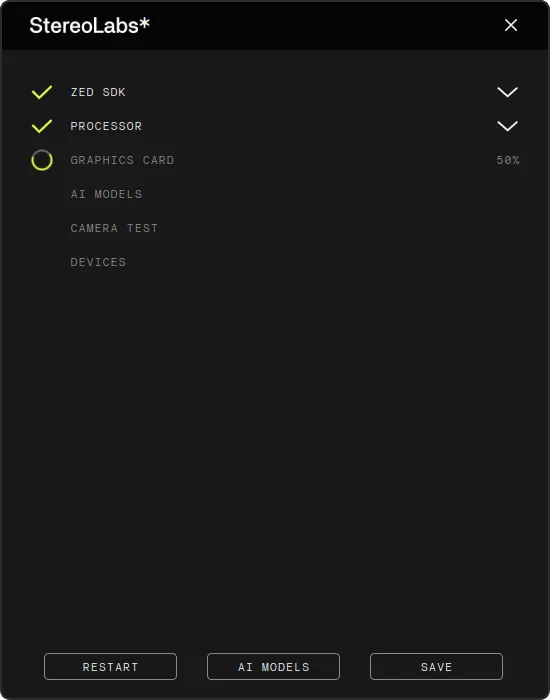
You can monitor the progress of the diagnostic tests in real-time. The tool will perform various checks, including:
- ZED SDK: SDK and CUDA versions.
- PROCESSOR: CPU processor model and motherboard information.
- GRAPHICS CARD: GPU model.
- CUDA OPERATIONS: CUDA operations test on each GPU.
- AI MODELS: Available AI models and optimization status.
- CAMERA TEST: Camera hardware tests, including model and firmware version.
- DEVICES: Connectivity status.
Once the diagnostic process is complete, the tool will display a summary of the results, indicating whether the camera and system are functioning correctly.
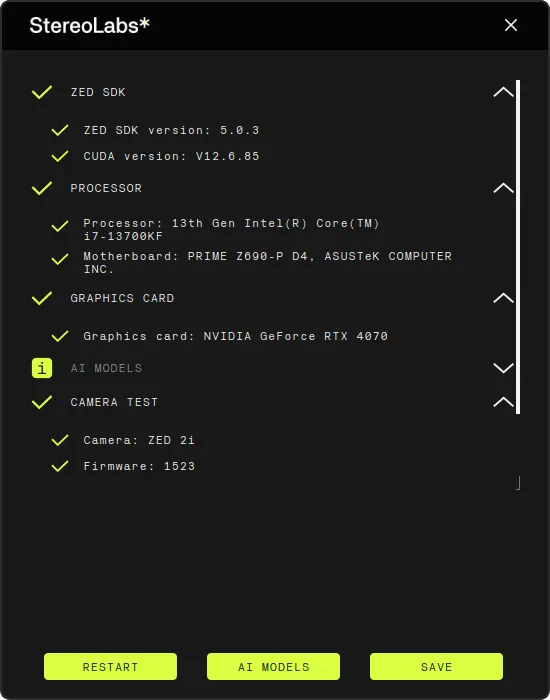
In case of any issues, the tool will display error messages and clear diagnostic information.
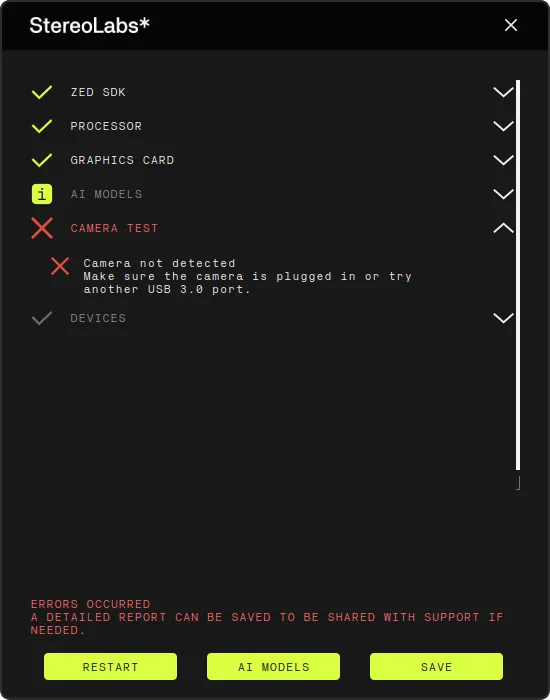
After the diagnostic process completes with failures, press the Save button to export the diagnostic report as a JSON file. You can share this file with the StereoLabs support team for further assistance. Please email it to support@stereolabs.com and include a detailed description of the issue you are experiencing.
Check if the AI models are optimized
The quickest way to check which AI models are optimized on your system is to run ZED Diagnostic. No camera is required: without a camera, the CAMERA TEST item fails and the tool reports ERRORS OCCURRED, but the AI MODELS check still runs.
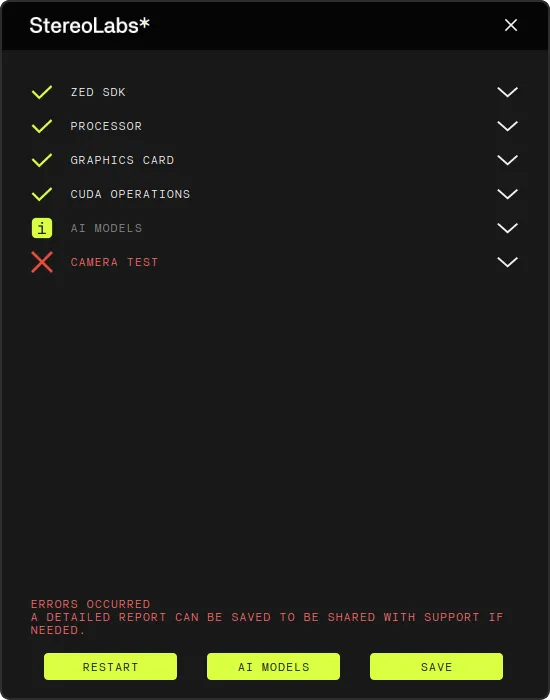
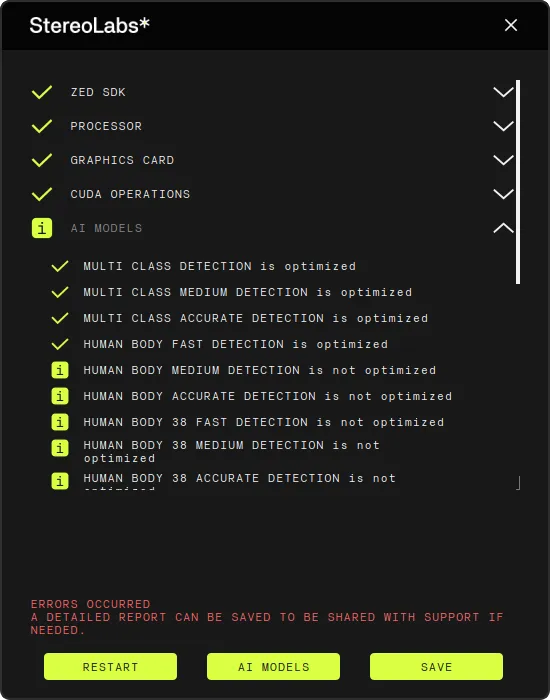
When the diagnostic is complete, expand the AI MODELS item to display the status of each model:
- is optimized, with a check mark: the model is downloaded and optimized, ready to be used by the ZED SDK.
- is not optimized, with an information icon: the ZED SDK downloads the model, if needed, and optimizes it the first time an application uses it, which delays the application start.
If no display is connected to the system, run the diagnostic in command line mode with ZED_Diagnostic -c. The AI Models Diagnostic section of the output lists the status of each model:
To optimize the models that are not optimized yet, see Optimize the AI models.
Optimize the AI models
The ZED Diagnostic tool can also help you optimize the AI models used by the ZED camera. This is particularly useful if you have recently updated the ZED SDK or if you want to ensure that the AI models are already optimized before using them with a ZED SDK application.
Click the AI MODELS button to open the Model Optimizer window. It lists the available models: the switch of each optimized model is enabled and labeled OPTIMIZED.
The AI MODELS button will only be enabled after completing a diagnostic test.
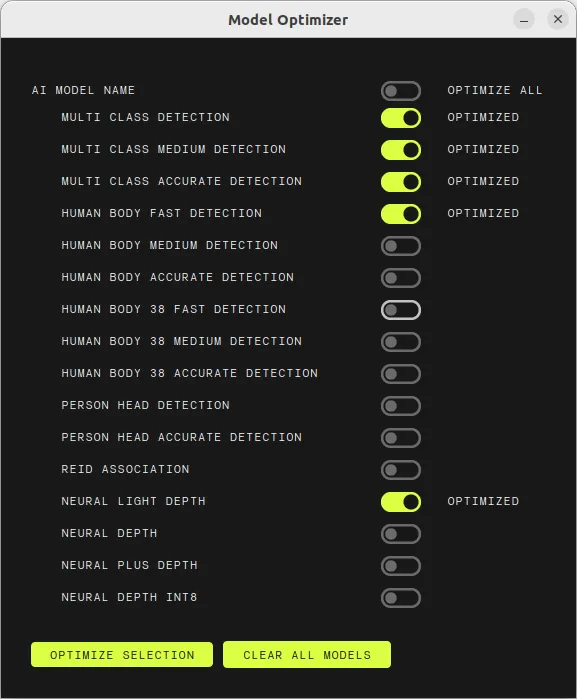
Enable the switch of each model you want to optimize, or the OPTIMIZE ALL switch to select all of them, then click OPTIMIZE SELECTION. The tool downloads and optimizes the selected models, so they are ready to be used by the ZED SDK.
The downloaded and optimized models are stored in /usr/local/zed/resources/ on Linux and in C:\ProgramData\StereoLabs\resources\ on Windows.
You can also click on CLEAR ALL MODELS to remove all downloaded and optimized AI models. This is useful if you want to free up space or reset the optimizations if something is not working properly.
Advanced Features
The ZED Diagnostic tool provides several advanced features to help you diagnose and troubleshoot issues with your ZED camera.
Under Ubuntu, open a terminal and run the following command to obtain a list of advanced commands:
These commands allow you to perform various tasks without needing to interact with the GUI. Here’s a brief explanation of each command:
-dallows you to autostart the diagnostic process without pushing any button in the GUI.-cstarts the application in command line mode, which is useful when no display is available.-aidconnects to our servers to download all the AI models, including theNEURALdepth models, without optimizing them. Use it to prepare the models for a system without an internet connection (see Offline Deployment).-aiooptimizes (and downloads if needed) all models for the AI module.-aicclears all the downloaded and optimized AI models. This is useful if you want to free up space, or reset all the optimizations if something is not working properly.-ais Xdownloads and optimizes the associatedsl::DETECTION_MODEL(whereXis an integer representing the model ID).-nrlodownloads and optimizes theNEURALdepth mode.-nrlo_plusdownloads and optimizes theNEURAL PLUSdepth mode.-nrlo_lightdownloads and optimizes theNEURAL LIGHTdepth mode.-nrlo_alldownloads and optimizes all AI-based depth modes.-onnx <path> [WxH]optimizes a custom object detection ONNX model ahead of time, so an application callingenableObjectDetection()withOBJECT_DETECTION_MODEL::CUSTOM_YOLOLIKE_BOX_OBJECTS,CUSTOM_RFDETRLIKE_BOX_OBJECTSorCUSTOM_BOX_OBJECTS_AUTODETECTstarts instantly instead of optimizing the model on first use. The optional input size (default512x512) must match theObjectDetectionParameters::custom_onnx_dynamic_input_shapeused by the application. Available since ZED SDK 5.5.-rrecovers an MCU module with an invalid serial number (to be used withZED Mini,ZED 2orZED 2icameras).-dmesgretrieves the kernel/driver dmesg logs, for debugging GMSL2 cameras. Read here for more information.