

Troubleshooting
ZED Box Mini not booting
If your ZED Box Mini does not turn on after a shutdown, follow these steps to diagnose the issue.
1. Check Power Connection
Try these steps to force a boot:
- Unplug the power cable
- Check with a voltmeter that the voltage value is 12V
- If the voltage is correct, replug the cable, otherwise contact the support team at support@stereolabs.com for further assistance.
2. Check the Power LED Status
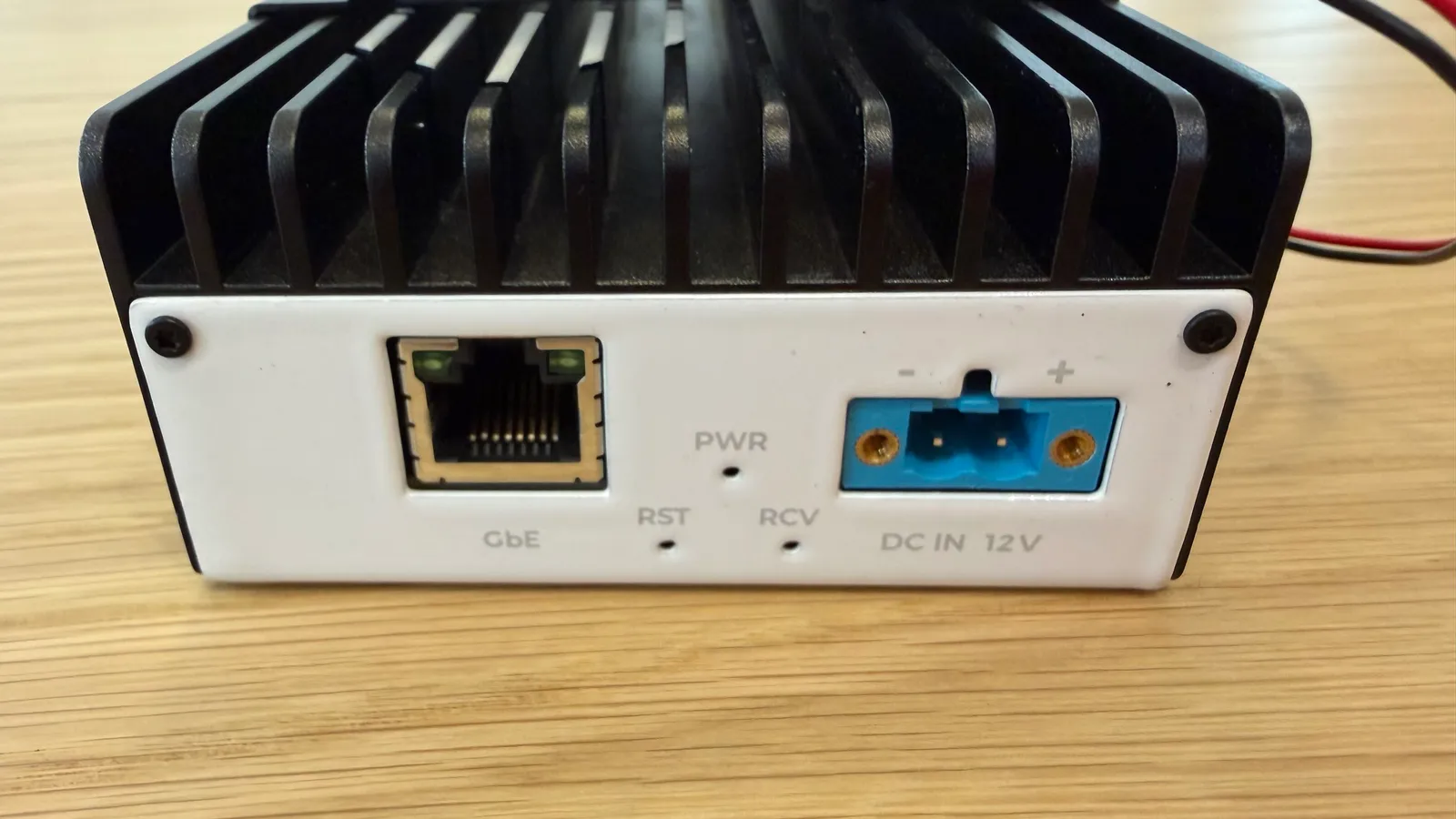
Locate the power LED on the front panel and determine its status:
🟢 LED is ON
- This indicates a software issue requiring a hard reset of the device.
- The ZED Box software may have been corrupted due to an improper shutdown.
- Important: Always shut down the device properly by software before removing power to avoid software corruption.
⚫ LED is OFF
- If you have already tried the power cable procedure, this suggests a hardware failure.
- Contact StereoLabs Support for further assistance.
I cannot flash the ZED Box Mini
If you encounter issues while flashing your ZED Box Mini, follow these steps to troubleshoot the problem.
Force Recovery Mode
If the flash procedure fails, it is likely because the ZED Box Mini is not in Recovery Mode before launching the flash script.
To verify that the ZED Box is in “Recovery Mode,” enter the following command in the host PC’s command line console:
If the device is correctly in Recovery Mode, the command should return:
- NVIDIA® Jetson™ Orin Nano 4 GB: an NVIDIA® device with VID:PID
0955:7623should be listed. e.g.Bus xxx Device yyy: ID 0955:7623 NVIDIA Corp. APX - NVIDIA® Jetson™ Orin Nano 8 GB: an NVIDIA® device with VID:PID
0955:7523should be listed. e.g.Bus xxx Device yyy: ID 0955:7523 NVIDIA Corp. APX - NVIDIA® Jetson™ Orin NX 8 GB: an NVIDIA® device with VID:PID
0955:7423should be listed. e.g.Bus xxx Device yyy: ID 0955:7423 NVIDIA Corp. APX - NVIDIA® Jetson™ Orin NX 16 GB: an NVIDIA® device with VID:PID
0955:7323should be listed. e.g.Bus xxx Device yyy: ID 0955:7323 NVIDIA Corp. APX
If the ZED Box Mini is not in Recovery Mode, follow again the Force the ZED Box in Recovery Mode guide accurately.
If the issue persists contact StereoLabs Support for further assistance.
Bad Communication
If the device is in Recovery Mode and the flash procedure fails, please verify the following conditions and retry:
-
Avoid using virtual machines.
-
Avoid using WSL2.
-
Use a shorter USB cable.
-
Use a different host PC USB port, preferably one directly soldered to the motherboard.
-
Try using a different host Ubuntu PC.
-
Disable USB autosuspend with the following command:
ZED Box Mini not keeping date and time when powered off
If the ZED Box Mini or the Mini Carrier Board loses the date and time when you boot it after a few days without power, and no internet connection is available, the Real Time Clock (RTC) battery is discharged and must be replaced.
The ZED Box Mini requires the enclosure to be opened (steps 3, 4, 5, and 8). On the Mini Carrier Board the battery holder is directly accessible on the bottom side of the board, so these steps do not apply.
- Get a new CR1220 3V lithium coin cell battery to replace the discharged one.
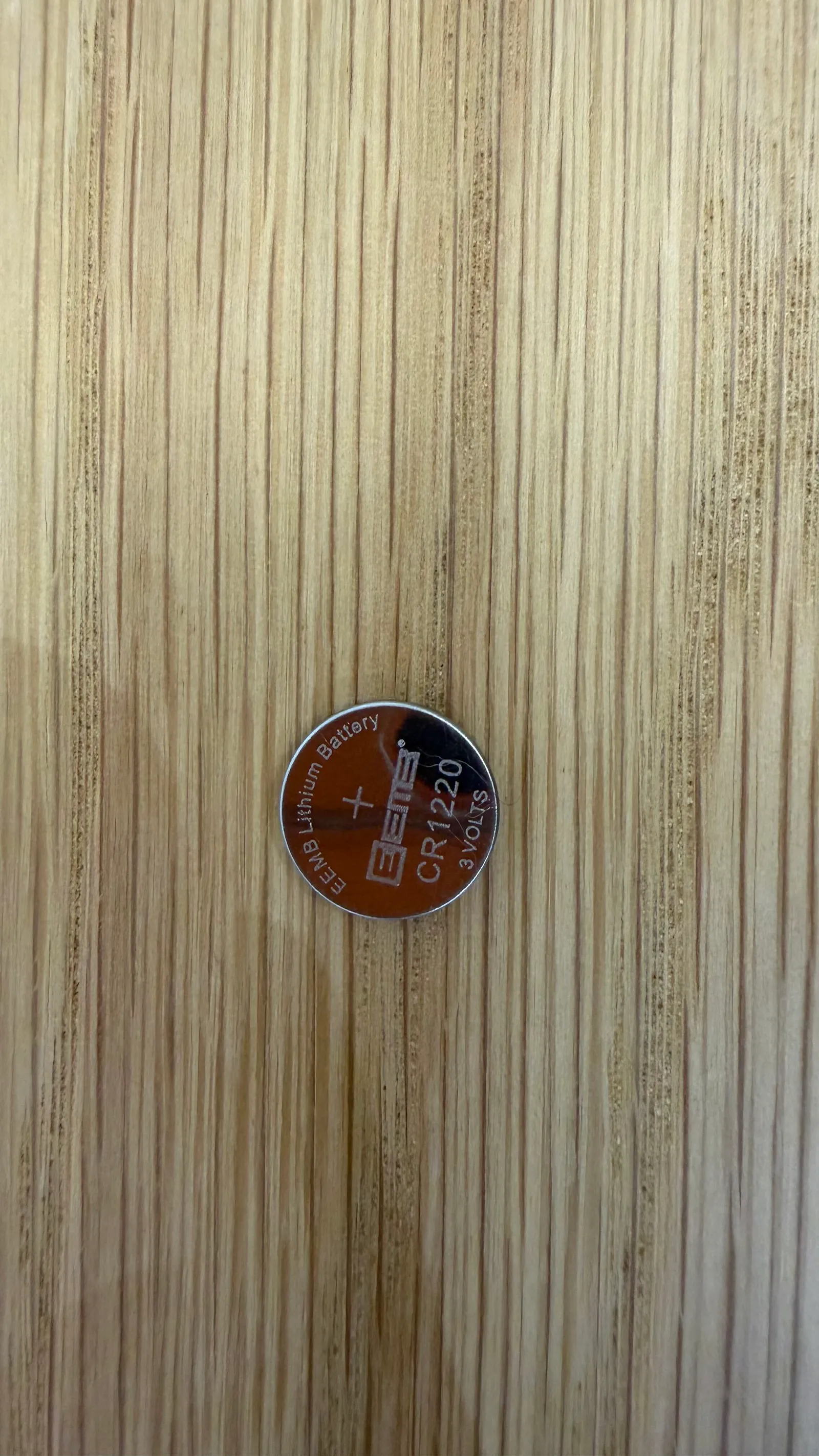
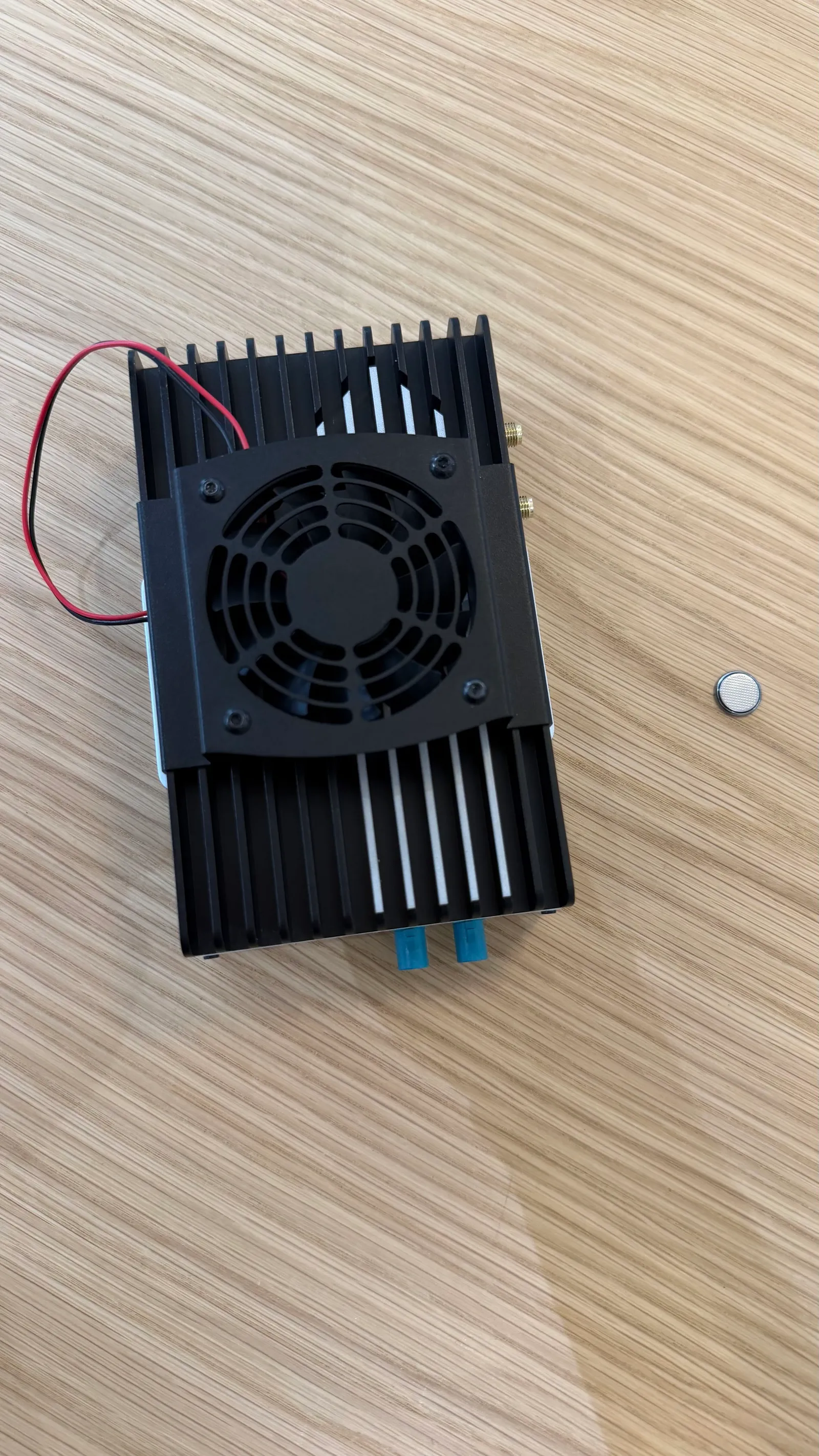
- Shut down the device, then disconnect the power supply, the Ethernet cable, and all the USB and GMSL2 peripherals.
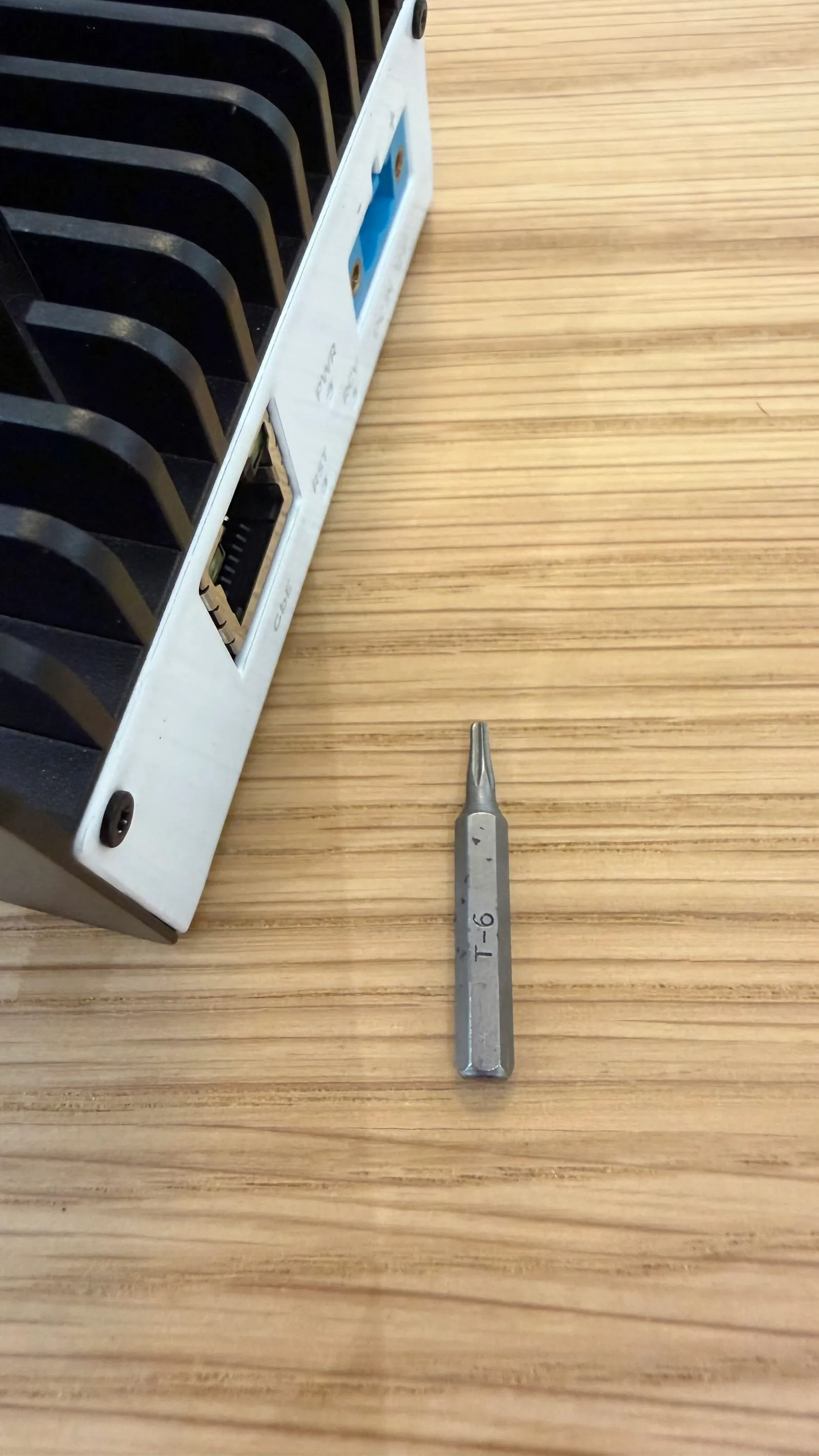
- Prepare a screwdriver with a Torx T-6 bit and a small flat-blade tool.
- Remove the four screws located at the corners of the front and rear panels using the Torx T-6 bit, then use the flat-blade tool to gently pry the white cover away from the black heatsink to release it.
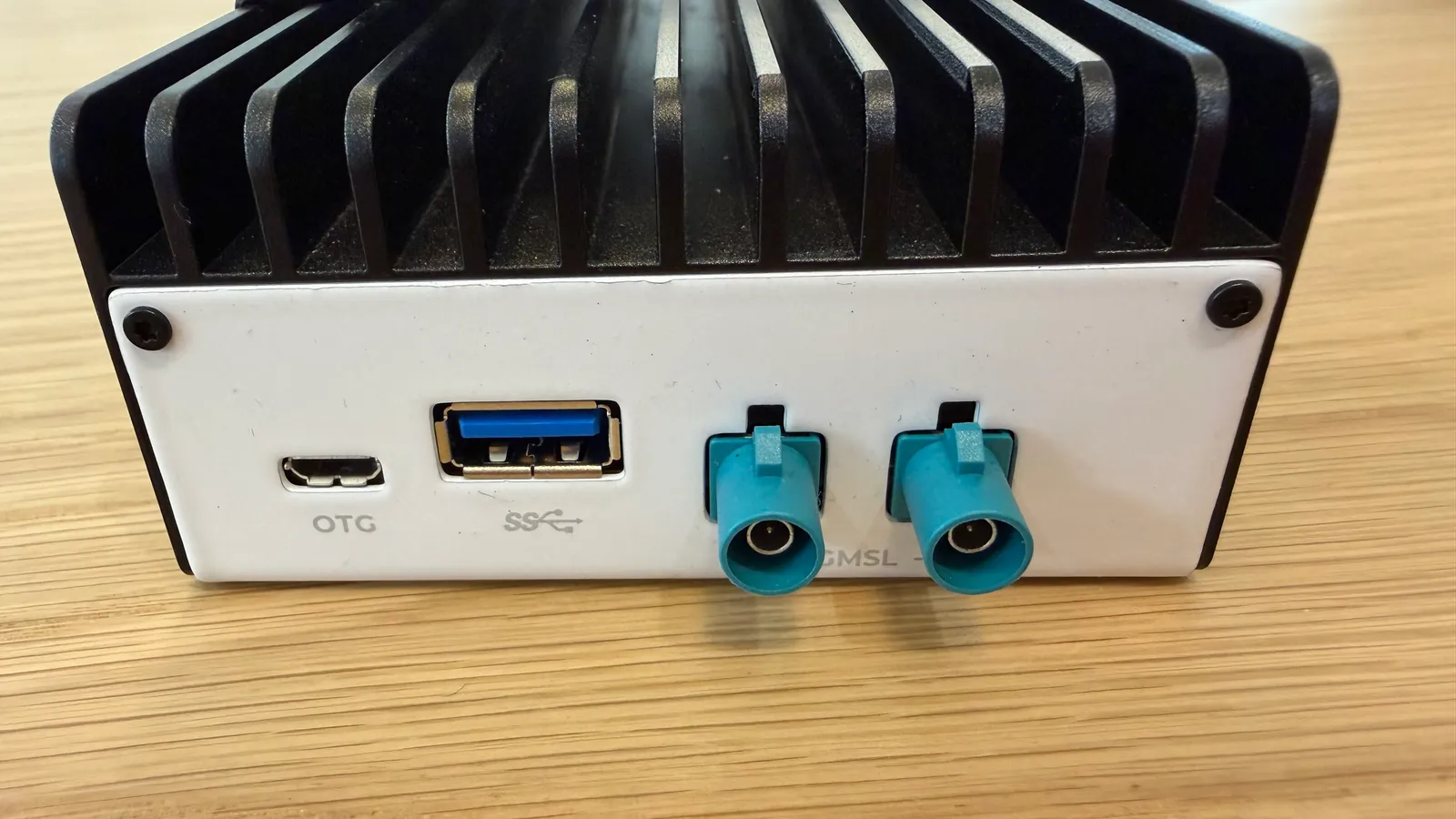
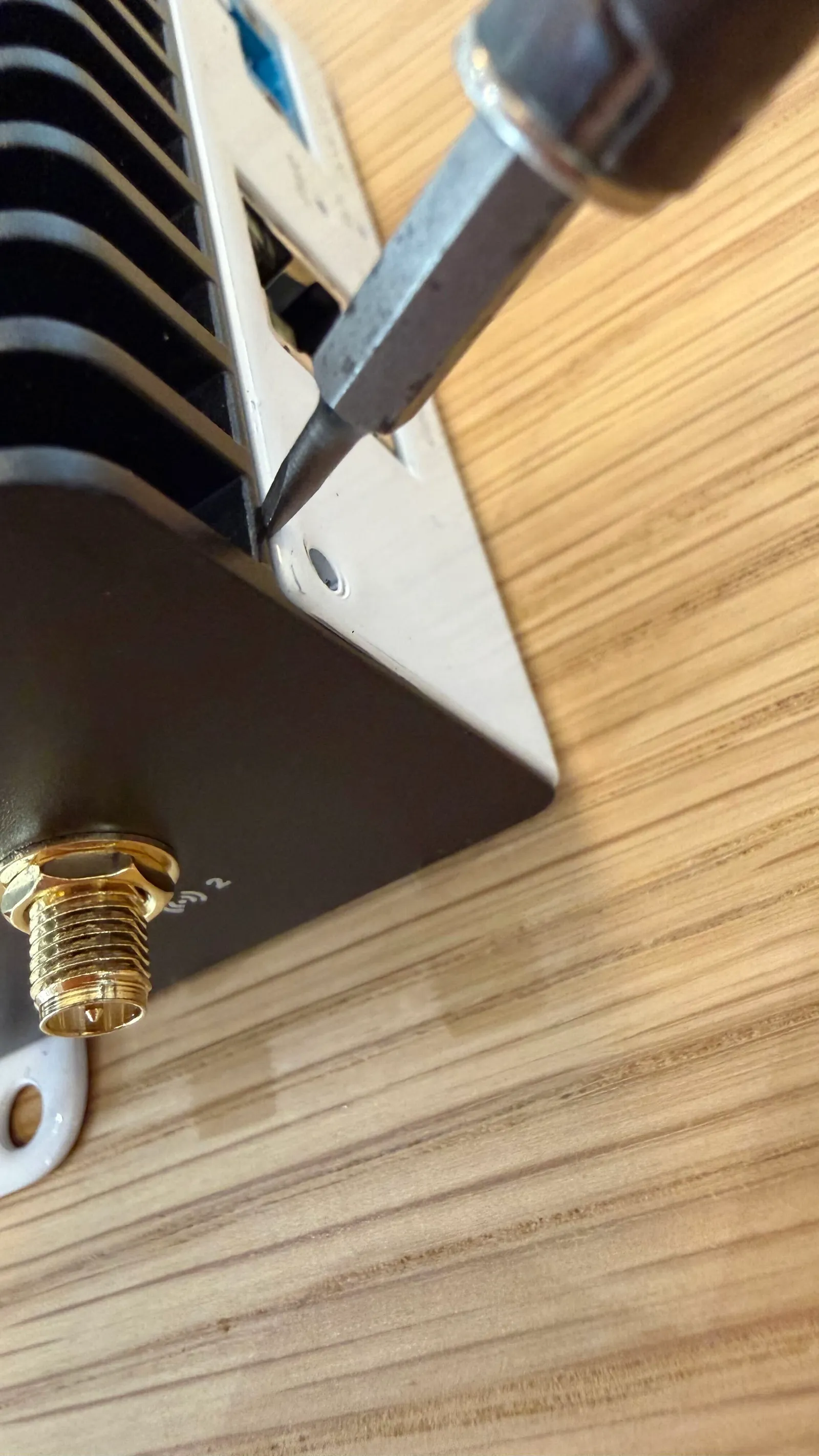
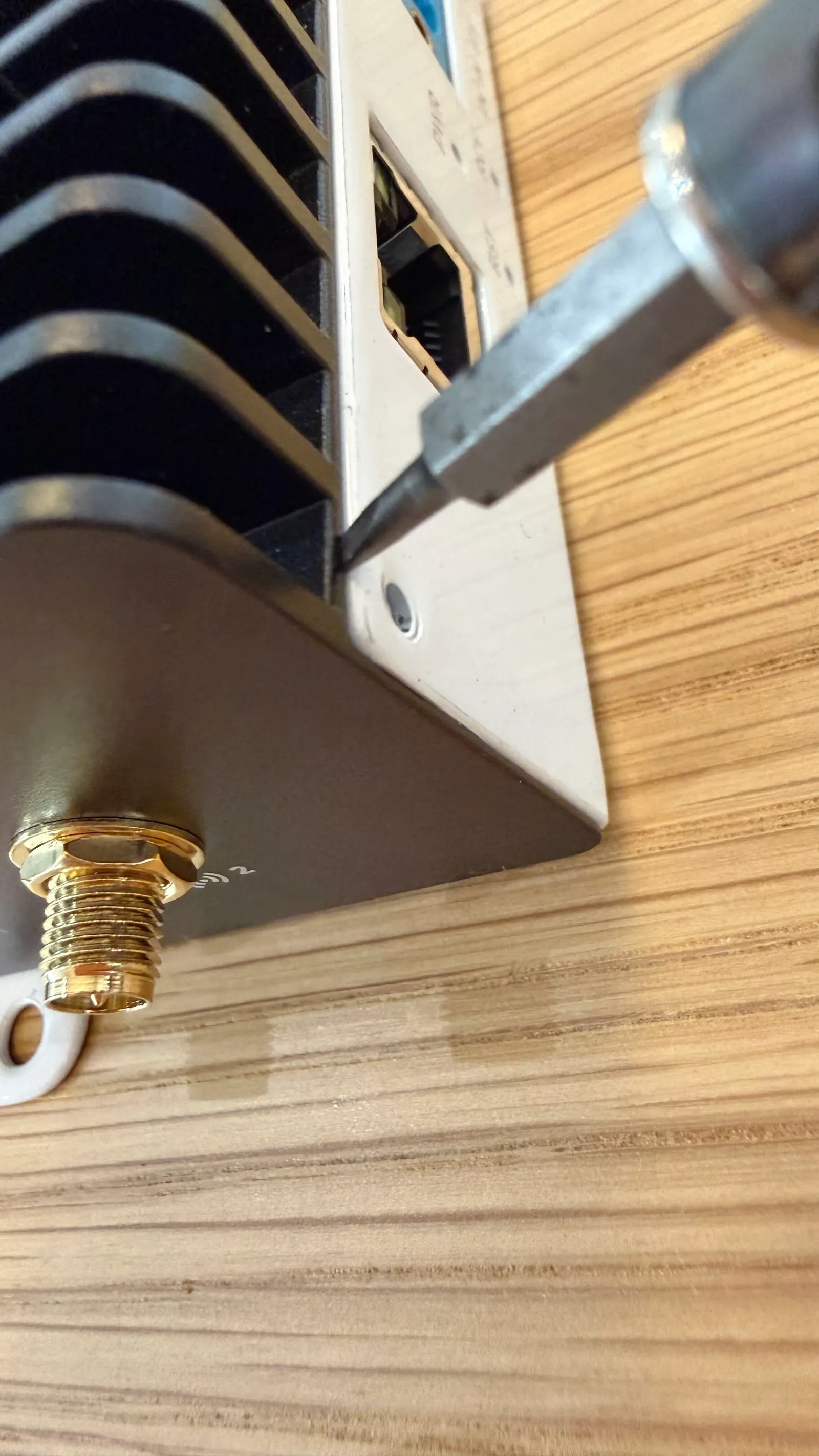
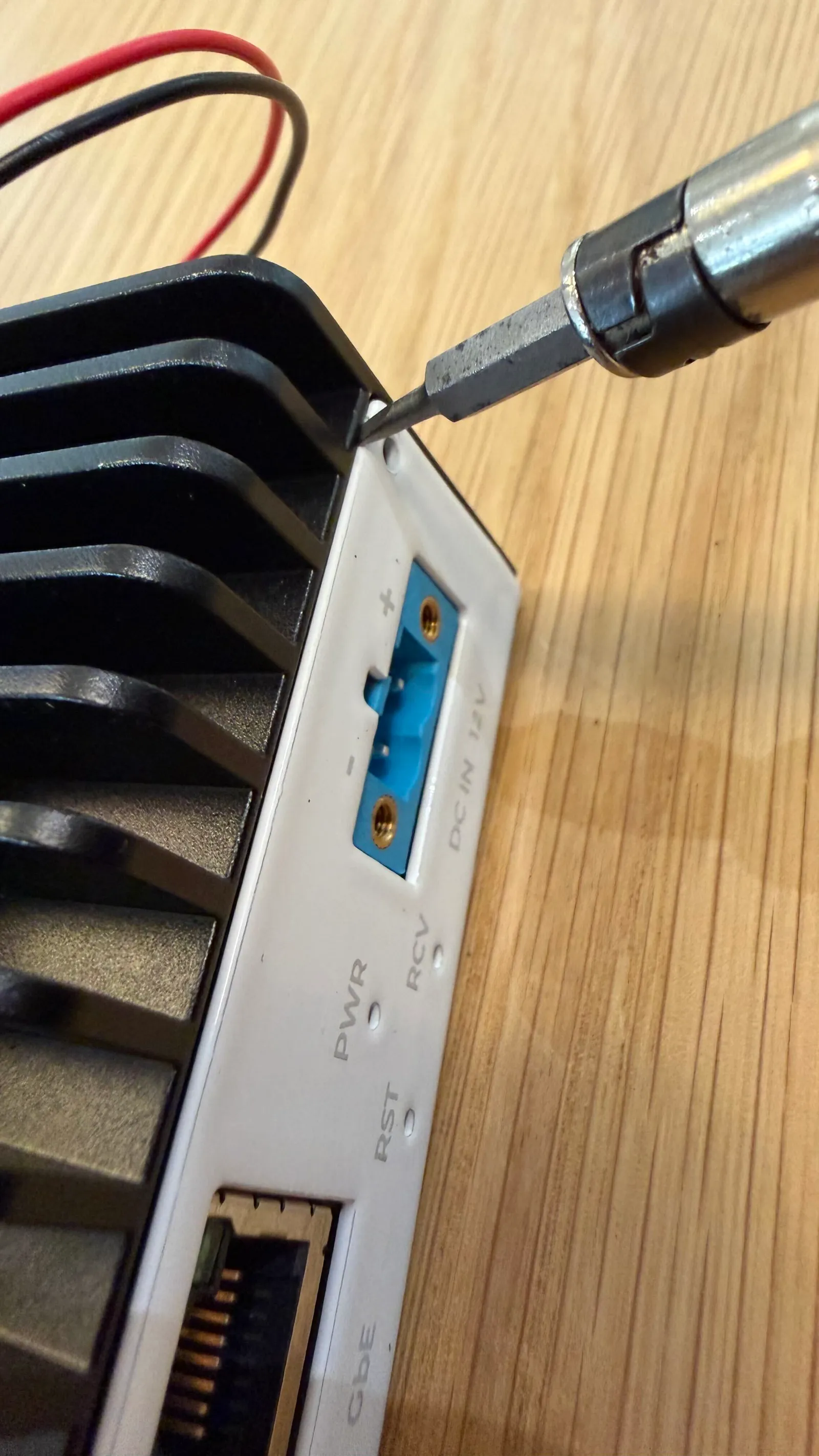
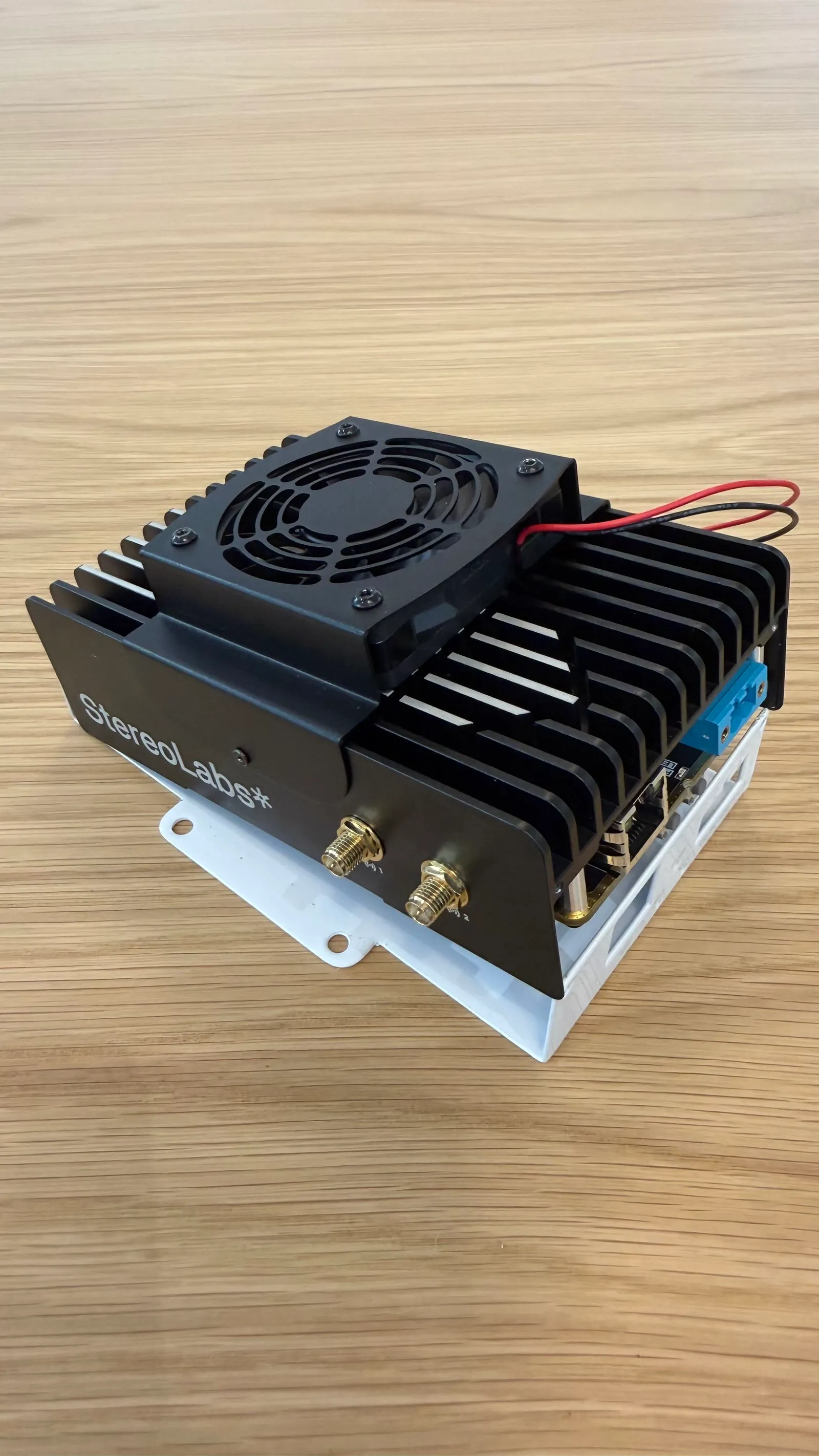
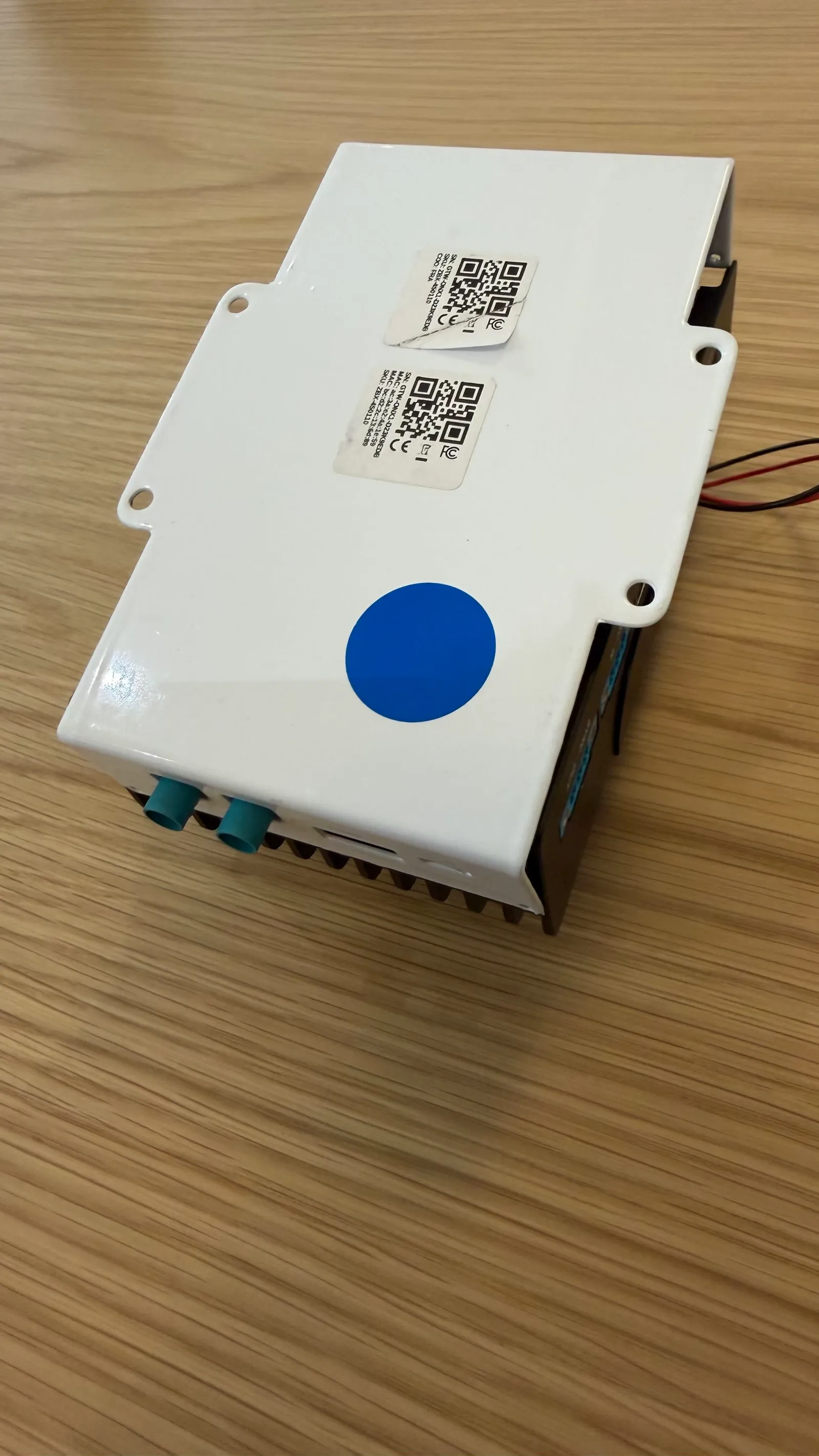
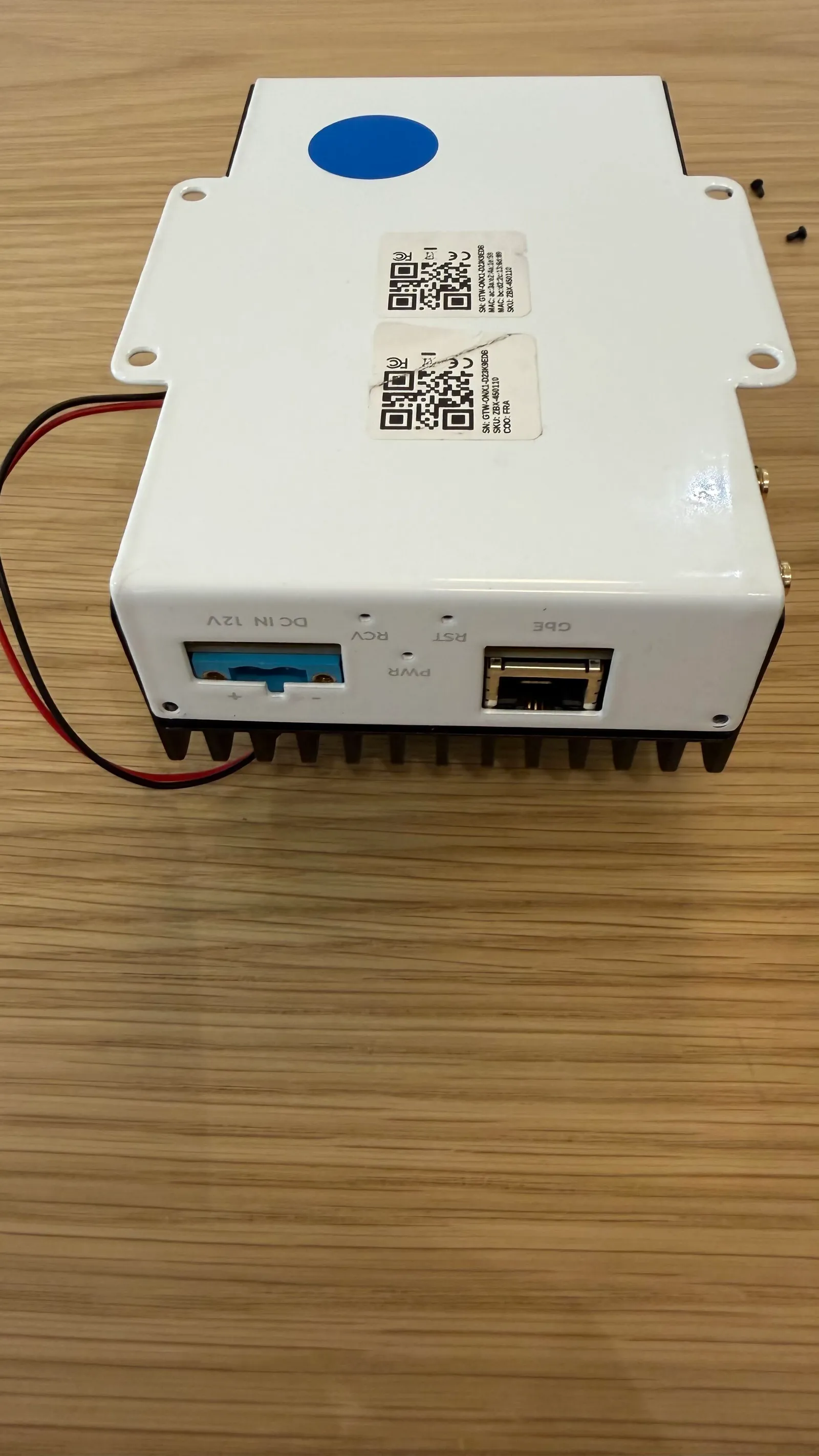
- Turn the device upside down and lift the white cover off to expose the bottom side of the carrier board.
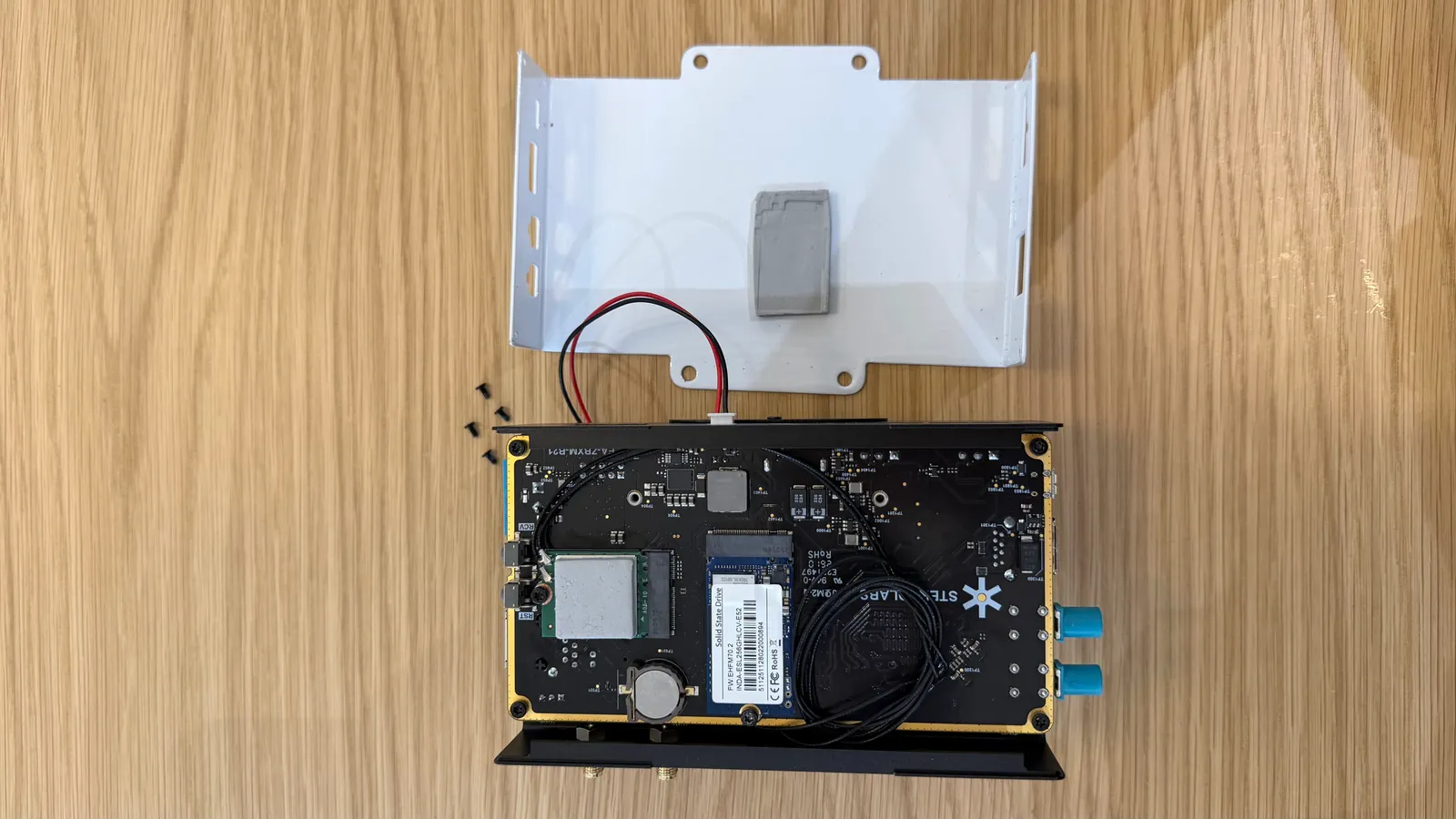
- Pry the discharged battery out of its holder using the flat-blade tool.
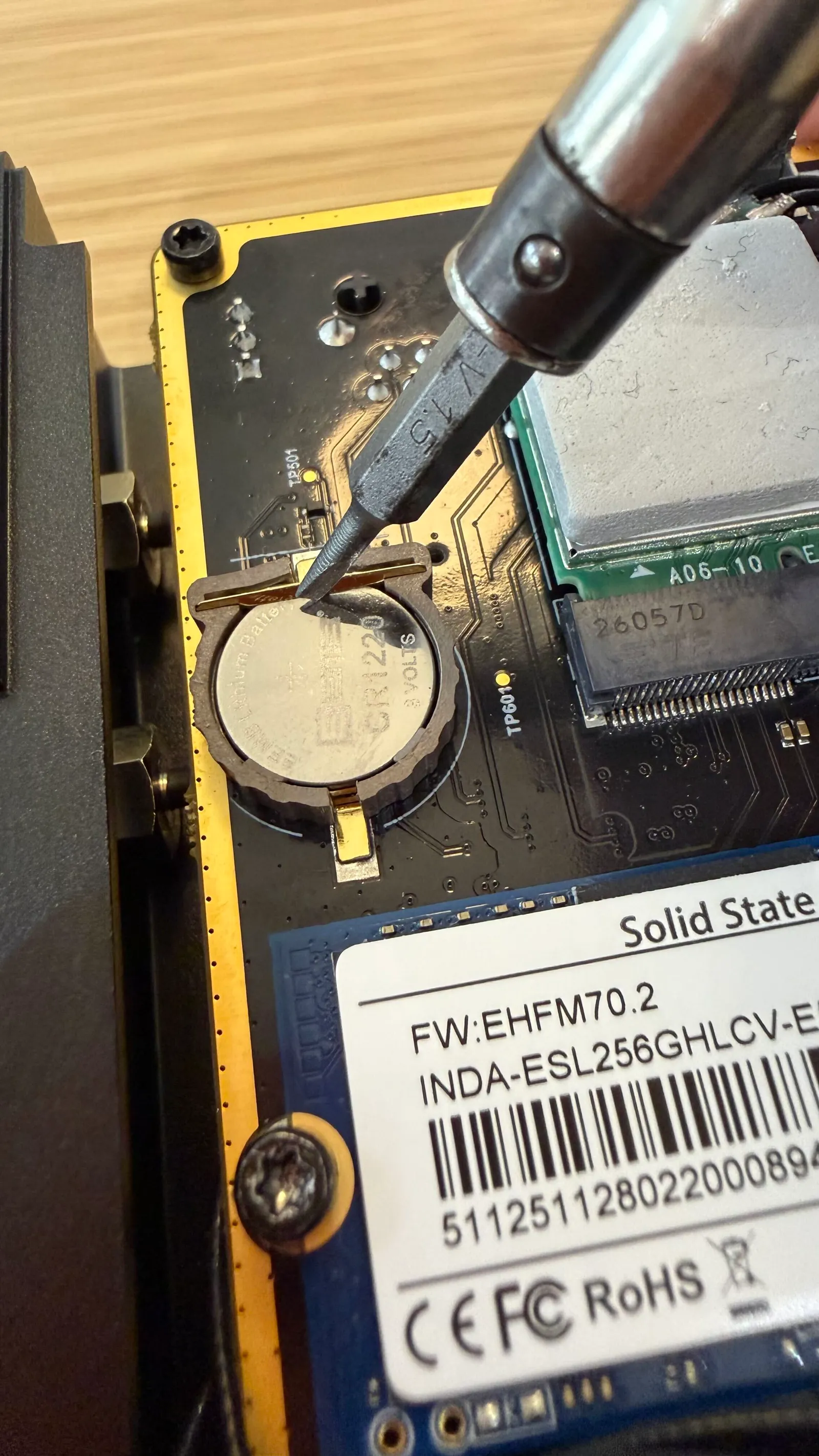
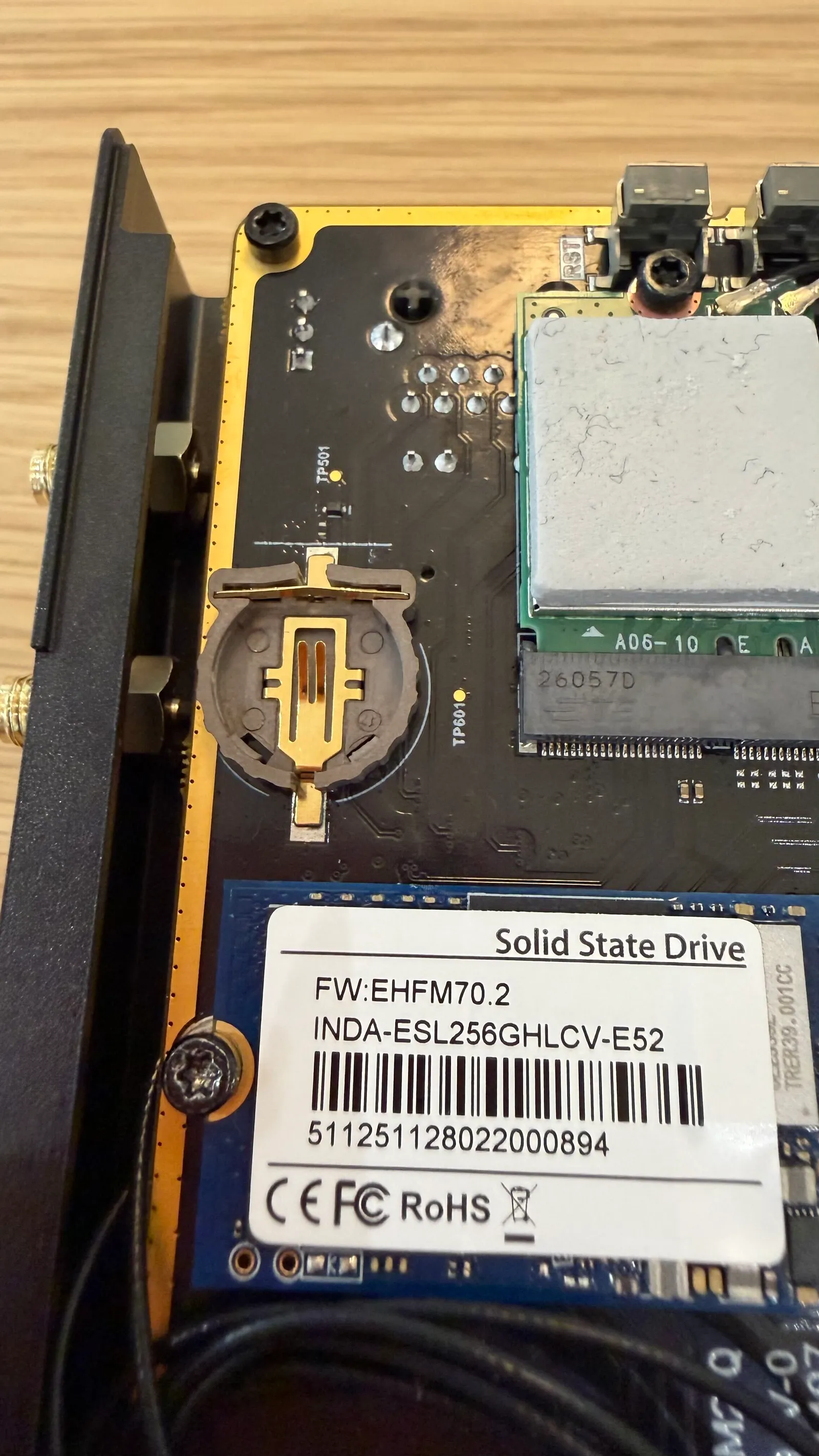
- Insert the new battery in the holder, with the marked positive (+) face upward.
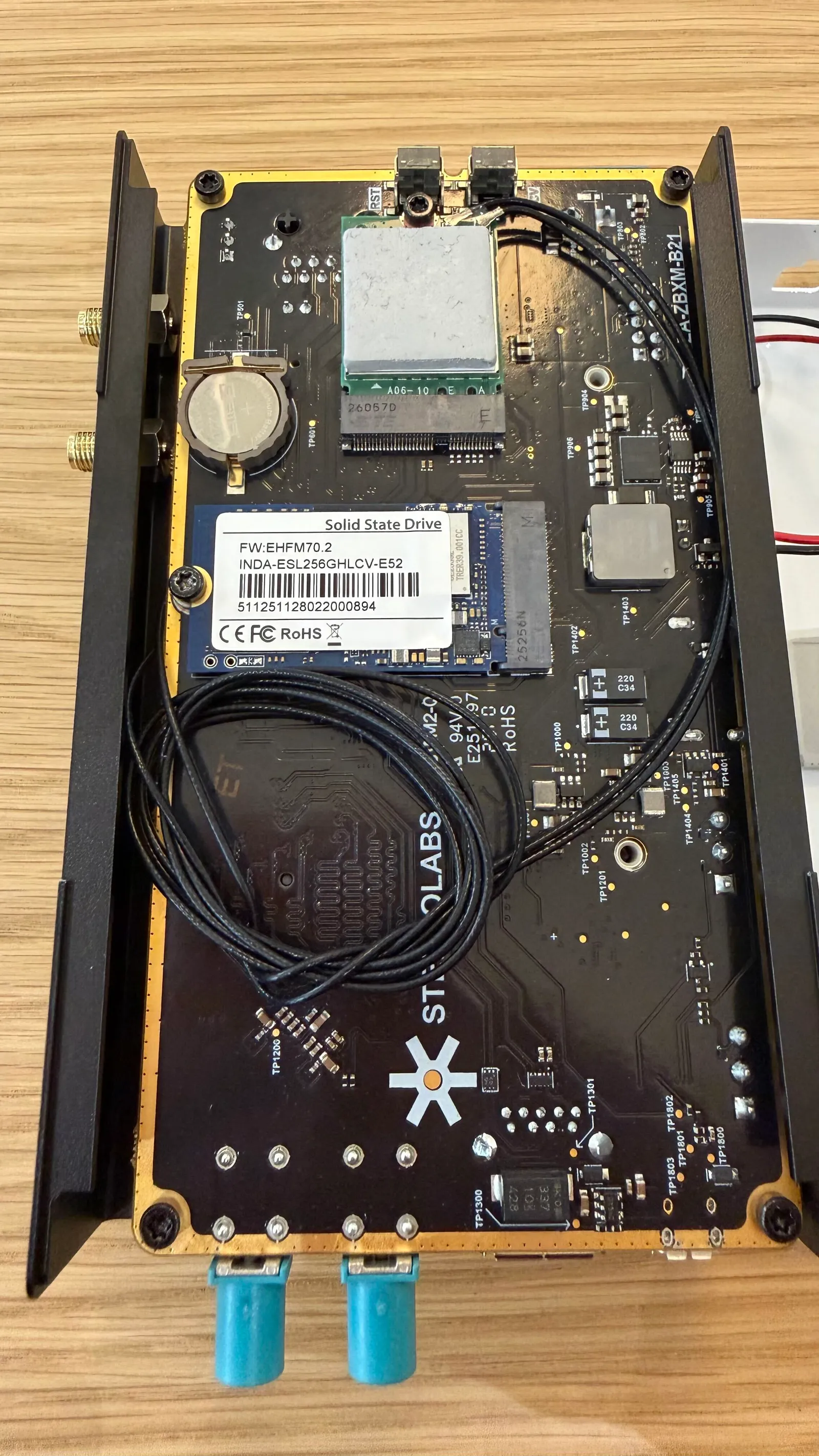
- Refit the white cover and drive the four screws back in place using the Torx T-6 bit.
- Power on the device and set the correct date and time.
You can use the
datecommand, for examplesudo date --set="2026-01-31 14:30:00", or connect the device to the internet to retrieve the current time from a time server, if automatic time synchronization is enabled.
Chromium and Firefox browser issues with Jetson Linux (L4T) 36.4.4 - JP 6.2.1
Upgrading to Jetson Linux (L4T) 36.4.4 - JP 6.2.1 introduces Snapd 2.70, which breaks all Snap packages with the following error:
For this reason, the Chromium and Firefox browsers, and other Snap-based applications, fail to launch.
This occurs because Jetson Orin devices ship with a minimal kernel that lacks certain security features required by Snapd 2.70 and newer.
To resolve this issue, revert Snapd to an earlier working version:
For more information, refer to this page of the JetsonHacks website.
Error: “Package nvidia-l4t-kernel is not configured yet” while installing the ZED X Driver
After upgrading the ZED Box Mini with sudo apt upgrade, reinstall the ZED X Driver to restore full compatibility.
In some cases, the reinstallation can fail with the dependency error shown below:
To resolve this issue, you can follow these steps:
This procedure resets the dpkg package metadata (maintainer scripts and file lists) of all installed packages. Use it only as a last resort, when sudo dpkg --configure -a and sudo apt-get -f install alone do not solve the problem.
This process will clean up the package cache, backup the existing package information, create a new directory for package information, update the package list, and fix any broken dependencies that may be causing the issue. After completing these steps, you should be able to install the ZED X Driver without encountering the “Package nvidia-l4t-kernel is not configured yet” error.
Blurry images after system update
After a system update, if you experience blurry images from the GMSL2 camera, it may be caused by the overwriting of a patched library used by the ZED Link driver.
To fix this issue, please follow this procedure to manually restore the patched library:
-
Download the latest ZED Link driver package for your device from the ZED X Drivers download page.
-
Extract the downloaded
.debpackage and copy the patched library to the correct location:Replace
stereolabs-zed<model>_<version>-<deser>-<l4t_version>_arm64.debwith the actual filename of the downloaded package.Replace
<l4t_version>in thecpcommand with your current L4T version (for example,36.4.3). -
Reboot the Jetson device:
After following these steps, the GMSL2 camera should function correctly with clear images.
Contact Support
If you are unable to resolve your issue, please visit our community forum or contact support@stereolabs.com for further assistance.