

Flash your ZED Box Orin
Should I flash my ZED Box?
The ZED Box Orin is shipped with a pre-configured operating system and drivers optimized for its hardware.
Flashing (resetting or upgrading the device firmware) is only recommended if you need to:
- Install a different OS or JetPack version,
- Recover from a corrupted system,
- Resolve issues preventing the device from booting or functioning properly.
Flashing will erase all data and custom configurations on your ZED Box Orin. Proceed only if you are familiar with the process or have been instructed by support. For most users, flashing should be a last resort.
Flashing Procedure
The NVIDIA® SDK Manager does not support automatic flashing of the Jetson modules installed in the ZED Box. Therefore, you must manually flash the board using NVIDIA’s BSP for the desired JetPack version.
Force the ZED Box in Recovery mode
It is not required to open the ZED Box to force it into Recovery mode. Opening the box will void the warranty
-
First method:
To automatically start the ZED Box Orin in Force Recovery mode:
- Power off the device by removing both the barrel jack and any connected PoE+ Ethernet cable.
- Connect a Type-A to micro USB cable from the Ubuntu host PC to the micro USB port labeled
OTGon the device. - Power on the device by plugging in the barrel jack.
If the above procedure does not work and your ZED Box is in working status, you can force the “Recovery Mode” with the command line below.
-
Second method:
This is applicable only if your device can normally boot.
Open a terminal console (
Ctrl+Alt+t) and enter the commandThis command will reboot the ZED Box Orin in Recovery Mode.
When the ZED Box Orin boots in Force Recovery mode, the power LED stays OFF
You can verify that the ZED Box correctly started in “Recovery Mode” by entering this command in a command line console of the host PC:
- ZED Box Orin Nano 8 GB: an NVIDIA® device with VID:PID
0955:7523should be listed. e.g.Bus xxx Device yyy: ID 0955:7523 NVIDIA Corp. APX - ZED Box Orin NX 16 GB: an NVIDIA® device with VID:PID
0955:7323should be listed. e.g.Bus xxx Device yyy: ID 0955:7323 NVIDIA Corp. APX - ZED Box Orin NX 8 GB: an NVIDIA® device with VID:PID
0955:7423should be listed. e.g.Bus xxx Device yyy: ID 0955:7423 NVIDIA Corp. APX
If an NVIDIA® device with VID:PID 0955:7020 and type NVIDIA Corp. L4T (Linux for Tegra) running on Tegra is listed, then your ZED Box Orin has not rebooted in Force Recovery mode. You must retry the procedure to boot it in Force Recovery mode.
When the ZED Box is in Recovery Mode, the power LED will not turn on and the device will not boot into the operating system. Instead, it will wait for a host PC to connect to it via USB and flash the OS. The ZED Box will not be accessible via SSH or any other means until the flashing process is completed.
There is a known issue with the first generation of ZED Box Orin with serial numbers starting with GTW-ONX- that prevents them from booting into Force Recovery Mode using the methods described above. Please use the method described in the section “Entering recovery mode with a live USB flashdrive” below to be able to flash the device.
Flashing the ZED Box Orin model
Requirements:
- JetPack version
<= 5.1.2, use a host PC running Ubuntu 18.04 or Ubuntu 20.04. - JetPack version
>= 6.0, use a host PC running Ubuntu 20.04 or Ubuntu 22.04.
On the host PC:
-
Open a terminal console from an empty folder of your choice.
-
For example:
-
-
Install QEMU to build the image:
-
Ensure that you previously forced the ZED Box Orin in “Recovery mode”.
-
Download the Flash Script:
- Download the flash script for the NVIDIA® JetPack version you want to install:
-
Flash the ZED Box:
-
Ensure you have at least 80GB of free space on your working hard drive.
-
Use the following commands to flash the ZED Box:
- Replace
<script_name>with the name of the downloaded script, e.g.,zedbox_all_usb_flash_6.2. - All necessary files will be downloaded in the folder
$BSP_ROOT. The script will create this folder if it does not exist and will ask you to log in asroot.
- Replace
-
-
Wait for the operation to complete. You will see the following output if the flash is successful:
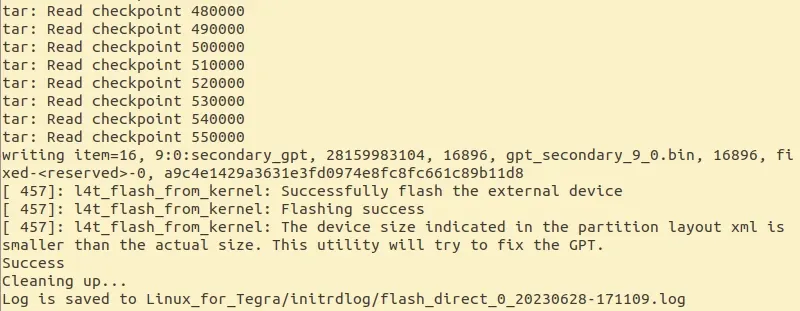
If you encounter any problems during this procedure, please consult the troubleshooting guide.
Post-Flash operations
After flashing your device, follow these steps to install the necessary NVIDIA® and StereoLabs packages to ensure your ZED camera works correctly.
-
Boot and Login:
Power on the device and log in with your credentials.
The new default credentials of your ZED Box are:
- username:
user - password:
admin
- username:
-
Check the OS Version:
Follow this support guide to determine the version of the operating system installed on your device.
-
Connect to the Internet:
Connect your device to the internet using an Ethernet cable (WiFi may not yet be available, depending on the script you used to flash the device).
If WiFi is not detected or not connecting, please follow this troubleshooting guide.
-
Open a Terminal:
Press
Ctrl+Alt+Tto open a terminal window. -
Update the APT cache:
Run the following commands to update the APT cache:
Do not run the command
sudo apt upgradebefore performing the next steps! -
Install NVIDIA® JetPack Packages:
Run the following command to install the NVIDIA® JetPack packages, which include the required Jetson™ drivers, CUDA, and all necessary NVIDIA® libraries:
-
Install the ZED Box Orin GMSL2 driver (for ZED X and ZED X One cameras):
Download and install the appropriate drivers from the driver web page:
-
Hold the kernel packages to not upgrade them and invalidate the setup:
-
Create a
hold-zedbox-kernel.shscript file with the following content:-
nano hold-zedbox-kernel.sh'hold-zedbox-kernel.sh'
Fill the file with this script:
-
-
Make the script executable:
chmod +x hold-zedbox-kernel.sh -
Run the script:
sudo ./hold-zedbox-kernel.sh -
Verify the result:
sudo ./hold-zedbox-kernel.sh statusAll the listed
nvidia-l4t-*kernel packages should be reported as[HELD] nvidia-l4t-* (version: xx.y.z-dddddddddddddd).
-
-
Download and install the ZED SDK:
-
Visit the StereoLabs website and download the ZED SDK for Jetson that matches your installed JetPack/L4T version.
-
Navigate to your Downloads directory and run the installer:
-
-
Reboot:
Restart your device to apply all changes:
-
Enjoy Your Device:
Your device is now ready for use with the ZED cameras.
Entering recovery mode with a live USB flashdrive
If the bootloader of the ZED Box Orin is “broken”, or you own a first-gen ZED Box Orin (serial number not beginning with GTW-ONX1- or GTW-ONX2-), you will not be able to enter recovery mode automatically by using the standard methods described above.
This tutorial will help you recover from such a situation.
If the serial number of your ZED Box Orin begins with GTW-ONX1- or GTW-ONX2-, you should follow this guide only if you experienced problems while booting the ZED Box Orin to Recovery mode using the standard methods
Requirements:
- for JetPack version
<= 5.1.2, use a host PC running Ubuntu 18.04 or Ubuntu 20.04. - for JetPack version
>= 6.0, use a host PC running Ubuntu 20.04 or Ubuntu 22.04. - a 32 GB or larger USB 3.0 key.
ALL THE INFORMATION STORED IN THE USB KEY WILL BE WIPED DURING THE PROCEDURE
Setting up the USB Key
-
Plug the USB Key to the Ubuntu host machine
-
Download the flash script for the NVIDIA® JetPack version you want to install:
-
Install the necessary dependencies:
-
Use
lsblkto identify the USB disk you want to flash. In the caption below, we can identify that the USB disk ID issda: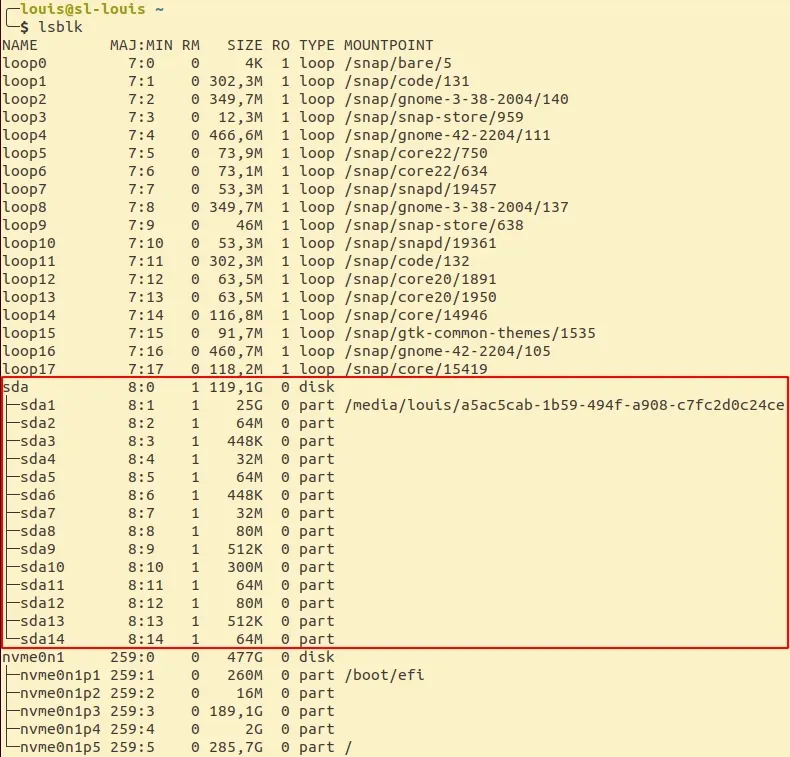
Please be careful and use the name of the drive and not the name of a partition. For instance, use
sdainstead ofsda1. -
Make the script executable:
Replace
<script_name>with the name of the downloaded script, e.g.zedbox_onx_usb_flash_5.1.2orzedbox_all_usb_flash_6.2. -
Launch the script to flash your disk. The operation requires 80GB of free space. You need to specify the USB disk you want to install it on (e.g.
sda) and the working directory you want to create (e.g../stereolabs_bsp). It will ask you to log in as root several times. Replace the BSP_ROOT and SDX variables with yours in this command:Replace
<script_name>with the name of the downloaded script, as in the previous step. -
Upon success, you will read the following message:
-
The USB drive is now flashed. You will have to run almost the same command to flash the ZED Box later.
You can use the same BSP_ROOT directory to flash your ZED Box once it is in recovery mode. This allows you to skip the download and unpack sections of the script.
Booting from the USB disk
-
Shut down your ZED Box.
-
Plug your USB disk into the single vertical USB type A port of the ZED Box Orin.
-
Power the ZED Box and wait for it to boot from USB, it will take some time.
-
You can now open a terminal console (
Ctrl+Alt+t) and enter the following command to reboot into force recovery mode:If you do not have a connected display, you can use a Serial Console. Read the guide on Remote access via Serial Console.
When the ZED Box Orin boots in Force Recovery mode, the power LED stays OFF
You can verify that the ZED Box correctly started in “Recovery Mode” by entering this command in a command line console of the host PC:
-
ZED Box Orin Nano 8 GB: an NVIDIA® device with VID:PID
0955:7523should be listed. e.g.Bus xxx Device yyy: ID 0955:7523 NVIDIA Corp. APX -
ZED Box Orin NX 16 GB: an NVIDIA® device with VID:PID
0955:7323should be listed. e.g.Bus xxx Device yyy: ID 0955:7323 NVIDIA Corp. APX -
ZED Box Orin NX 8 GB: an NVIDIA® device with VID:PID
0955:7423should be listed. e.g.Bus xxx Device yyy: ID 0955:7423 NVIDIA Corp. APX -
Remove the USB drive from the ZED Box.
-
You can now follow the instructions in Flashing the ZED Box Orin model.
If you encounter any problems during this procedure, you can contact the support team by sending an email to support@stereolabs.com.