

Camera Controls
Several camera settings can be tuned using ZED Explorer or the API.
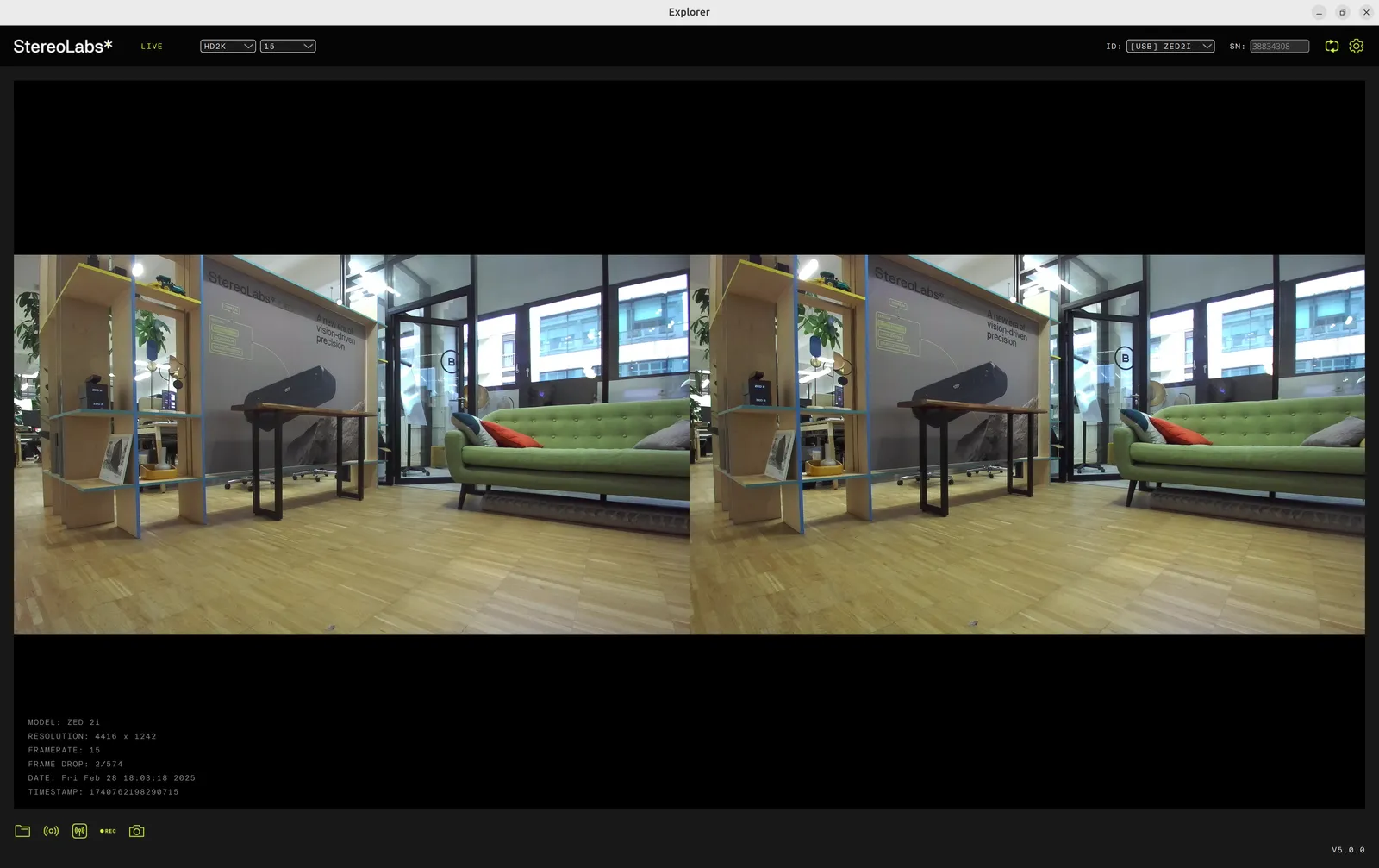
Selecting a Resolution
On stereo cameras, the left and right video frames are synchronized and streamed as a single uncompressed video frame in a side-by-side format.
ZED, ZED 2/2i, ZED Mini
ZED X, ZED X Mini, ZED X Nano
ZED X One GS
ZED X One 4K
You can change video resolution and frame rate in ZED Explorer or use the API. To choose the frame rate that minimizes latency, see Frame Rate and Latency.
Selecting an Output View
The ZED outputs images in different formats. Using retrieveImage() with a value of the sl::VIEW enum, you can select between rectified, unrectified, grayscale, and color-rendered depth views:
The DEPTH, CONFIDENCE, NORMALS, DEPTH_RIGHT and NORMALS_RIGHT views are 8-bit color renderings intended for display only and require depth computation to be enabled. To access the underlying measurement values, use retrieveMeasure() with the sl::MEASURE enum instead. Monocular cameras (ZED X One) do not provide depth-related views.
For more information on how to select these views using the API, see Image Capture.
Adjusting Camera Settings
The ZED camera features an ISP (Image Signal Processor) module that performs various image processing algorithms on raw images captured by the CMOS image sensors. Several parameters of the ISP can be adjusted directly from the ZED Explorer application or through the ZED SDK with the sl::VIDEO_SETTINGS:
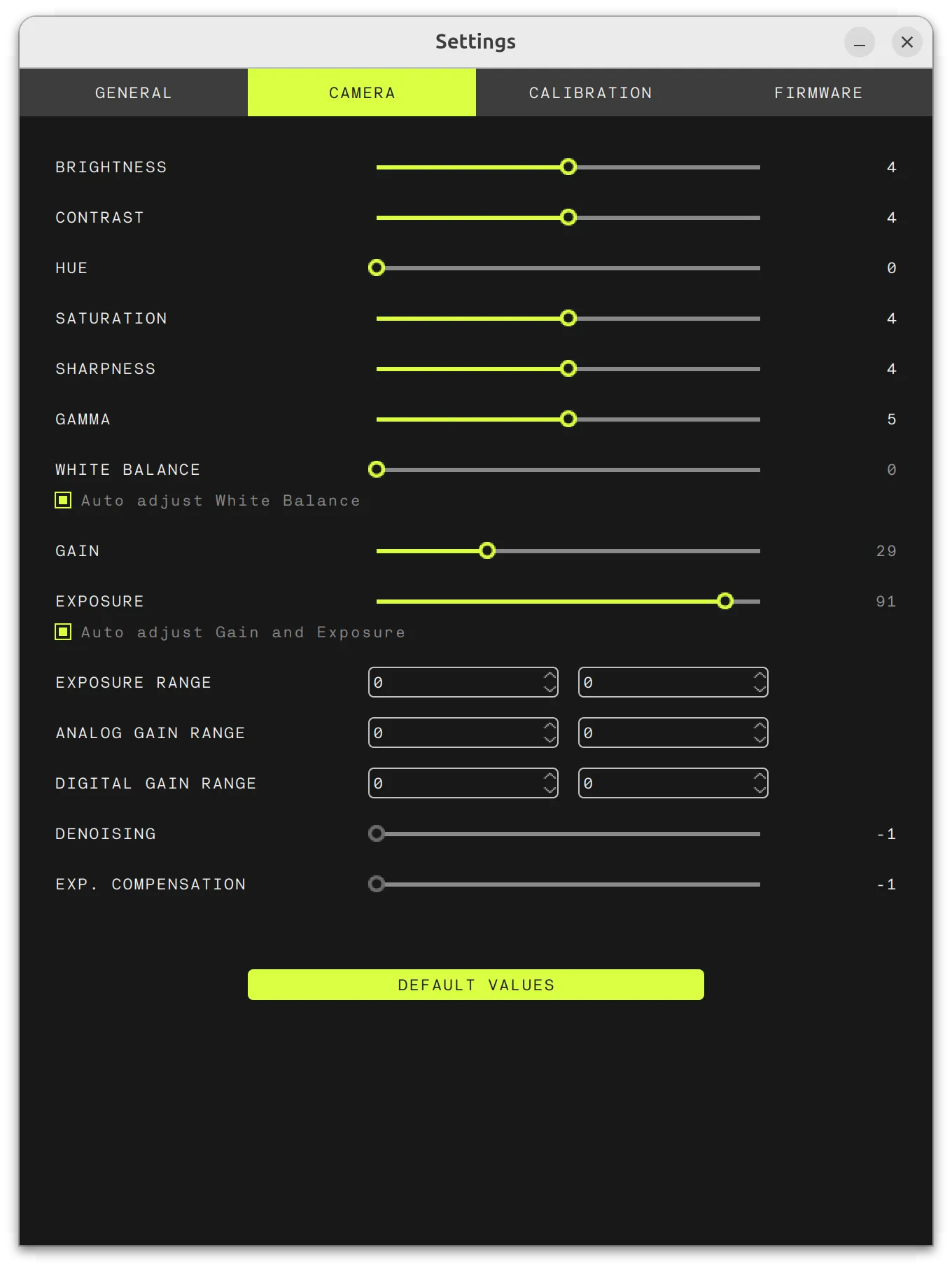
ZED, ZED 2/2i, ZED Mini
ZED X, ZED X Mini, ZED X Nano, ZED X One
For more information on how to adjust camera settings using the API, see Camera Controls.
Camera controls adjust parameters of left and right image sensors in sync. It is not possible to adjust sensor parameters individually.
The ISP processes the images before they are sent to the host, so camera control settings are baked into the pixels that a recording writes to an SVO file. They are the only settings that cannot be changed when the file is played back: setCameraSettings() has no effect in Playback mode. Everything else, including depth, is computed live at playback and can be freely reconfigured.
Manual/Auto Mode
When camera White Balance, Exposure and Gain are in AUTO mode, they are automatically adjusted depending on the luminance in the scene.
In AUTO mode, Exposure level will be increased first, then Gain in order to reduce noise. When Exposure is at its maximum level, motion blur is increased. If you need to reduce blur, switch to MANUAL mode and increase Gain before Exposure.
It is also recommended to increase the Gamma setting in low-light environments, as it can provide a considerable light boost while reducing saturated areas.
Using the API
The ZED API provides low-level access to camera control and configuration. To use the ZED in your application, you will need to create and open a Camera object. The API can be used with two different video inputs: the ZED live video (Live mode) or video files recorded in SVO format with the ZED API (Playback mode).
Camera Configuration
To configure the camera, create a Camera object and specify your InitParameters. Initial parameters let you adjust camera resolution, FPS, depth sensing parameters and more. These parameters can only be set before opening the camera and cannot be changed while the camera is in use.
InitParameters contains a configuration by default. To see the list of parameters, read the API documentation.
Image Capture
To capture images from the ZED, specify your RuntimeParameters and call grab() to grab a new frame and retrieveImage() to retrieve the grabbed frame. retrieveImage() lets you select between different views such as left, right, unrectified and grayscale images.
Adjusting Camera Controls
Camera settings such as exposure, white balance and more can be manually set at runtime using setCameraSettings(). To change camera resolution and frame rate, use InitParameters.
Camera settings can be retrieved using getCameraSettings(). To get the list of available settings, see the API documentation.
Code Example
Check out the Camera Control sample on GitHub.