

How to Install ZED SDK on NVIDIA® Jetson™
To use StereoLabs’ cameras on NVIDIA® Jetson™ platforms, you need to:
- Setup JetPack.
- Install the ZED SDK for NVIDIA® Jetson.
Download and Install JetPack
If you are working with a StereoLabs’ ZED Box, please refer to the relevant documentation for the ZED Box Orin, or ZED Box Mini instead.
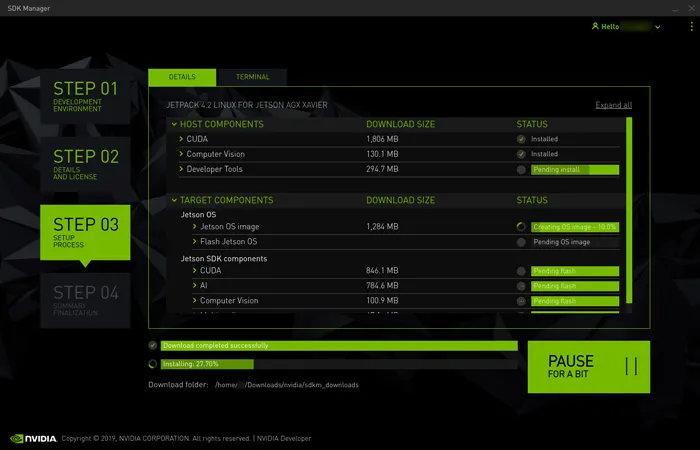
NVIDIA® Jetson™ boards need to be flashed first with JetPack (their operating system). We recommend using the NVIDIA® SDK Manager to flash your NVIDIA® Jetson™ with the latest OS image and developer tools.
Go to the JetPack section of NVIDIA’s website, and click on Download SDK Manager. More installation instructions are available on Install Jetson™ Software with SDK Manager.
Download and Install the ZED SDK
Each ZED SDK release supports specific JetPack (L4T) versions, and the supported list changes with every release. To find the right installer for your system, visit the ZED SDK release page, select the Jetson platform, and choose the L4T version that matches your installed JetPack. You can check your current L4T version by running cat /etc/nv_tegra_release in a terminal.
The installer verifies the L4T version of your system and aborts if it does not match exactly, with an error such as Detected Tegra_L4T36.3, required exact Tegra_L4T36.4.
-
Download the ZED SDK for NVIDIA® Jetson. Multiple versions of JetPack are supported; make sure to select the one that matches your system.
-
Go to the folder where the installer has been downloaded.
-
Add execution permission to the installer using the
chmod +xcommand. Make sure to replace the installer name with the version you downloaded. -
Run the ZED SDK installer.
-
At the beginning of the installation, the Software License will be displayed, hit
qafter reading it. -
During the installation, you might have to answer some questions about installing dependencies, tools, and samples. Type
yfor yes ornfor no, then hitEnter. HitEnterto pick the default option.
On Jetson™ boards, CUDA is installed automatically with JetPack, so you’re now ready to use the ZED SDK.
- Run ZED Explorer from
/usr/local/zed/tools/to check that your camera is detected and streams video. - If you are using Python, install the Python API by running
python3 /usr/local/zed/get_python_api.py(the installer also offers to do this for you). - Follow the Tutorials to start using the SDK from your own code.
Installing in silent mode
The silent-mode installation allows you to install specific configurations of the ZED SDK. It removes any display or manual configuration options during the installation process.
The installer can be launched in silent mode with the -- silent option (with a space between -- and silent).
Installing Runtime version only
To install the ZED SDK without any static libraries, headers, tools, or samples, add the runtime_only option.
Installing SDK without checking CUDA
To install the ZED SDK without checking that CUDA is installed, add the skip_cuda option.
Installing SDK without Object Detection
To install the ZED SDK without the AI module (required for Object Detection, Body Tracking, and Neural Depth), add the skip_od_module option.
Installing SDK without Python Wrapper
To install the ZED SDK without the Python wrapper, add the skip_python option.
Installing SDK without sl_hub
To install the ZED SDK without sl_hub, add the skip_hub option.
Installing SDK without Tools
To install the ZED SDK without any tools or samples, add the skip_tools option.
Several options can be passed in the same command. For example, to install only the runtime libraries, without the AI module:
Keep in mind what each option removes:
skip_od_modulealso removes Neural Depth, so theNEURAL,NEURAL_LIGHT, andNEURAL_PLUSdepth modes will not be available.skip_toolsremoves ZED Explorer and ZED Studio, which are the applications used to record and play back SVO files.skip_cudaonly skips the check performed at install time. It is meant for environments where CUDA is provided by the system image rather than by the installer, such as a Docker image built on an L4T base. On Jetson, CUDA is installed with JetPack, so the check normally passes.
Upgrade the ZED SDK
To upgrade the ZED SDK, download the latest installer for your JetPack version from the ZED SDK Download page and run it, as described in Download and Install the ZED SDK. There is no need to uninstall the previous version first: the installer replaces the installed version with the new one.
The same procedure also works to downgrade the ZED SDK: download the installer of the older version you need and run it. The installer replaces the currently installed version with the selected one.
For each minor release (for example, 5.0.x or 5.1.x), the ZED SDK Download page only offers the latest patch release. Patch releases fix bugs and issues found in the previous patch releases of the same minor version, so the latest one is always the recommended choice.
Uninstall the ZED SDK
The ZED SDK installer does not provide an uninstall script. To remove it, delete the installation folder:
If you installed the Python API, you can also remove it with:
CUDA is installed with JetPack and is not removed together with the ZED SDK. The GMSL2 driver for ZED X cameras is also installed separately; to remove it, refer to the ZED Link driver guide.