

Power Modes
The NVIDIA® Jetson™ module of the ZED Box Orin supports several power modes. Each power mode caps the number of online CPU cores, the number of active GPU TPCs, and the maximum frequencies of the CPU, GPU, DLA, and memory (EMC) to keep the module within a given power budget.
Choosing the right power mode lets you trade performance against power consumption and heat. This is important on the ZED Box Orin, which uses a passively cooled enclosure with no fan.
Power supply of the ZED Box Orin
The ZED Box Orin can be powered in two ways:
With the DC barrel jack, you can use all the supported power modes of your module.
With PoE+, the 25.5W budget is shared by the whole system: the Jetson module, the connected cameras, and the USB devices. Choose a power mode that keeps the total consumption of your setup below this limit, and use the DC barrel jack for the highest power modes with several cameras.
Supported power modes
The tables below list the power modes supported by the ZED Box Orin for each Jetson module, with their nvpmodel ID and main clock limits.
Orin Nano 8GB
Orin NX 8GB
Orin NX 16GB
MAXN is an unconstrained mode, available on the Orin NX modules, that enables the maximum number of cores and the maximum clock frequencies. It has no fixed power budget: hardware throttling is engaged when the module power exceeds its limit, so MAXN does not always give the best performance, and NVIDIA does not recommend running heavy workloads in this mode for prolonged periods.
The ZED Box Orin is passively cooled: if the system becomes unstable in MAXN mode, add active cooling, for example a fan blowing on the enclosure, or select a mode with a fixed power budget. With PoE+, use MAXN only if your whole setup stays within the 25.5W budget.
- Always check the modes defined on your device, as described in Check the current power mode, before switching.
- A higher power budget does not always mean a faster GPU. For example, on the Orin NX, the 20W and 25W modes enable more CPU cores but cap the GPU at a lower frequency than the 15W mode. Benchmark your own application in each candidate mode to find the one that suits it best.
The complete clock configuration of each mode, including DLA, PVA, and SoC engine frequencies, is available in the NVIDIA Jetson Linux Developer Guide.
Check the current power mode
Display the active power mode:
The command prints the name and the ID of the mode. For example, on an Orin NX 16GB in MAXN mode:
List all the power modes defined on your device, with their IDs and names, and the default mode applied after flashing:
For example, on an Orin NX 16GB:
On the Ubuntu desktop, the current power mode is also displayed next to the NVIDIA icon in the top bar.
Change the power mode
From the command line
Select a power mode by its ID:
For example, to select the 25W mode of an Orin NX 16GB, which has ID 3:
The selected power mode persists across reboots until you change it again.
Some mode changes modify the number of active GPU TPCs, which can only be applied at boot. In this case, nvpmodel asks for a reboot:
Type yes to reboot immediately. The new mode is applied after the reboot.
From the Ubuntu desktop
-
Click the NVIDIA icon in the top bar. The current power mode is displayed next to it.
-
Open the Power mode submenu and click the mode you want to set.
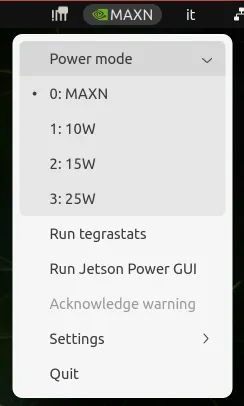
Power mode menu on a ZED Box Orin NX 16GB. The modes listed depend on your Jetson module.
-
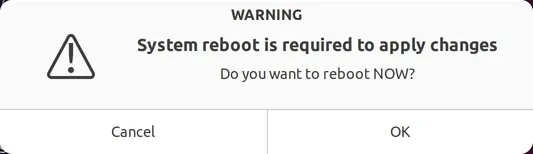
If the new mode requires a reboot, a dialog asks for confirmation. Click OK to reboot and apply the new mode.
Maximize the clocks with jetson_clocks
By default, the CPU, GPU, and memory frequencies scale dynamically with the load (DVFS), up to the limits of the active power mode. The jetson_clocks script locks these clocks at the maximum frequencies of the current power mode. This reduces latency and gives more stable performance, for example during benchmarks, at the cost of a higher idle power consumption.
jetson_clocks never exceeds the limits of the power mode: select the power mode first, then run jetson_clocks.
To return to dynamic frequency scaling later, store the settings before maximizing the clocks:
- The effect of
jetson_clocksdoes not persist across reboots. - After running
jetson_clocks, you cannot change the power mode withnvpmodelanymore. Reboot the device first.
Create a custom power mode
If none of the predefined modes suits your application, you can define a custom power mode, for example to keep more CPU cores online at a lower frequency, or to cap the GPU frequency.
-
Use the NVIDIA Jetson Power Estimator to estimate the power consumption of your configuration and to generate the corresponding
nvpmodelconfiguration. -
Back up the current configuration file:
/etc/nvpmodel.confis a link to the configuration file of your module, for example/etc/nvpmodel/nvpmodel_p3767_0000.conffor the Orin NX 16GB. -
Edit
/etc/nvpmodel.confand add a new< POWER_MODEL ID=<id> NAME=<name> >block. The easiest way is to copy the block of the closest existing mode, then:- give it a unique
IDand a descriptiveNAME, - enable or disable CPU cores with the
CPU_ONLINE CORE_<n> 1|0lines, - adjust the
MIN_FREQandMAX_FREQvalues. CPU frequencies are expressed in kHz; GPU, memory (EMC), DLA, and PVA frequencies in Hz. A value of-1means no limit.
For reference, this is the 15W mode of an Orin NX 16GB, with 4 CPU cores online, the CPU capped at 1420.8 MHz, and the GPU capped at 612 MHz:
- give it a unique
-
Select the new mode:
- Keep the total consumption within the limit of your power supply.
- Capping the memory (EMC) frequency below the bandwidth required by your application can cause functional failures, for example dropped camera frames.
Monitor power consumption and temperature
Monitor the system while your application runs to validate your power mode choice.
tegrastats
tegrastats is installed with JetPack. It reports the CPU and GPU load and frequencies, the memory usage, the temperatures, and the power consumption of the module rails:
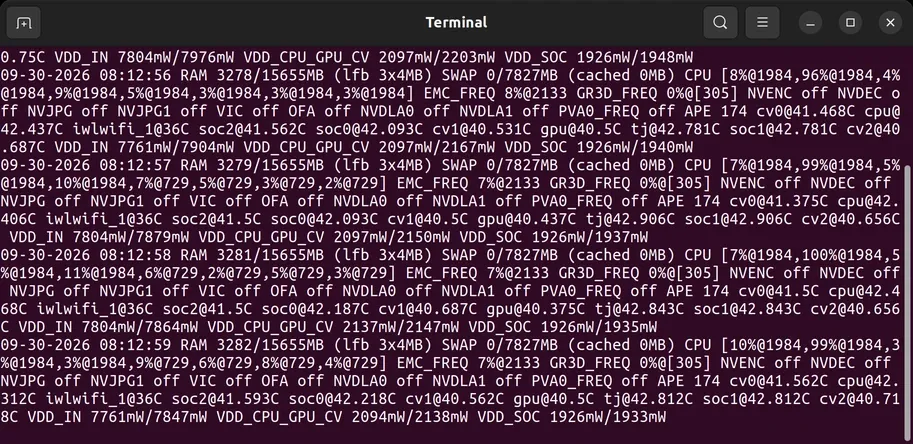
To log the statistics in the background, for example during a long test:
Stop the background logging with sudo tegrastats --stop.
You can also start tegrastats from the Ubuntu desktop: click the NVIDIA icon in the top bar, then Run tegrastats.
Jetson Power GUI
The Jetson Power GUI is installed with JetPack. It displays the CPU, GPU, and memory frequencies and loads, the readings of the temperature sensors, and the instantaneous and average power of each monitored rail.
To start it, click the NVIDIA icon in the top bar, then Run Jetson Power GUI.
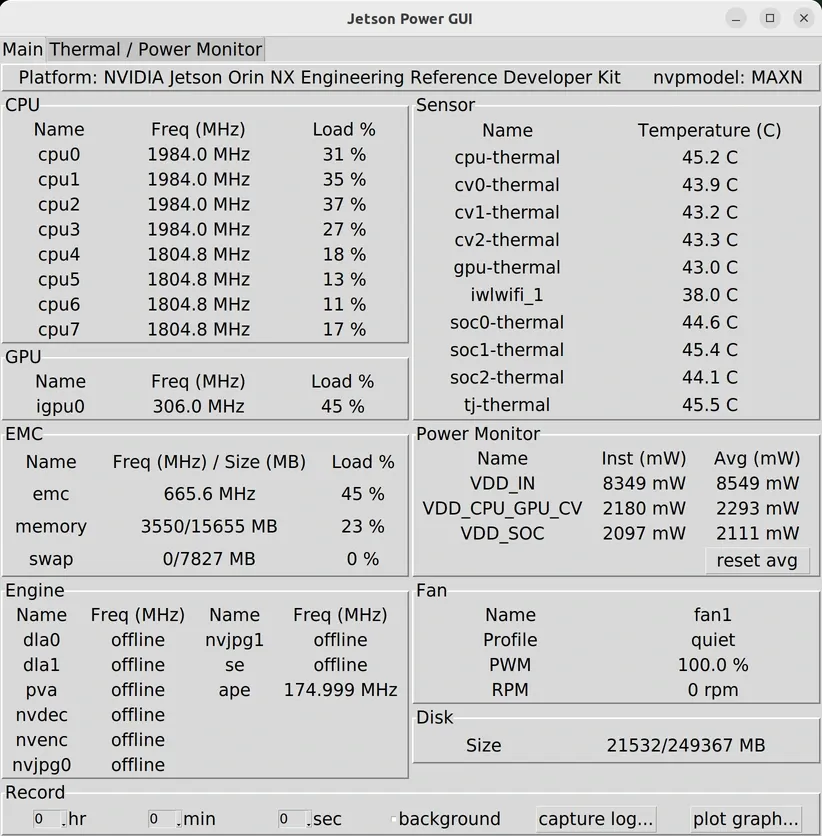
The ZED Box Orin has no fan: ignore the fan values reported by the Jetson Power GUI and by jtop.
The Thermal / Power Monitor tab shows the throttling and shutdown limits of each temperature sensor, and the voltage, current, and power of each monitored rail:
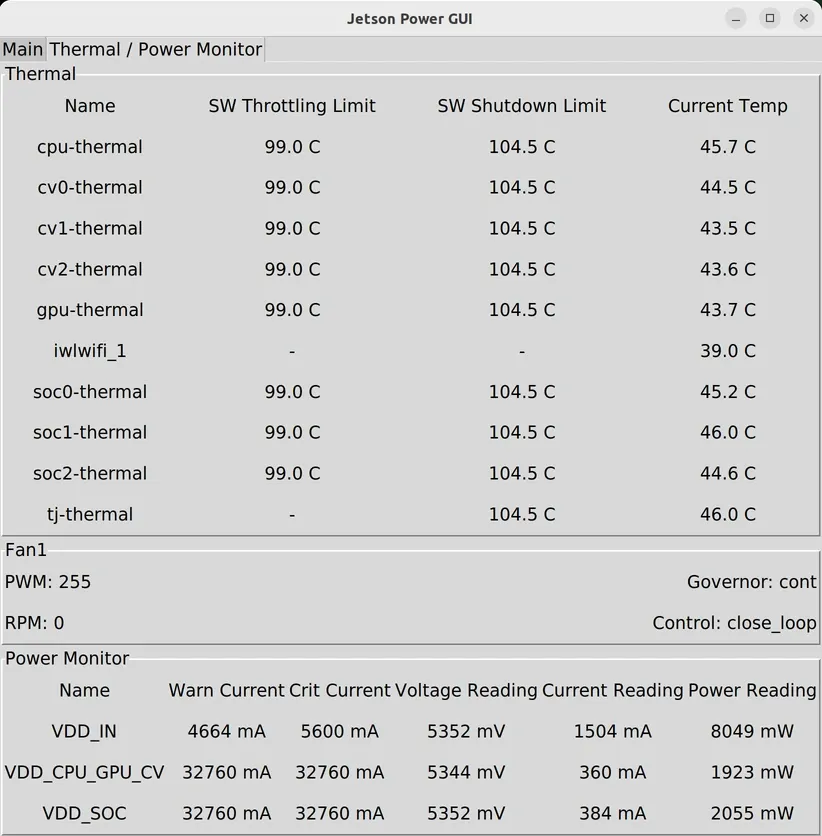
The Record section at the bottom of the Main tab captures a log over a given duration, and plot graph… plots the recorded or real-time data. This helps you compare the power consumption of your application in different power modes.
jtop
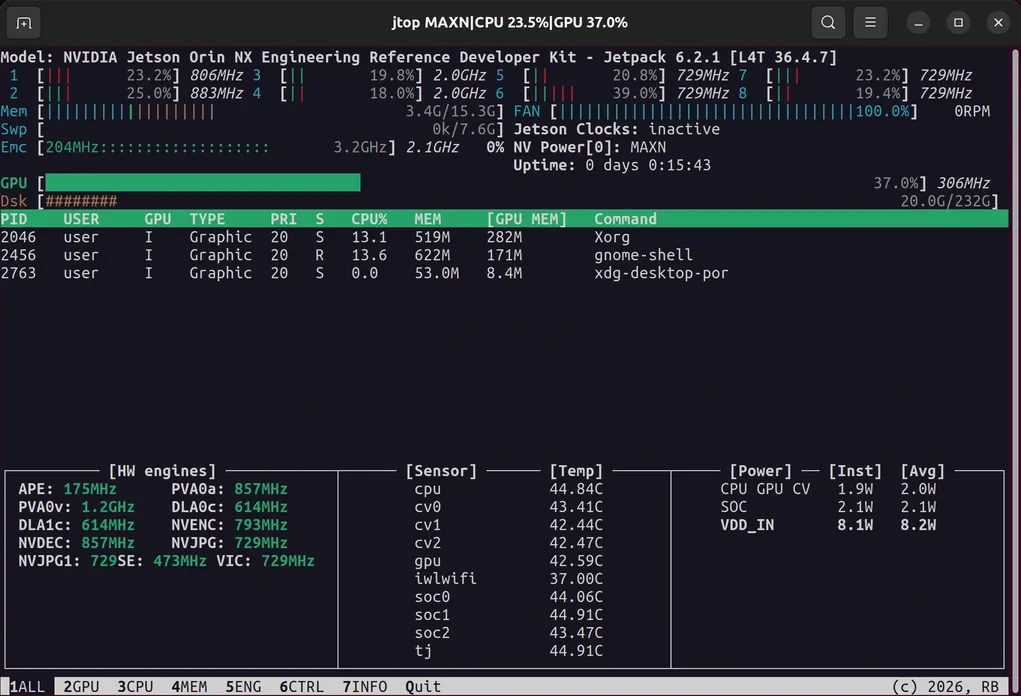
jtop, from the community jetson-stats package, is an interactive terminal monitor that also lets you change the power mode and toggle jetson_clocks:
The last command installs and starts the jtop service, and adds your user to the jtop group. Log out and log in again, or reboot, then run:
Throttling
The ZED Box Orin has no fan, so its temperature depends on the power mode, the workload, and the ambient temperature. Its operating temperature range is 0 °C to 50 °C (32 °F to 122 °F).
When a temperature sensor of the Jetson module reaches 99 °C, the software starts throttling the clocks. At 103 °C, hardware throttling is engaged, and the system shuts down at 104.5 °C to protect itself. The clocks are also throttled when the input voltage drops or when the module power exceeds its electrical limits.
On the Ubuntu desktop, the NVIDIA icon in the top bar displays a notification when the system is throttled because of an over-current event or a high temperature.
If you observe throttling or unstable frame rates during long runs, select a lower power mode, improve the airflow around the ZED Box Orin, or reduce the workload of your application. With PoE+, also check that your setup stays within the 25.5W budget.