

Developing with ZED X One Core on a PC
When working on projects for embedded platforms such as Jetsons, there may be situations where you prefer to perform development tasks on a Desktop machine. To assist you in this scenario, we have provided the following guidelines.
The ZED X One Core streams MIPI CSI-2 and cannot be connected to a PC: the camera always runs on an NVIDIA® Jetson™ host equipped with a ZED Link MIPI capture card. This guide describes how to work from a desktop machine against a camera or a stereo rig running on that host, over the local network.
ZED SDK Streaming
By streaming the data over the local network, any ZED SDK application can access a low-latency stream, allowing developers to work with the data as if it were a camera directly connected to their machine.
In this article, we will guide you through the steps required to set up and connect your machine for ZED SDK Streaming.
You can learn more about the ZED SDK Streaming and how it works here.
Prerequisites
Make sure that you have performed the following before starting this guide:
- Set up your NVIDIA® Jetson™ device for the ZED X One Core using this guide.
- Have access to the NVIDIA® Jetson™ device physically or remotely via SSH.
- Installed the ZED SDK on your local machine.
- A working camera setup on the NVIDIA® Jetson™ device: a single camera, as described in Setting up the ZED X One Core for Monocular Vision, or an installed and calibrated stereo rig.
Setting up the NVIDIA® Jetson™ device for ZED SDK Streaming
Similarly to the ZED and ZED X stereo cameras, the data can be streamed locally from the Jetson™ device that hosts the capture card.
A single camera is opened through the sl::CameraOne class, as described in Setting up the ZED X One Core for Monocular Vision, and a virtual stereo rig through the sl::Camera class, as described in Setting up the ZED X One Core Stereo. Streaming is then enabled on that object with enableStreaming().
The default streaming port is 30000.
Connect to the stream on your local machine
Now that the device is streaming data, you can visualize it live using the ZED SDK tools. Let’s run ZED_Depth_Viewer:
In the top left corner, click on the icon:

The following window will open. Enter the IP of the NVIDIA® Jetson™ device, as well as the port used by the sender (by default: 30000).
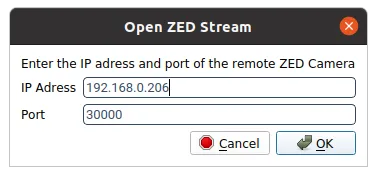
After a few moments, you should have a live view of the ZED X One Core cameras streaming from the device!
Connect using the ZED SDK
Now that we have the stream up and running, let’s use it in our ZED SDK application.
Say we have the following C++ application which retrieves images from a ZED camera connected physically to the host machine.
To change the input to a ZED SDK stream, the only change required is to change the input in initParameters:
The example above receives a virtual stereo rig with sl::Camera. To receive the stream of a single camera, use sl::CameraOne and InitParametersOne in the same way.
The calibration of your camera or rig lives on the Jetson™ device. To run depth processing on the desktop machine against a stream or an SVO2 recording, copy the SN<serial_number>.conf file of the camera, or of the virtual stereo camera, into the settings folder of the local ZED SDK installation:
- Linux:
/usr/local/zed/settings/ - Windows:
C:\ProgramData\StereoLabs\settings\
Good job! You can now develop on your local PC while using ZED X One Core cameras on a remote device.