

ZED Link MIPI Quad on AGX Orin
This tutorial will help you assemble the ZED Link MIPI Quad capture card on an NVIDIA® Jetson™ AGX Orin Developer Kit, and connect up to four ZED X One Core cameras to it.
The ZED Link MIPI Quad is designed for the ZED X One Core camera only. It is not compatible with the GMSL2 cameras, and the GMSL2 ZED Link Mono, Duo, and Quad cards are not compatible with the ZED X One Core.
Prerequisites
Make sure that you have the following items before starting this guide:
- 1x NVIDIA® Jetson™ AGX Orin Developer Kit
- 1x ZED Link MIPI Quad capture card
- 3x plastic spacers and 3x screws to mount the capture card (provided)
- 1x to 4x ZED X One Core cameras
- 1x MIPI I-PEX cable per camera (one cable is included with each ZED X One Core)
- 1x NVIDIA® power supply to power the Developer Kit (included with the devkit)
- 1x Phillips screwdriver
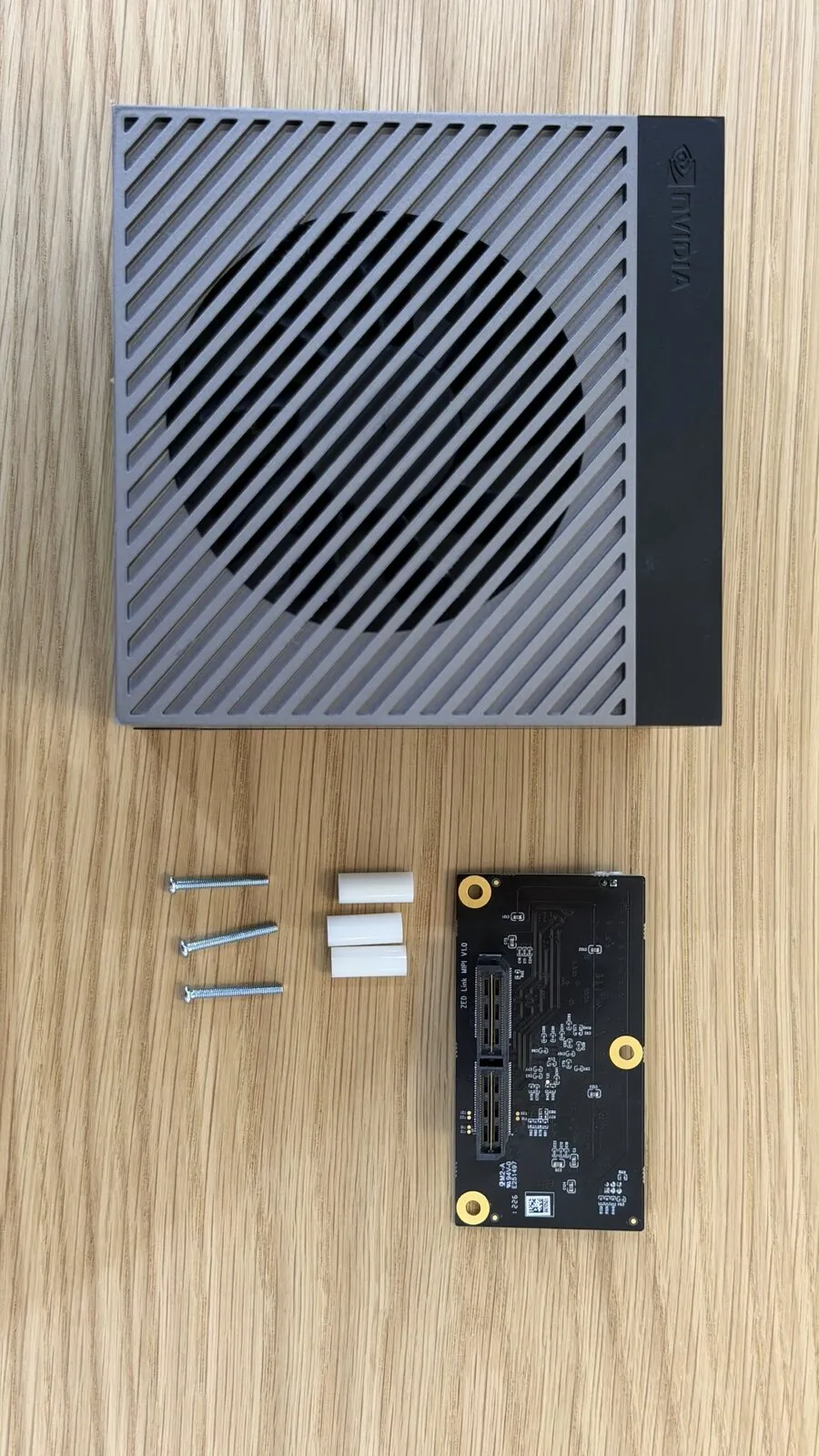
The capture card does not need an external power supply on the AGX Orin Developer Kit: it is powered through the 120-pin Samtec board-to-board connector. The J12 5 V input is only required when programming the FPGA.
If you encounter any issues during the installation process, please refer to the MIPI Troubleshooting page, which has a section dedicated to the AGX Orin Developer Kit, or contact support@stereolabs.com.
Install the ZED Link MIPI Quad capture card
Please make sure the Developer Kit is switched off and disconnected from any power source before beginning the installation process.
Open the Developer Kit
Remove the four screws on the bottom of the AGX Orin Developer Kit and take off the bottom cover to get access to the carrier board and to the CAMERA connector (J12).
Place the spacers and insert the screws
Place the three plastic spacers on the mounting holes of the carrier board, then insert the three screws through the mounting holes of the capture card.
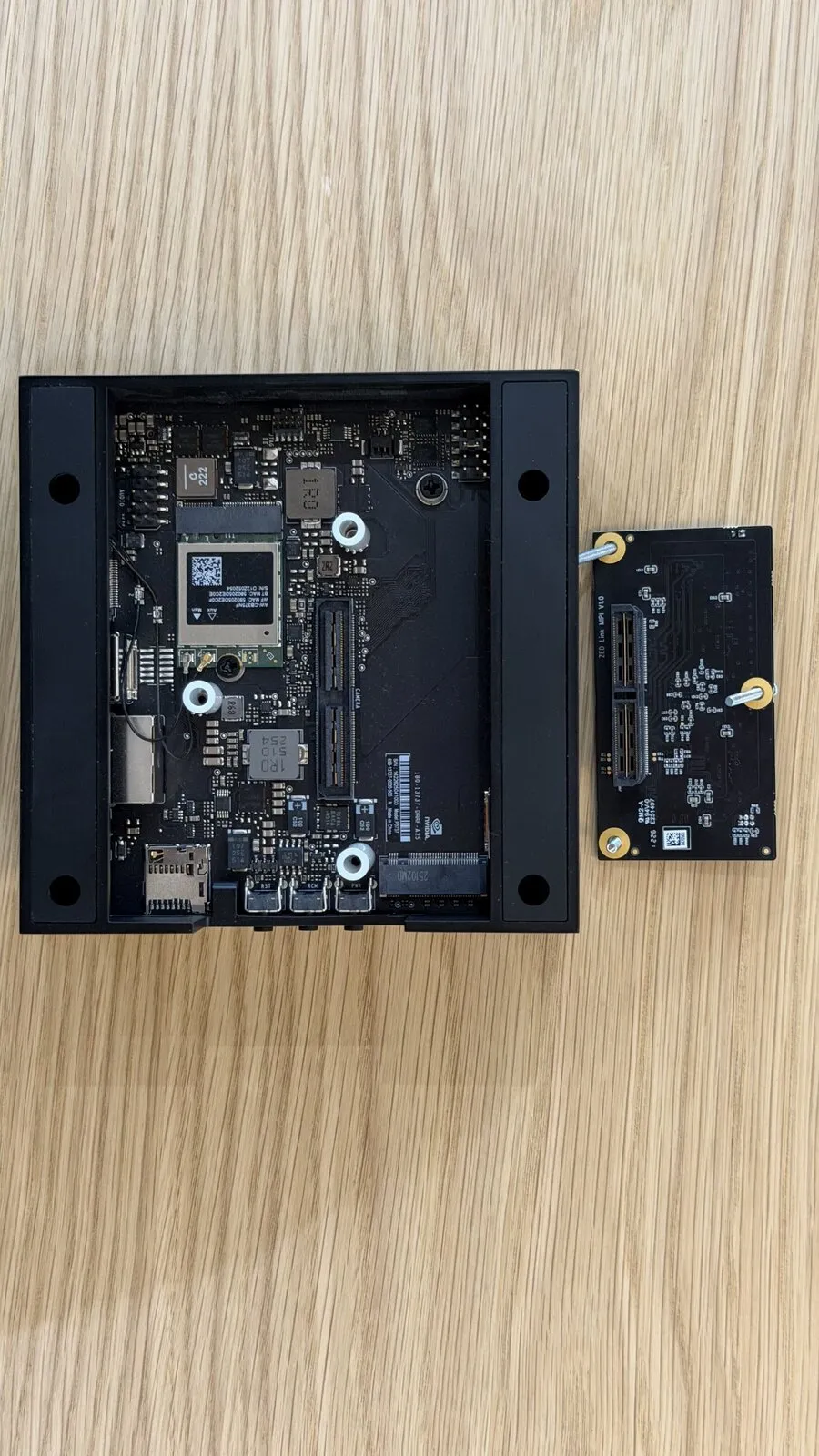
It’s important to use the provided spacers and screws to ensure a secure fit and avoid damaging the ZED Link device and the NVIDIA® Jetson™ AGX Orin Developer Kit carrier board. StereoLabs is not responsible for any damage caused by improper installation and will not provide support for issues arising from incorrect installation procedures.
Secure the capture card
Align the 120-pin Samtec connector on the bottom of the capture card with the CAMERA connector of the carrier board, press the card down firmly until the two connectors are fully mated, then tighten the three screws.
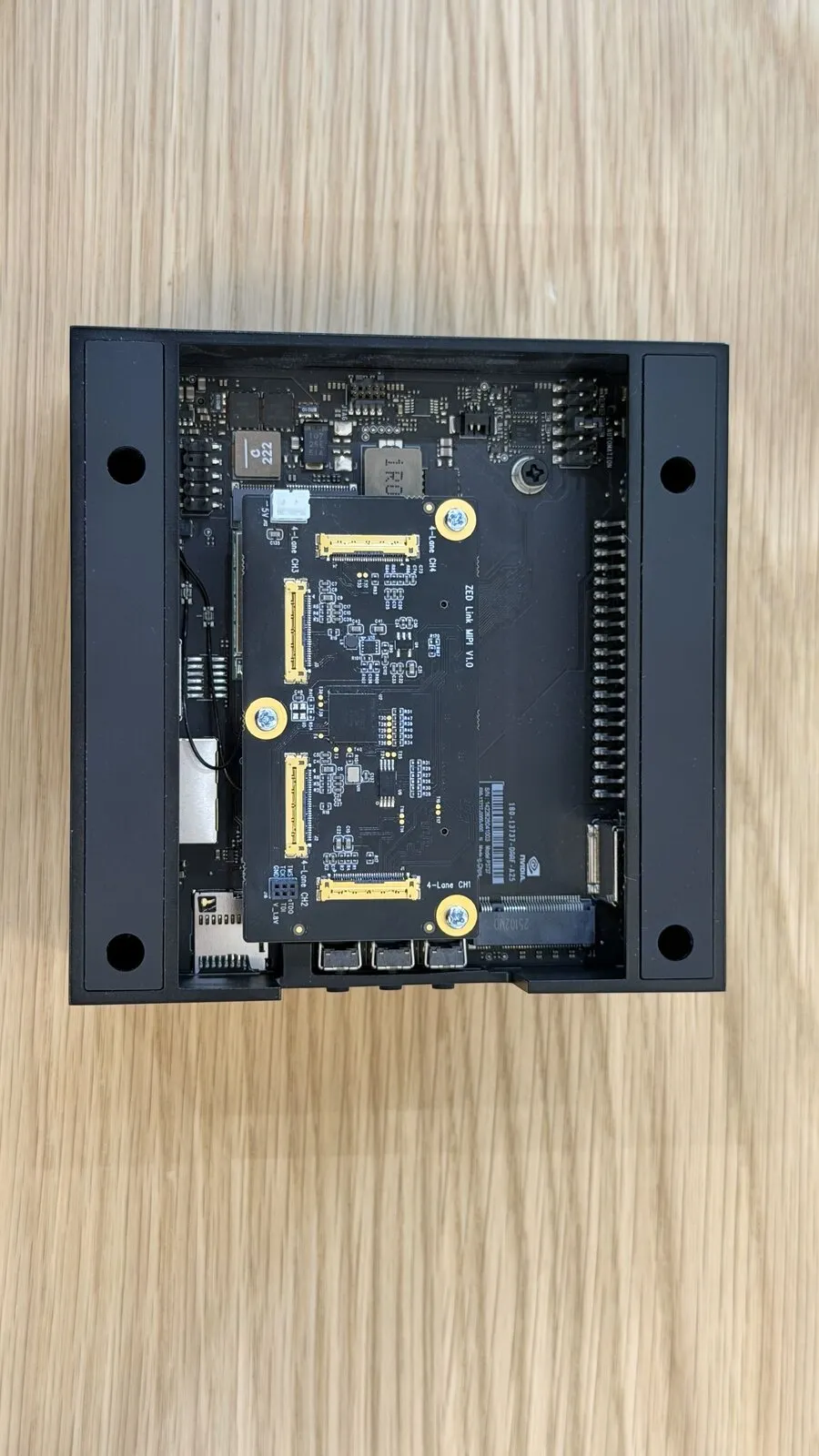
The four camera channels are now accessible on the top side of the card, silkscreened 4-Lane CH1 to 4-Lane CH4.
Connect the cameras
Each camera channel uses a 30-pin, 0.4 mm pitch Micro I-PEX receptacle. Insert the plug of the MIPI I-PEX cable into the receptacle and press it down gently until it is fully seated.
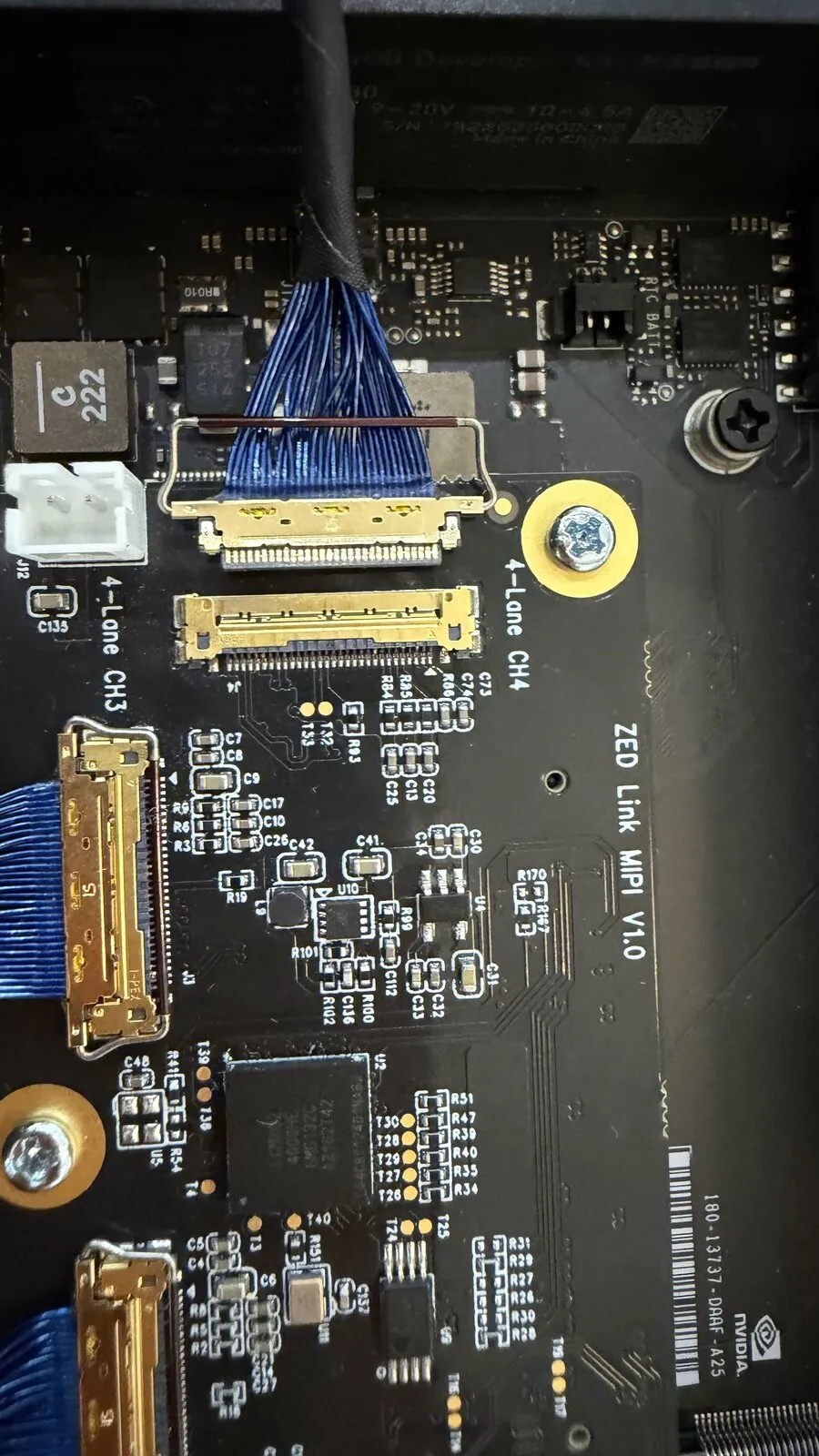
Micro I-PEX connectors are fragile. Never force the plug, never insert it at an angle, and never pull on the wires to disconnect it: always handle the plug body. Damaged connectors are not covered by the warranty.
Repeat the operation for each camera you want to connect. You can use any of the four channels, in any order.
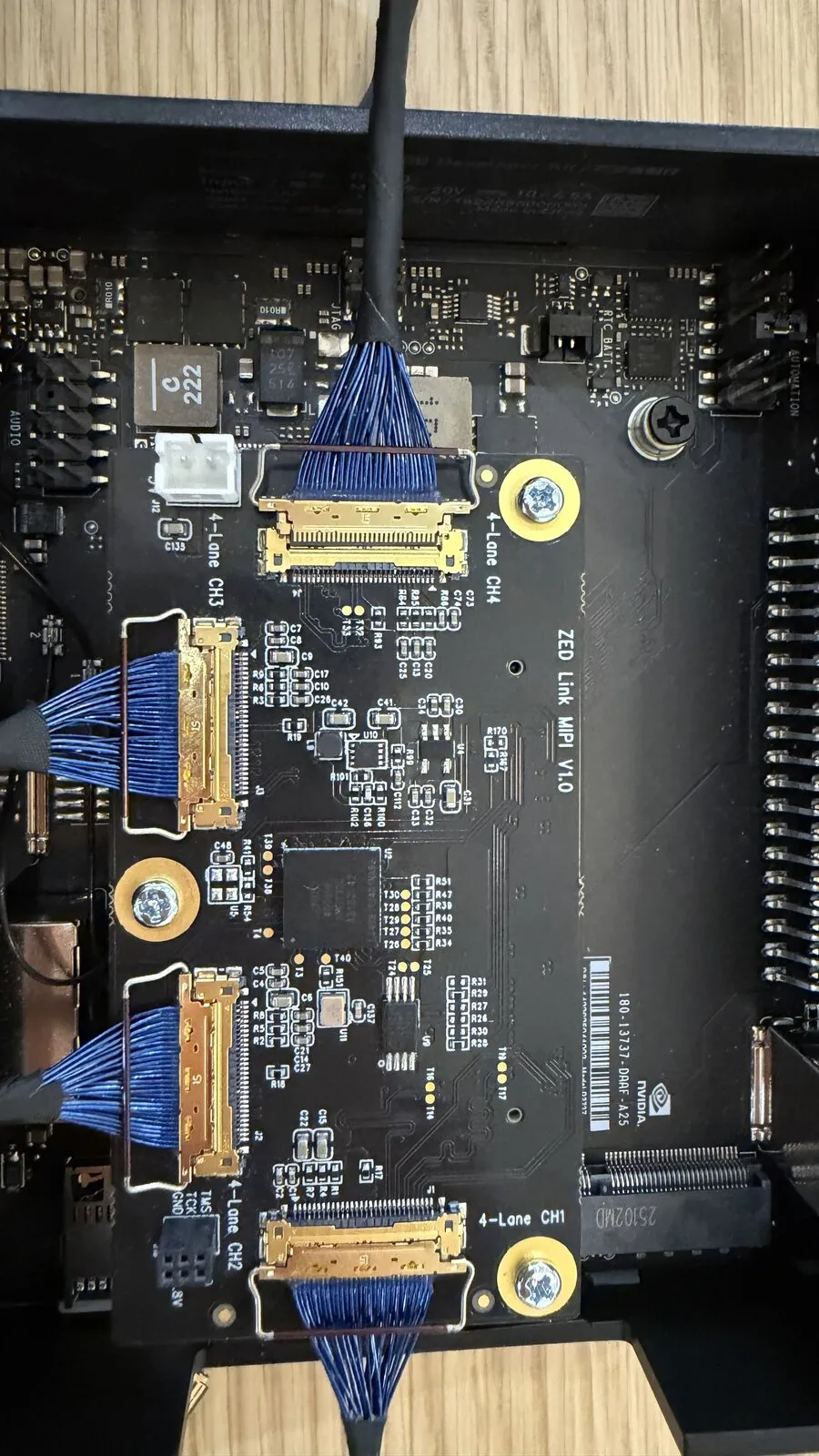
Route the cables out of the bottom opening of the Developer Kit, then connect the free end of each cable to the connector on the back of a ZED X One Core camera.
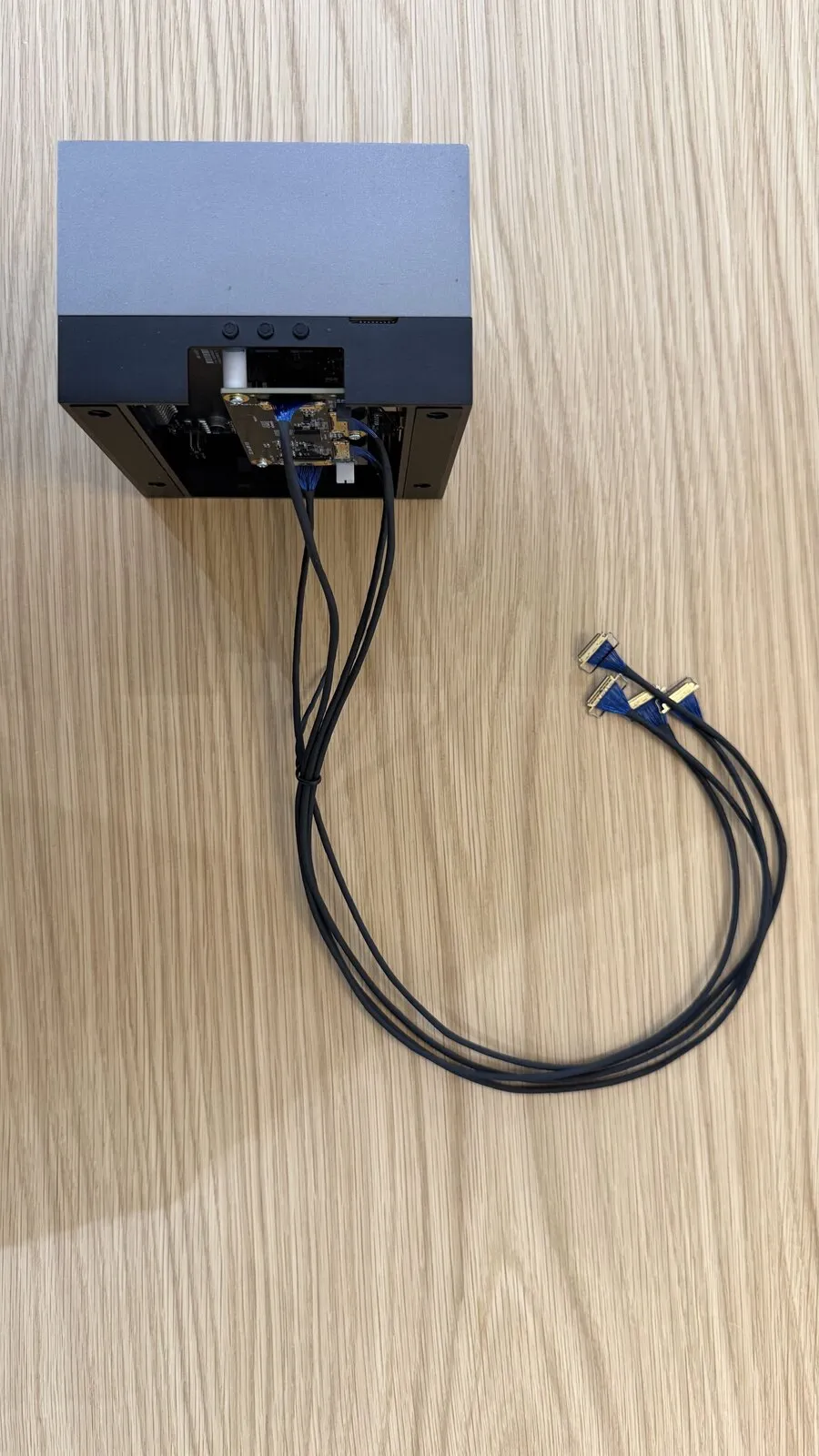
The ZED X One Core does not support hot-plugging. Cameras must be connected and disconnected only when the host is powered off, and any change to the hardware configuration requires a full reboot of the host to take effect.
Once the cameras are connected, plug the NVIDIA® power supply, connect the optional HDMI/keyboard/mouse, and power up the Developer Kit. The cameras are powered through the MIPI I-PEX cables, so no additional power supply is needed.
Setting up the software
Install the ZED Link MIPI driver
The ZED Link MIPI Quad requires a driver that configures the capture pipeline of the card and of the connected cameras. It is distributed separately from the GMSL2 ZED Link driver.
Download the package matching your capture card and your Jetson™ Linux (L4T) version from the ZED X Camera Drivers page, then follow the same installation procedure as the ZED Link driver and reboot the Developer Kit.
If the ZED Link MIPI package is not yet listed on the drivers page for your L4T version, please contact support@stereolabs.com.
Install the ZED SDK
After installing the driver, please follow this guide to Install the ZED SDK on NVIDIA® Jetson.
You can then verify the installation by listing the connected devices, with ZED_Explorer or ZED_Studio:
All the ZED X One Core cameras connected to the capture card should be listed.
Multi-camera configurations
The ZED Link MIPI Quad provides four independent camera channels, each able to capture the full resolution and framerate of a ZED X One Core:
The card embeds an FPGA that synchronizes the four channels in real time, so no jumper or wiring is required to synchronize the cameras: frame acquisition is hardware-synchronized on all channels with a precision of 15 µs.
Although frames are hardware-synchronized with 15µs precision, software timestamps are assigned upon driver receipt and may exhibit slight millisecond-level jitter. Frames are considered synchronized if the timestamp difference is less than one frame period (1000/FPS ms).
Two ZED X One Core cameras connected to the same card can be used as a virtual stereo camera in the ZED SDK, after calibration. See Setting up the ZED X One Stereo.
Capture card interfaces
The J12 5 V input is only needed to power the card when programming the FPGA through J16. During normal operation on the AGX Orin Developer Kit, the card is powered through the J10 Samtec connector.
The same J10 connector is used to interface the card with the NVIDIA® Holoscan Sensor Bridge for the NVIDIA® Jetson AGX Thor™ Developer Kit. That configuration is currently in beta: see the ZED Link MIPI Quad on AGX Thor with Holoscan Sensor Bridge setup guide.
Troubleshooting
The troubleshooting checks for this configuration are gathered on the MIPI Troubleshooting page, alongside the ones shared with the Holoscan Sensor Bridge:
- Common checks and commands, to list the cameras seen by the ZED SDK and inspect the capture pipeline.
- Jetson AGX Orin Developer Kit, for the symptoms specific to this setup: a capture card that is not fully seated, only some of the cameras detected, the wrong driver installed, and upgrading the ZED Link MIPI driver.
🎉 Congratulations! You have successfully assembled your StereoLabs ZED Link MIPI Quad capture card on your NVIDIA® Jetson™ AGX Orin Developer Kit. Now that the cameras are up and running, it is time to start experimenting and building your projects.
Whether you are using the cameras for robotics, computer vision, or something else entirely, the ZED X One Core cameras are a powerful tool that can help you achieve your goals. Happy coding!