

Setting up GNSS / RTK on Linux
This guide walks you through setting up a GNSS receiver on Linux, with optional RTK corrections, in order to use it with the ZED SDK’s Global Localization module. If you are new to GNSS, start with the GNSS Overview that explains the concepts used in this guide.
The instructions apply to most USB and serial GNSS receivers. If you use a ZED Box Orin with the GNSS option, gpsd is already installed and configured: follow the ZED Box Orin GNSS guide instead.
Installation
Using gpsd is the simplest way to retrieve GNSS data on Linux. gpsd is a service daemon that reads the data of the receiver, decodes NMEA and the most common binary protocols, and provides it to any number of applications through a single API. It can also act as an NTRIP client to forward RTK corrections to the receiver.
It is recommended to install gpsd from source, at the tested commit used below:
In order to run without root privileges, it is recommended to add your user to the dialout and tty groups:
Log out of the session or reboot the device for these changes to take effect.
Checking the receiver
Connect the antenna and the receiver, then check that the receiver is detected:
You should see a device named /dev/ttyACM0 (USB receivers) or /dev/ttyUSB0 (USB-to-serial adapters). Receivers connected to a UART of the board use the corresponding serial port, for example one of the /dev/ttyTHS* devices on NVIDIA® Jetson™.
The device streams the raw NMEA sentences of the receiver. The data should look like this:
In this example the receiver has no fix yet: the position fields are empty. They are filled once enough satellites are tracked.
Running gpsd
gpsd can be started by systemd, for example when it is installed from the Ubuntu gpsd package. However, the systemd service has reliability issues with USB GNSS receivers (for example, the device may need to be rebooted every time your application is restarted), so we recommend running the daemon manually and starting it at boot with a cron job. If a gpsd systemd service is present on your system, disable it first:
To run the daemon, use the following command:
-nstarts reading the receiver immediately, without waiting for a client to connect.-Gaccepts connections from other machines on the network, in addition tolocalhost.-s 115200sets the baud rate. It is ignored by most USB receivers, but must match the configuration of the receiver on a UART.
To start gpsd at boot, add the following cron job with crontab -e:
Replace ttyACM0 with the communication port of your GNSS receiver.
You can test that gpsd is working properly with the xgps tool installed with gpsd:
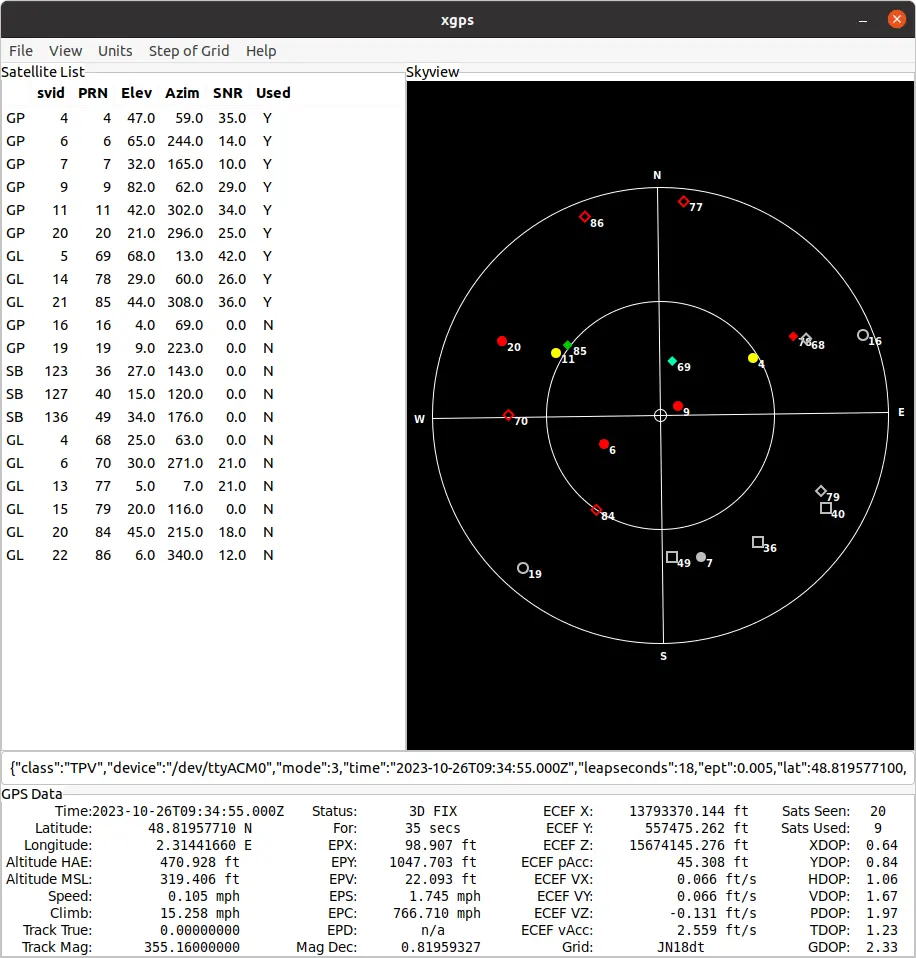
On a headless device, use the terminal-based cgps tool instead.
Enabling RTK on your GNSS receiver
RTK uses the correction data streamed by a nearby base station to improve the accuracy of the position from a few meters to a few centimeters. The corrections are usually received through the internet from an NTRIP caster.
Using NTRIP
gpsd can act as an NTRIP client to retrieve RTK corrections from a base station and forward them to the receiver. Replace the placeholders of the command below with the NTRIP connection information of your correction provider: the caster <url> and <port>, the <mountpoint> of a base station less than 25 km away, and the <username> and <password> if the caster requires them.
Restart gpsd as an NTRIP client with:
Replace ttyACM0 with the communication port of your GNSS receiver.
You can now run xgps and wait for the GNSS to get an RTK fix. The ECEF pAcc value gives the estimated 3D position accuracy: with an RTK FIX status, this value should be a few centimeters.
Set RTK configuration at boot
Update the cron job so that gpsd connects to the base station at every boot:
And replace the gpsd line already present with the following:
Next steps
- If your receiver provides a PPS output, you can use it to synchronize the system clock with GNSS time.
- Read the GNSS data from gpsd in your application and ingest it into the Fusion module.
- Try the Global Localization samples on GitHub, which read GNSS data from
gpsd.