

Tutorial - Subscribe to the ZED images with CUDA zero-copy
This tutorial explains how to receive the ZED images directly in GPU memory with the CUDA zero-copy transport of ROS 2 Lyrical, and how to use them in your own accelerated ROS 2 node. It is the Isaac™ ROS 5 replacement for the NITROS subscriber tutorial of Isaac™ ROS 3.
The example creates a ROS 2 component that subscribes to a ZED image topic twice: first accepting only standard CPU data, then accepting the CUDA buffers published by the ZED node. It measures the latency, the frame rate, and the CPU and GPU load of both methods, and compares them.
Read the CUDA zero-copy transport page first for an introduction to how the transport works.
Set up the example
-
Set up the CUDA zero-copy transport in your Isaac™ ROS 5 environment by following the Set up the CUDA zero-copy transport section: install the
cuda_bufferpackage, build thecuda_buffer_backendplugin, and build the ZED ROS 2 Wrapper. -
If the ZED ROS 2 Examples are not in your workspace yet, clone them in the
srcfolder: -
Build the example:
Subscribe to CUDA buffers in a ROS 2 node
The example node is a ROS 2 component implemented in C++, in the folder isaac_ros/isaac_ros_5/zed_isaac_ros_cuda_img_sub/src/component of the ZED ROS 2 Examples repository. The component is the class ZedCudaImgSubComponent, which inherits from rclcpp::Node.
Accept the CUDA buffer backend
The subscription is a standard sensor_msgs/msg/Image subscription. The acceptable_buffer_backends option declares which buffer backends the node can handle:
"cpu"is the ROS 2 default: the node always receives CPU data."cuda"accepts the CUDA buffers. CPU data is always accepted too, so the node also works when the zero-copy transport cannot be used, for example when the ZED node runs on another host.
The process of the subscriber must load the cuda_buffer_backend plugin, like the process of the ZED node. With cuda_buffer_backend 0.1.2, a subscription that accepts the cuda backend in a process without the plugin receives no messages at all, not even CPU data, and no error is logged. The example checks that the plugin is installed when it starts, and exits with an error if it is missing. Build the plugin as described in Set up the CUDA zero-copy transport, and source the workspace in every terminal that starts a node.
The subscription QoS _defaultQoS keeps only the latest message (history depth 1). Use the same depth in the nodes that receive CUDA buffers.
The cuda buffer backend can reuse the GPU memory of a message about 100 ms after it is published. When a subscriber is slower than the publishing rate, a longer queue fills up, and the messages taken from it are older than 100 ms: their GPU memory has already been reused for newer messages. The backend logs the warnings Stale block ... dropping and IPC import failed, falling back to CPU, the message data is empty, and cuda_buffer_backend::from_input_buffer() throws a cuda_buffer_backend::CudaError exception, which stops the process if it is not caught. With a history depth of 1, the subscriber always takes the latest message, and the transport also works when the subscriber processes fewer messages than the ZED node publishes.
For the Isaac™ ROS nodes, set the depth of the subscription with their input_qos_depth parameter and, when available, the depth of the image and camera info synchronization queue with their input_queue_size parameter.
A history depth of 1 does not prevent the same error when the subscriber runs in the same process as the ZED node, for example when it is loaded in the ZED component container: in this case the backend shares the GPU memory through a same-process path, and logs the warning Same-process CUDA IPC requires cudaEventSynchronize on the publish path. In our tests on a Jetson™ AGX Orin, with the Isaac™ ROS nodes of the object detection example loaded in the ZED component container, the error stopped the container in 9 of 16 runs with a history depth of 1, in Docker and in Bare Metal mode. With the same nodes loaded in a separate component container, no error occurred in 18 runs. Load the nodes that process the ZED data on the GPU in a component container different from the one of the ZED node. The example of this tutorial follows this rule: its subscriber runs in a separate component container.
Read the GPU memory of the message
Because the backend is negotiated for each connection, always check the backend of each received message with get_backend_type() before accessing its data. The function process_on_gpu() gets a GPU pointer to the image in both cases:
cuda_buffer_backend::from_input_buffer()returns aReadHandle. Its constructor makes the CUDA stream wait for the GPU work of the ZED node, so the data is complete when your kernels run on the same stream. Its destructor records the end of your work, so the ZED node does not reuse the memory too early.rh.get_ptr()returns aconst uint8_t *device pointer: the memory belongs to the ZED node and is read-only.- On a CPU message,
img.databehaves like astd::vector<uint8_t>. Callingdata()or the[]operator on a CUDA message throws an exception.
The process() lambda stands for the GPU processing of a real application: it copies the central pixel of the image back to CPU memory. Replace it with your CUDA kernels, or pass the device pointer to a CUDA-accelerated library.
The rows of the CUDA images published by the ZED node have no padding: the row stride step equals width multiplied by the size of a pixel.
Link your component to the cuda_buffer package in the CMakeLists.txt file:
Then declare the dependency in the package.xml file:
How the example works
The node runs two benchmark phases on the same topic:
- CPU: the subscription accepts only CPU data. The middleware copies the ZED image from GPU to CPU memory, and the node uploads it back to GPU memory to process it, as an accelerated node does with standard messages.
- CUDA: the subscription accepts the
cudabackend. The node processes the GPU memory of the ZED node directly, without copies.
Where the CUDA zero-copy transport makes the difference
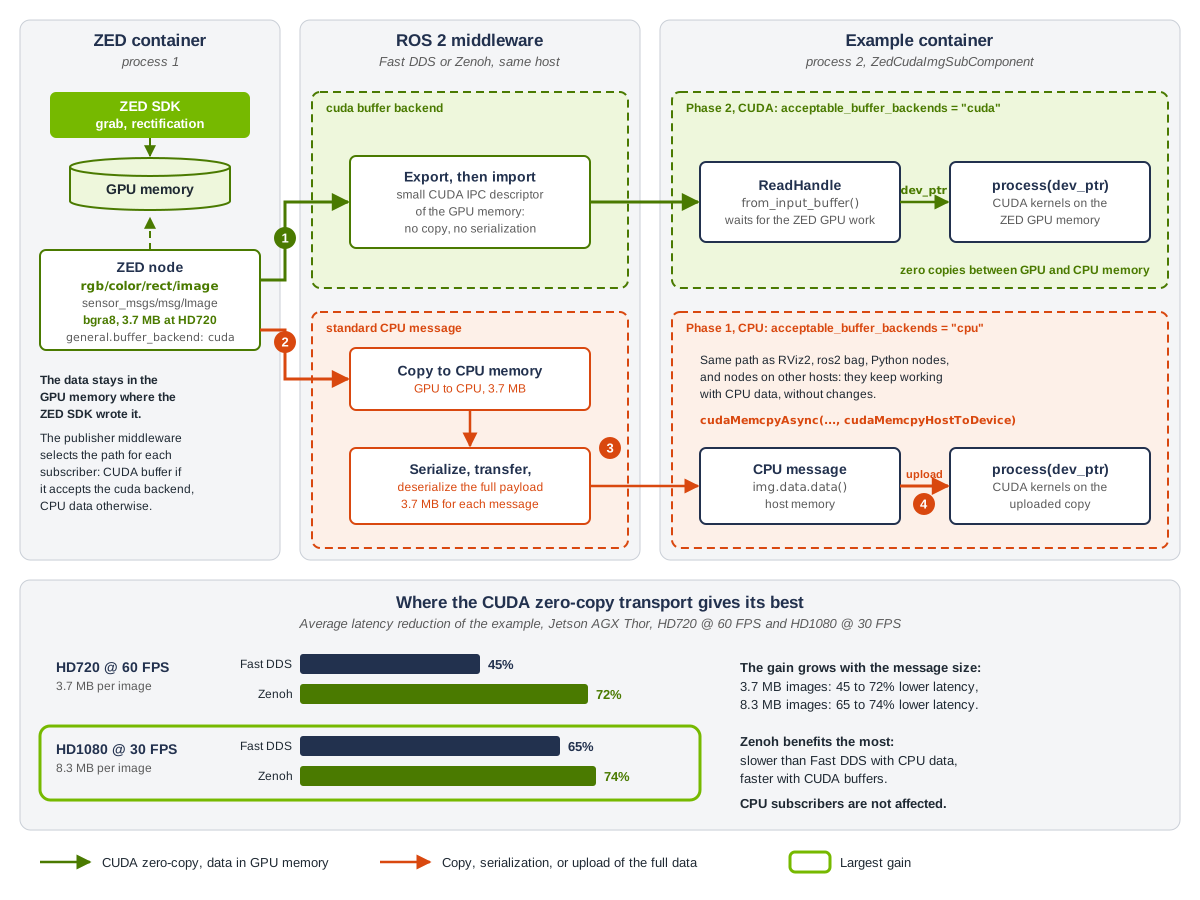
Figure 1: the two benchmark phases of the example. Green arrows carry data in GPU memory, orange arrows mark the copies, the serialization, and the upload of the full image.
The numbers below match the badges of Figure 1.
- CUDA phase (cross-process). The middleware sends only a small descriptor of the GPU memory where the ZED SDK wrote the image. The example node maps the same memory and reads it through a
ReadHandle: the image is neither copied nor serialized. - CPU phase, copy to CPU memory. The subscription does not accept the
cudabackend, so the publisher middleware copies the full image from GPU to CPU memory, 3.7 MB for each HD720bgra8image. - CPU phase, serialization and transfer. The middleware serializes the full image, transfers it to the example process, and deserializes it.
- CPU phase, upload. The example node uploads the image back to GPU memory with
cudaMemcpyAsyncbefore processing it.
The bottom of Figure 1 shows the latency reduction measured with the example (see Fast DDS and Zenoh): the CUDA zero-copy transport gives its best with large images and with the Zenoh middleware. The subscribers that read CPU data, such as RViz2, ros2 bag, and Python nodes, keep following the CPU path and are not affected.
Each phase receives the number of messages set by the parameter benchmark.tot_samples, and measures:
- The latency: the time from the publishing of the message to the availability of the image on the GPU of the subscriber.
- The period between two messages, and the corresponding average frame rate.
- The CPU load and the GPU load of the whole system while the node is receiving the messages.
At the end of the CUDA phase, the node prints the results, compares the two phases, and shuts down. The results are also saved in the CSV file set by the parameter benchmark.csv_log_file.
The node also counts the CPU messages received in the CUDA phase: a value different from 0 means that the zero-copy transport is not available, and the node logs a warning with the possible causes.
Advanced configuration of the example
The folder config contains the file example_params.yaml with the parameters of the example.
The section general overrides the configuration of the ZED ROS 2 Wrapper node:
grab_resolution: The native camera grab resolution. ‘HD1200’, ‘HD2K’, ‘HD1080’, ‘HD720’, ‘SVGA’, ‘VGA’, ‘AUTO’.pub_resolution: The resolution used for image and depth map publishing. ‘NATIVE’ to use the samegeneral.grab_resolution; ‘CUSTOM’ to apply thegeneral.pub_downscale_factordownscale factor.pub_downscale_factor: Downscale factor applied to the images before publishing, whenpub_resolutionis ‘CUSTOM’.pub_frame_rate: Publishing frequency of the images and of the depth data. Set to0for no limit.buffer_backend:cudato publish the images with the CUDA zero-copy transport,cputo always publish CPU data.
The section benchmark configures the benchmark:
tot_samples: Number of samples to process for each benchmark phase, from1to1000,300inexample_params.yaml.cpu_gpu_load_period: Period in milliseconds to retrieve CPU and GPU load statistics, from10to1000.cpu_gpu_load_avg_wnd_size: Number of samples to use to compute the average CPU and GPU load, from1to100.csv_log_file: If not empty, log the benchmark results in a CSV file with the specified name.
A value out of range or of a wrong type is ignored: the node logs a warning with the valid range and uses its built-in default value.
The section debug is used to debug the nodes:
debug_cuda: Enable the debug information of the example, for example the value of the central pixel of each image.use_pub_timestamps: If true, the ZED node sets the timestamps of the messages to the system time just before publishing, to measure the communication latency. If false, the latency is measured from the time the data is grabbed from the camera.
Run the example
Make sure you built the example and the ZED ROS 2 Wrapper as described in Set up the example.
Launch the example, replacing <camera_model> with the model of your camera:
By default, the example subscribes to the rectified color image /zed_isaac/zed/rgb/color/rect/image. Use the topic_name argument to subscribe to another ZED image topic, for example the depth map:
To run the example without a camera, use the svo_path argument to replay an SVO recording. Use the camera_model of the camera that recorded the file. The SVO file is not replayed in a loop: for the benchmark to complete, it must contain more than two times benchmark.tot_samples frames, 600 frames by default, because a few frames are lost when the subscriber connects and when it changes phase. Record at least 30 seconds at 30 FPS:
Example output
All the benchmark results on this page were measured on an NVIDIA® Jetson™ AGX Thor Developer Kit in the MAXN power mode, with jetson_clocks running, using a ZED 2i camera. See how to set them in Set up the compute platform. The results depend on the platform, its power mode, and its clock settings.
We executed the example with the camera at HD720 @ 60 FPS. While the example is running, it prints a line for each received message, with the buffer backend of the message:
At the end of the benchmark, the example prints the results. This is the content of the CSV log file of the same run:
If you set the CSV log file name without a path, the file is saved in the folder where you launched the example. Each run appends its results to the file.
With the CUDA zero-copy transport, the image is available on the GPU of the subscriber with a lower latency: the copy from GPU to CPU memory by the publisher middleware, the serialization of the image to send it to the process of the subscriber, and the upload back to GPU memory in the subscriber are no longer required. In this run, both methods kept the camera frame rate. The CPU and GPU loads are measured on the whole system, including the ZED SDK, so they vary between runs: compare the two phases of the same run.
The gain grows with the size of the data. With the same setup at HD1080 @ 30 FPS, the average latency dropped from 3.27 - 4.32 ms to 1.32 - 1.35 ms (65% lower). The results also depend on the camera, the resolution, and the load of the system.
Fast DDS and Zenoh
All the benchmark results on this page were measured on an NVIDIA® Jetson™ AGX Thor Developer Kit in the MAXN power mode, with jetson_clocks running, using a ZED 2i camera. See how to set them in Set up the compute platform. The results depend on the platform, its power mode, and its clock settings.
The CUDA zero-copy transport works with both the rmw_fastrtps_cpp (Fast DDS) and the rmw_zenoh_cpp (Zenoh) middleware: see Use Zenoh with Isaac™ ROS 5. We measured both middlewares with the Bare Metal installation, in two runs of each configuration. Zenoh used the recommended setting for large messages, with the default configuration otherwise (shared memory disabled). Fast DDS used its default configuration. These are the average latencies of the example:
With both middlewares, all the images were received as CUDA buffers in the CUDA phase, and the system CPU and GPU loads were similar. The CUDA phase kept the camera frame rate in all the runs. With Zenoh at HD1080, the CPU phase received 28.5 FPS instead of 30.
- With CPU data, Fast DDS has the lowest latency. Prefer it when most of the subscribers of the ZED topics read CPU data, such as RViz2,
ros2 bag, or Python nodes. - With the CUDA zero-copy transport, Zenoh has the lowest latency, so it benefits the most from the transport. Consider it when the subscribers of the ZED topics are mainly accelerated nodes, or when you need its network features, such as the discovery without UDP multicast.
The point cloud tutorial shows the same comparison with point clouds of 1.8 MB and 14.7 MB.
The launch file explained
The launch file is located in the folder launch and is named zed_cuda_img_sub_example.launch.py. It starts two ROS 2 component containers, the ZED node, and the example node.
Retrieve the path to the configuration file:
Create two ROS 2 component containers, /zed_isaac/zed_container for the ZED node and /zed_isaac/cuda_sub_container for the example node:
The serialize_buffer_with_endpoint and deserialize_buffer_with_endpoint loggers of the ROS 2 buffer typesupport print several INFO lines for each CUDA buffer message, thousands of lines per minute. The containers raise their level to WARN to keep the log readable.
The two nodes run in different processes, and the cuda buffer backend shares the ZED images between them through CUDA IPC, without copies. Do not load the nodes that receive the CUDA buffers in the container of the ZED node: see the warning about the queue depth and the processes.
Call the ZED ROS 2 Wrapper launch file to start the ZED node in its container, passing the camera model, the namespace, and the parameters file:
Load the example node in its own container, remapping its image topic to the topic to subscribe to:
The enable_ipc argument of the ZED node is set to false. rclcpp Intra-Process Communication delivers the messages without the buffer backend negotiation, so the ZED node publishes CPU data to the intra-process subscribers. With IPC disabled, the ZED node always publishes the CUDA buffers through the middleware, which exchanges only a small descriptor for each message.
Conclusion
This tutorial showed how to receive the ZED images directly in GPU memory with the CUDA zero-copy transport of ROS 2 Lyrical: subscribe to the standard ZED topics, accept the cuda buffer backend, check the backend of each message, and read the GPU memory through a ReadHandle.
Compared to standard CPU data, the CUDA zero-copy transport removes the copies between GPU and CPU memory and the serialization of the images, which lowers the latency. The same node keeps working with CPU data when the zero-copy transport is not available.
To receive the ZED point cloud in GPU memory and read the coordinates of its points, follow the point cloud CUDA zero-copy tutorial.