

Remote access via Serial Console
The ZED Box 2 provides a Serial Console interface for low-level access to the system, via the Micro USB 2.0 Type-B port. This is useful when no display is connected to the HDMI port.
The Serial Console is available only when the device is:
- Booting up
- Booted into Normal Mode (not Recovery Mode)
Connecting to the Serial Console
-
Connect a Micro USB cable from your host computer to the Micro USB 2.0 - OTG port on the rear panel of the ZED Box 2.
-
Power on the ZED Box 2.
-
On the host computer, open a terminal (
Ctrl+Alt+T) and installgtktermif not already installed: -
Launch
gtktermfrom the terminal with the appropriate device path (usually/dev/ttyACM0):You can use other terminal emulators such as
minicomorscreenif you prefer. -
If the cable is connected before the device is powered on, the terminal will display the boot messages as the device starts up. When the boot is complete, you will see a login prompt.
If the cable is connected after the boot is complete, the terminal will not display any boot messages; you may need to press
Entera couple of times to see the login prompt.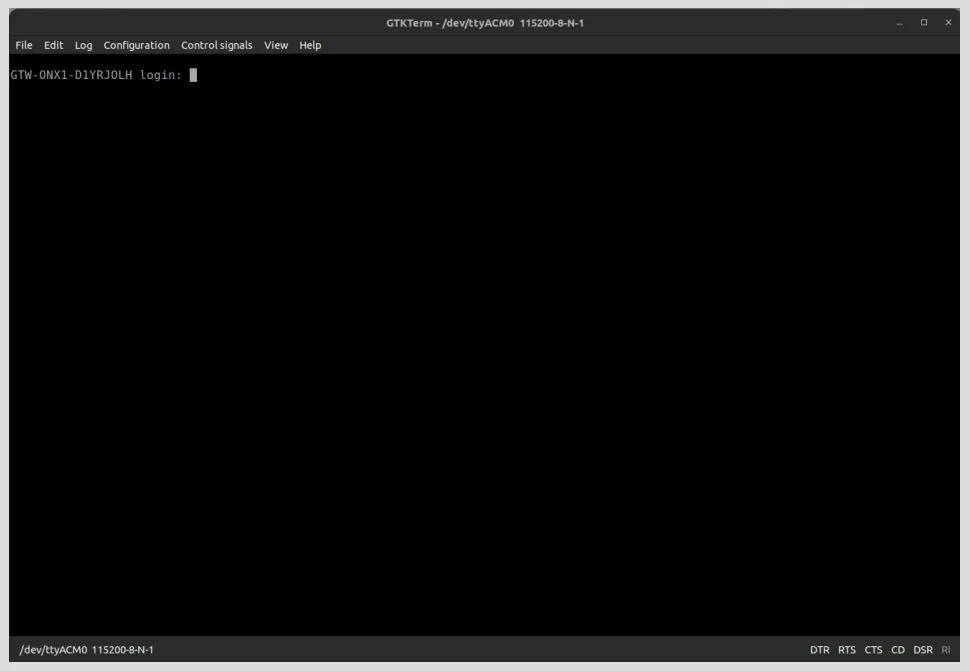
-
Log in with your credentials (default credentials:
user/admin).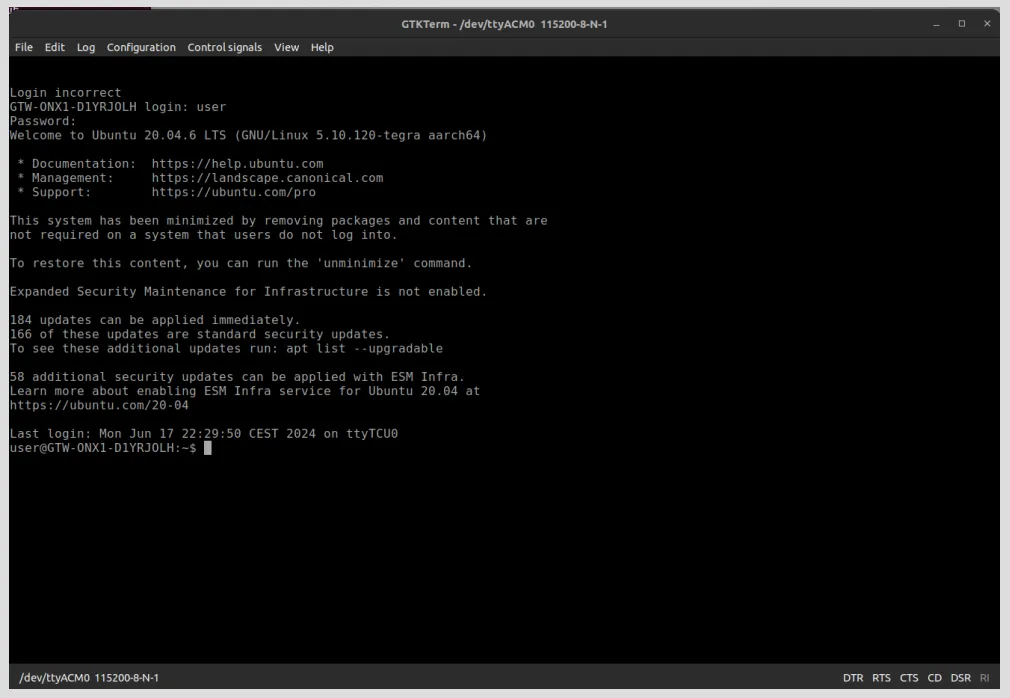
-
You can now execute commands on the device via the Serial Console in the same way as you would via SSH.