

Install your ZED Box 2
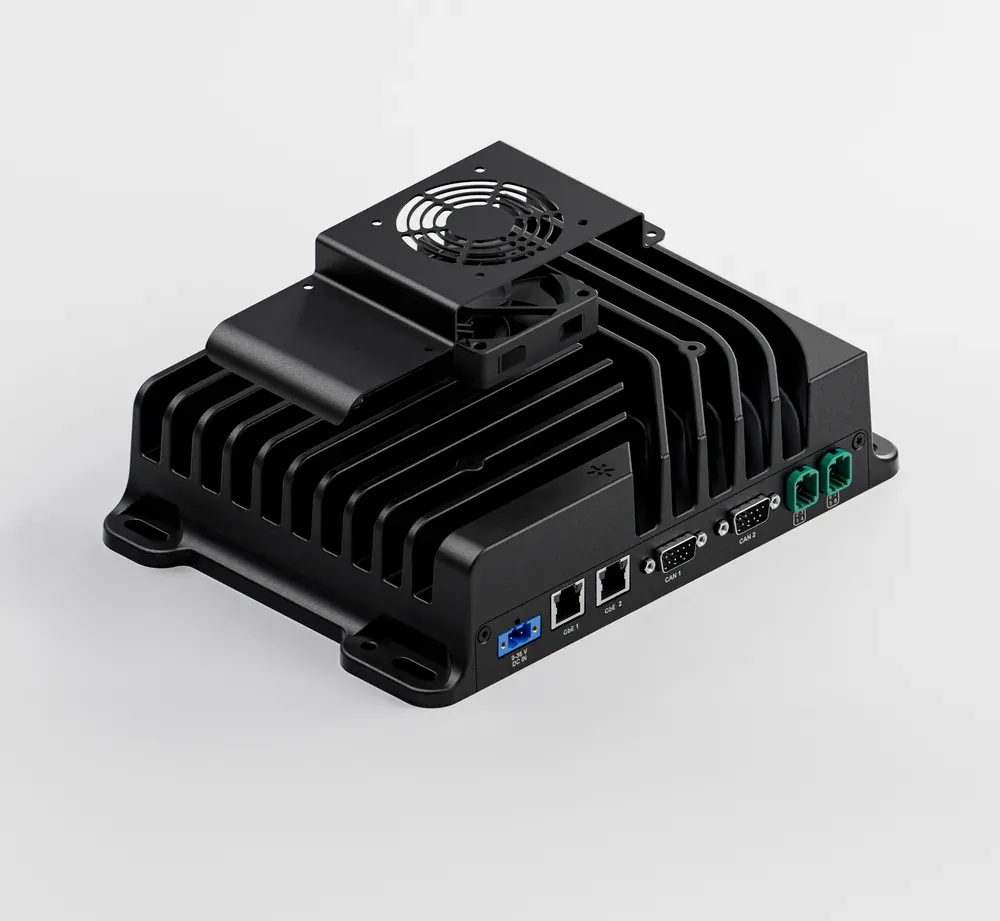
Connection panels
The connection ports are distributed on the front and rear panels of the ZED Box 2. Each port is described in detail in the Connectivity guide.
Front panel
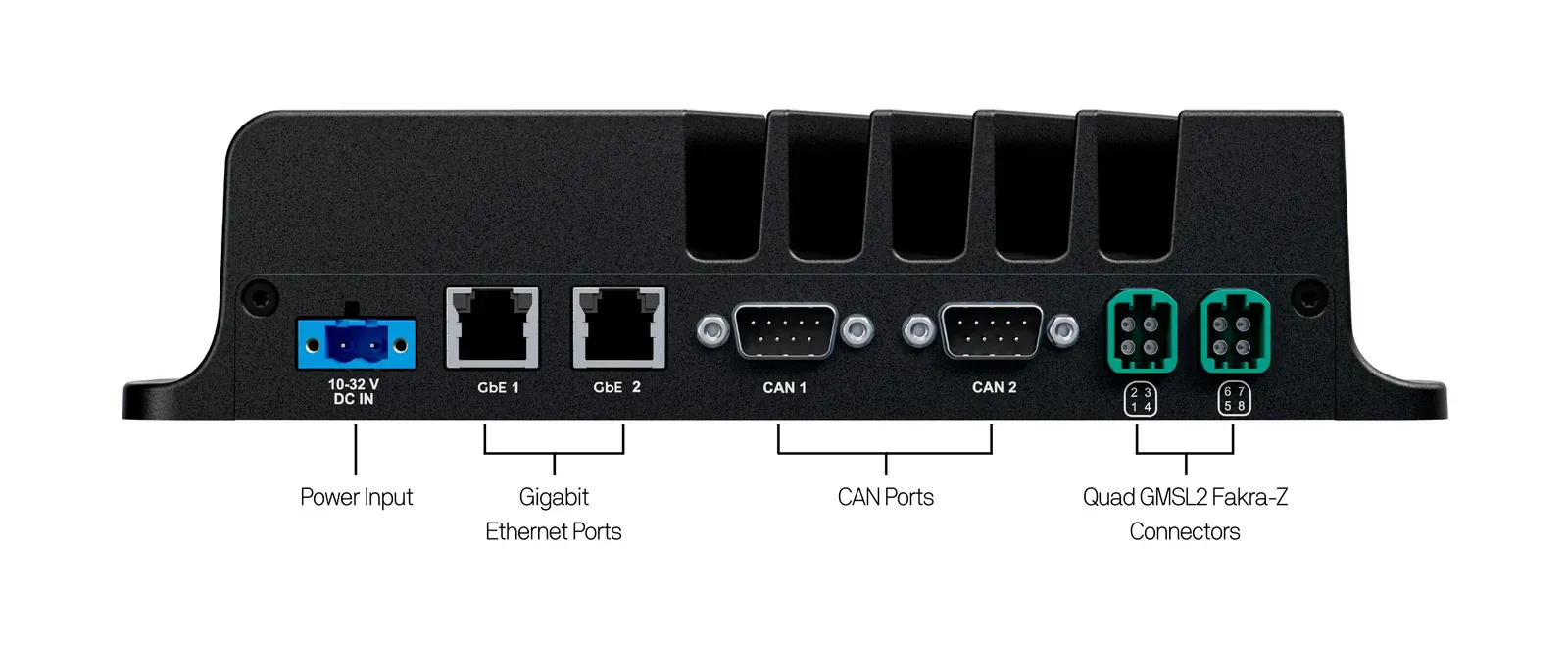
Power input, 2x Gigabit Ethernet, CAN 1 and CAN 2, and the two Quad GMSL2 FAKRA-Z connectors.
Rear panel
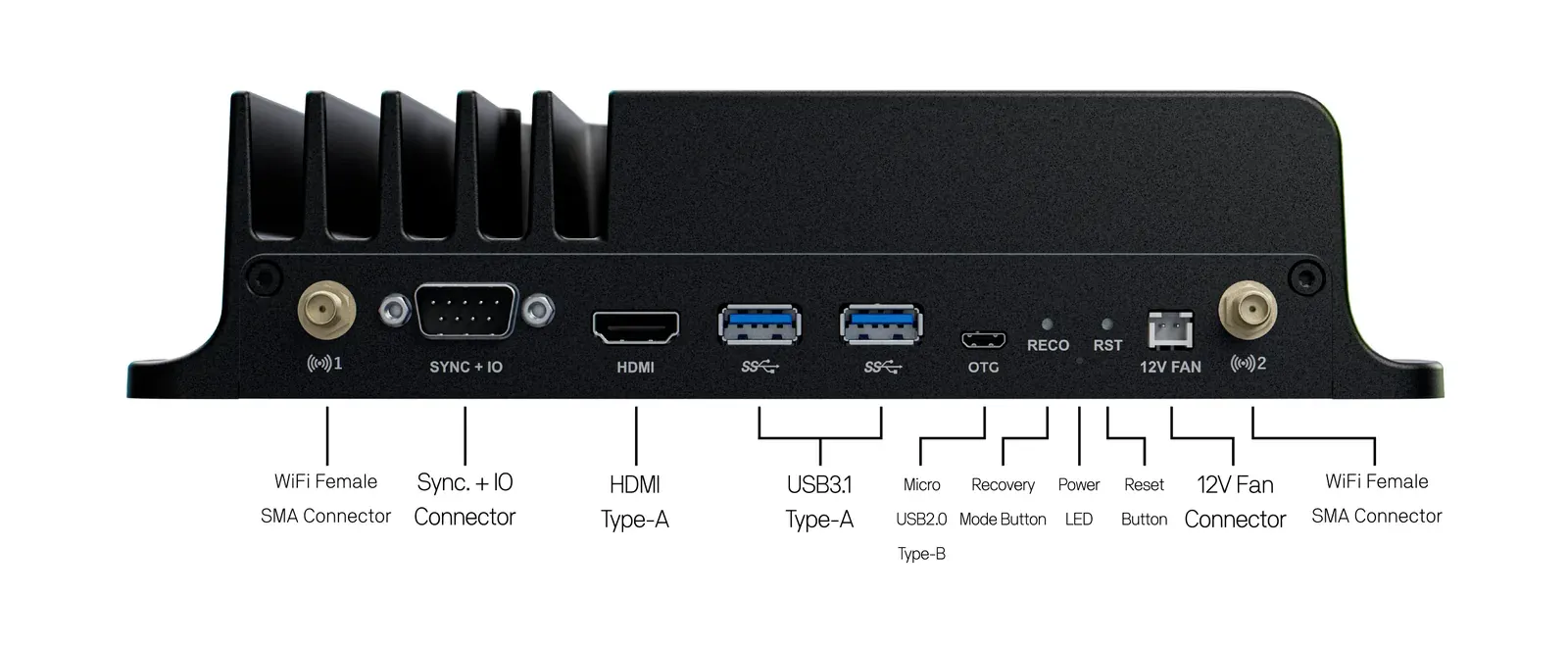
WiFi antenna connectors, Sync + IO, HDMI, 2x USB 3.1, Micro USB OTG, Recovery button, power LED, Reset button, and 12V fan connector.
Installation
01. Connect your ZED cameras
The ZED Box 2 is an embedded Linux device that operates as a standard Linux-based PC. While it is designed for seamless compatibility with ZED cameras, using one is not required for its functionality.
01.a Connect your ZED GMSL2 cameras
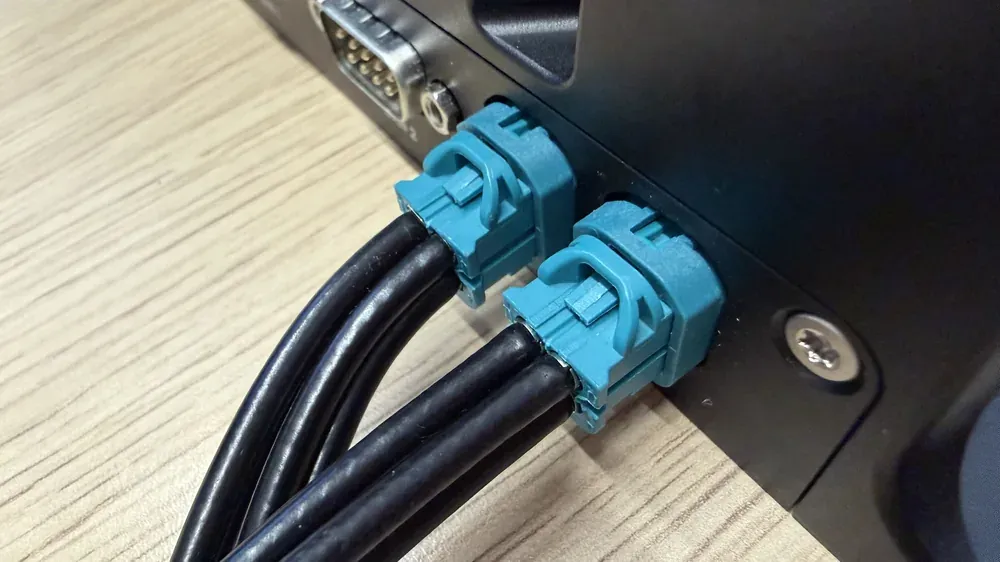
Connect the GMSL2 cameras to the two Quad FAKRA-Z connectors with GMSL2 FAKRA 1-to-4 M-F cables. Firmly push each FAKRA connector in until you hear a “click”, ensuring a secure and reliable connection.
GMSL2 cameras are not plug-and-play. Connect them before powering on the ZED Box 2 so that the operating system detects and initializes them properly. Any change requires a reboot or a restart of the ZED X daemon.
The maximum frame rate depends on the number and type of cameras connected to each Quad FAKRA-Z connector. Read the multi-camera configurations before planning your setup.
01.b Connect your ZED USB camera
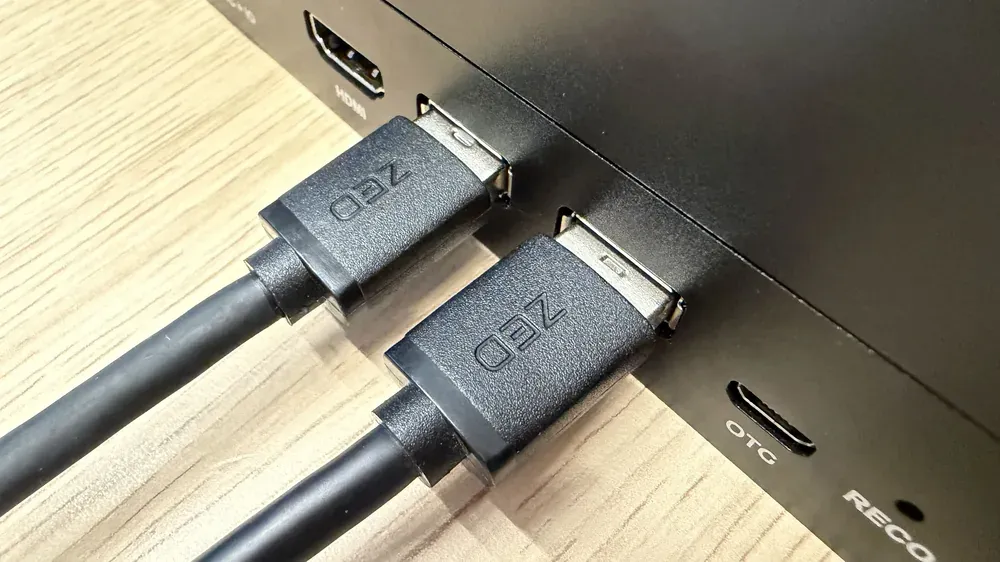
The ZED camera must be connected to a USB 3 port to acquire data at maximum resolution and framerate. USB 3 cameras are plug-and-play: you can connect them at any time, even after the ZED Box 2 has booted.
02. Plug in the power supply
Always switch off the power source before connecting or disconnecting the power terminal block of the ZED Box 2. Plugging or unplugging a powered connector can generate high voltage spikes that may permanently damage the device.
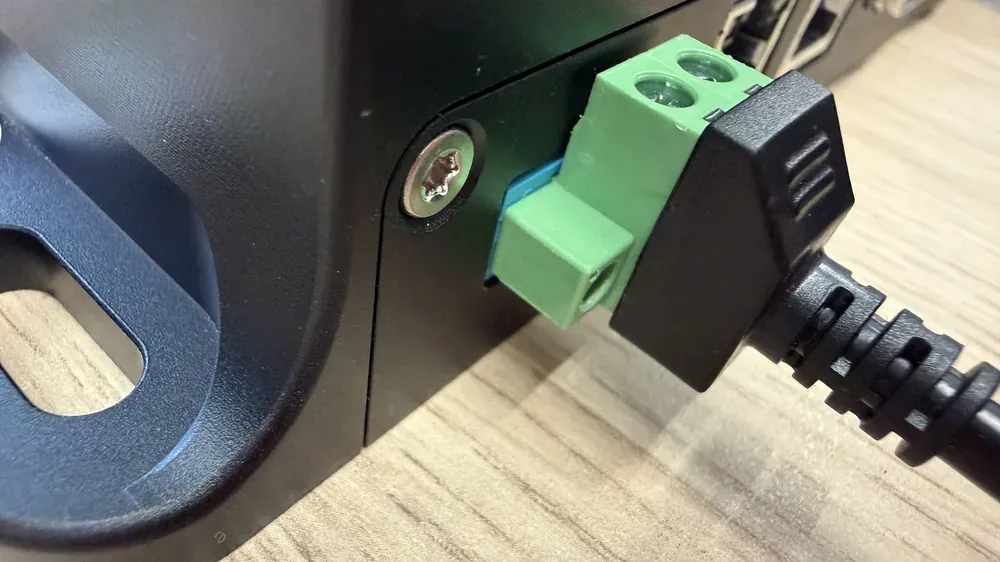
Insert the 2-pin terminal block in the 10-32 V DC IN connector and tighten its two screws. The ZED Box 2 accepts a DC input from 10V to 32V; check the power input pinout before wiring your own power source.
The device turns on automatically when power is applied.
03. Connect to your network
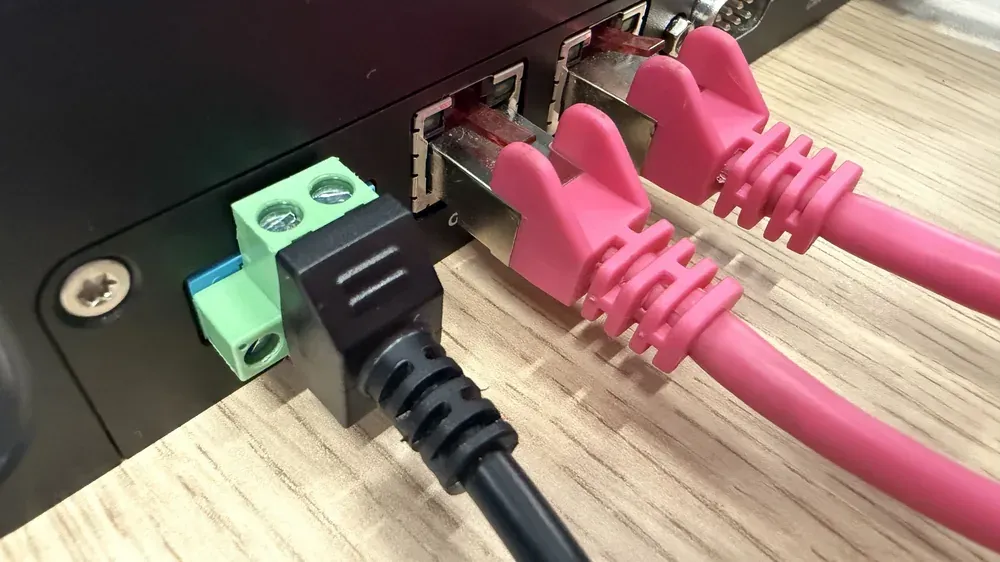
Connect to your network using one of the two Gigabit Ethernet ports, GbE 1 or GbE 2. The second port can be used to connect an Ethernet sensor, such as a lidar, or a second network.
04. Connect a display or a Dummy HDMI plug
Display
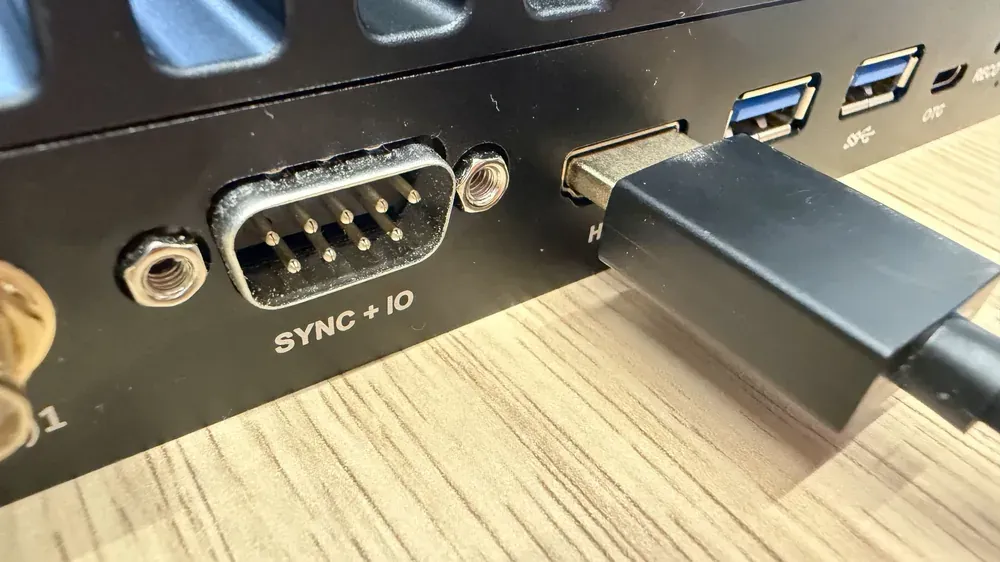
Connect your display to the HDMI 2.1 port. It supports a maximum resolution of 3840×2160 @60Hz.
Dummy HDMI plug
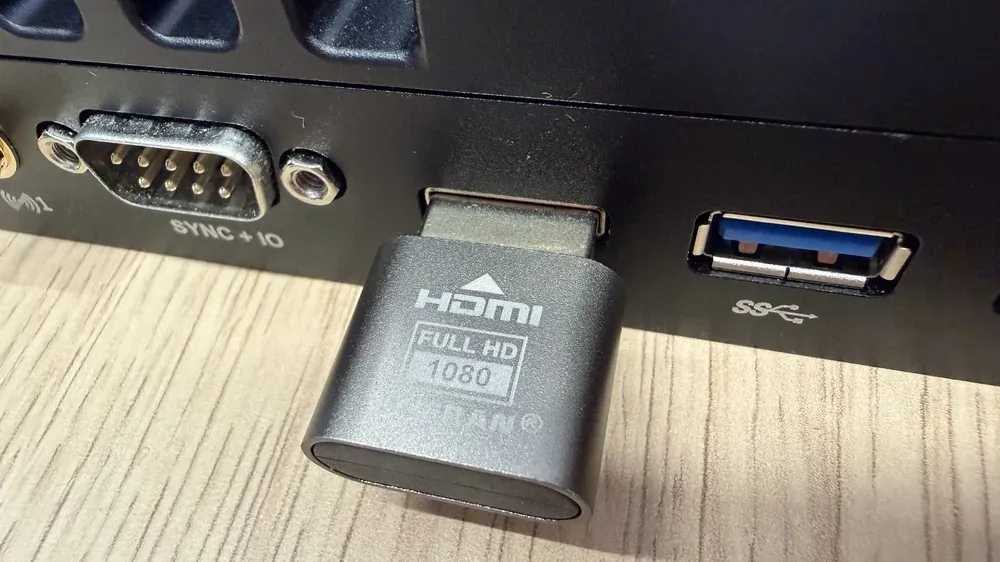
You can use the ZED Box 2 without a display in headless mode, controlling it remotely by using ssh or virtual desktop applications. To enable X11 forwarding and run applications requiring OpenGL in headless mode, use a Dummy HDMI plug to simulate a connected display. Learn more here.
05. Connect your keyboard and mouse
Connect your keyboard and mouse to the USB 3.1 Type-A ports. If you also use a ZED USB camera, connect the keyboard and mouse through a USB hub to keep a USB 3 port available for the camera.
06. Complete the operating system setup
System access credentials
To access the operating system upon first start-up, use the following default access credentials:
- Username: user
- Password: admin
For security reasons, we recommend changing the default password after the first boot.
How to change the user password
Using a terminal console command
- Open a terminal console (
Ctrl+Alt+t) - Enter the
passwdcommand - Follow the instructions
Using the Settings GUI menu
You can access the Settings menu in multiple ways:
From the Activities Menu
- Click on “Activities” in the top-left corner.
- Type “Settings” in the search bar.
- Click on the Settings app (gear icon).
From the System Tray
- Click on the top-right system menu (network and volume icons).
- Select “Settings” from the dropdown.
From the Terminal
-
Open a terminal (Ctrl + Alt + T).
-
Type the following command and press Enter:
Change the Default Password
- In the Settings menu, navigate to Users.
- Select your user account.
- Click “Password” and enter a new secure password.
- Save the changes and restart if necessary.
ZED SDK update procedure
Your ZED Box 2 comes with all the software you need already installed. Nonetheless, if you want to update the ZED SDK, you can follow these steps.
To download the latest version of the ZED SDK for your system, you need to know which JetPack version is currently installed. To do so, open the command prompt on your ZED Box 2 and enter the following command line:
Command line result preview:
In this example, your JetPack version is 6.2.1.
Then, go to www.stereolabs.com/developers/release, click on the “SDK Downloads” tab and scroll down to find the corresponding ZED SDK for the JetPack version of your NVIDIA® Jetson™ system.
To learn more about the ZED SDK and start building apps, go to www.stereolabs.com/developers.
Install the optional fan
The ZED Box 2 is passively cooled. For sustained high-power workloads, for example in the 40W or MAXN SUPER power modes, or at high ambient temperature, you can install the optional fan kit, available on the StereoLabs store.
-
Power off the ZED Box 2 and disconnect the power input.
-
Screw the fan onto the fan bracket.
-
Place the bracket on the heatsink and fix it with the provided screws, in the threaded mounting holes on the top of the enclosure.
-
Connect the fan cable to the
12V FANconnector on the rear panel.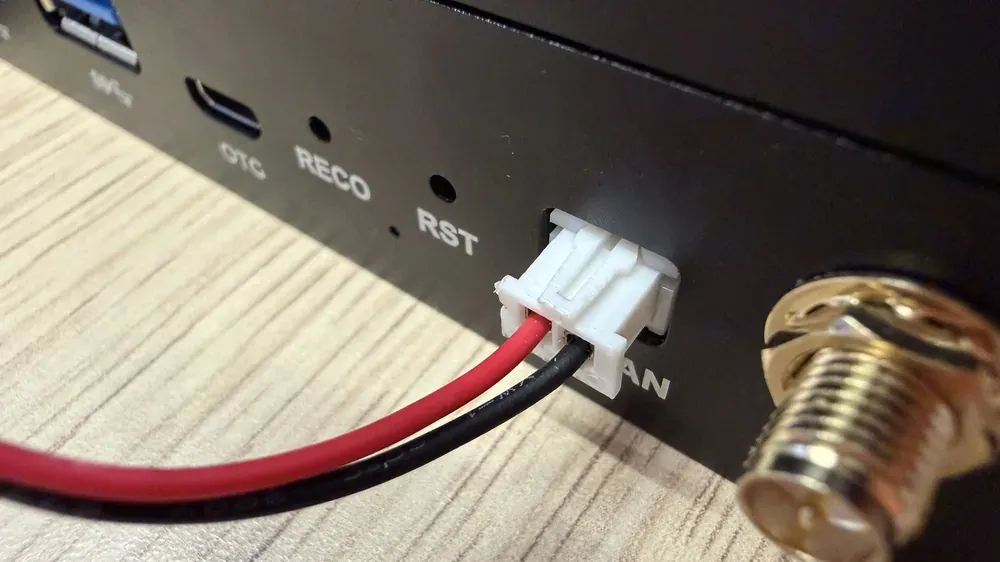
With the fan installed, the height of the ZED Box 2 increases from 54.0 mm to 72.4 mm. The fan connector pinout is described in the Connectivity guide.
Mount the ZED Box 2
The enclosure provides 4 mounting slots (Ø6.5 mm) on its flanges to fix the ZED Box 2 on a flat surface, such as a wall or the chassis of a robot. Leave free space above the heatsink to allow air circulation.
The enclosure also provides an M6 threaded grounding point with a Ø15.5 mm contact area. Connect it to the chassis ground of your system, especially on vehicles and robots, to improve electromagnetic compatibility.
The exact positions of the mounting slots, the grounding point, and the fan mounting holes are available in the technical drawings of the ZED Box 2 datasheet and in the CAD files.
Screws for the mounting slots are not included.
Add a new user
Open a new terminal console [Ctrl+Alt+t].
You can add a new user with the command:
Set the password for the new user:
Add the new user to the required user groups:
Reboot the device and log in with the new credentials to ensure everything is working properly.