

Building a C++ Application on Windows
This section explains how to build an application with the ZED SDK on Windows platforms.
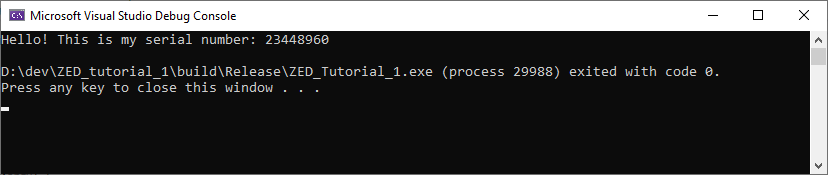
Setting Up a Project
We will build a simple tutorial application Hello ZED using the ZED SDK and CMake. CMake is a cross-platform project generation tool. It provides an easy way to build project files that can be used in the compiler environment of your choice. For example, a CMake script can produce Visual Studio projects and solution files.
- Download and install the latest ZED SDK.
- Download the ZED Examples sample code available on our GitHub page. You can also browse our GitHub for additional plugins and sample codes.
- Open the tutorials/tutorial 1 - hello ZED/cpp folder to find the code we will build. The following files should be in the directory:
- CMakeLists.txt
- main.cpp
- README.md
Building on Windows
On Windows, building an application with the ZED SDK requires CMake 3.5.0 or higher and Visual Studio 2019 or 2022 (the ZED SDK requires a C++17 compiler since version 5.1). Applications must be compiled for 64-bit.
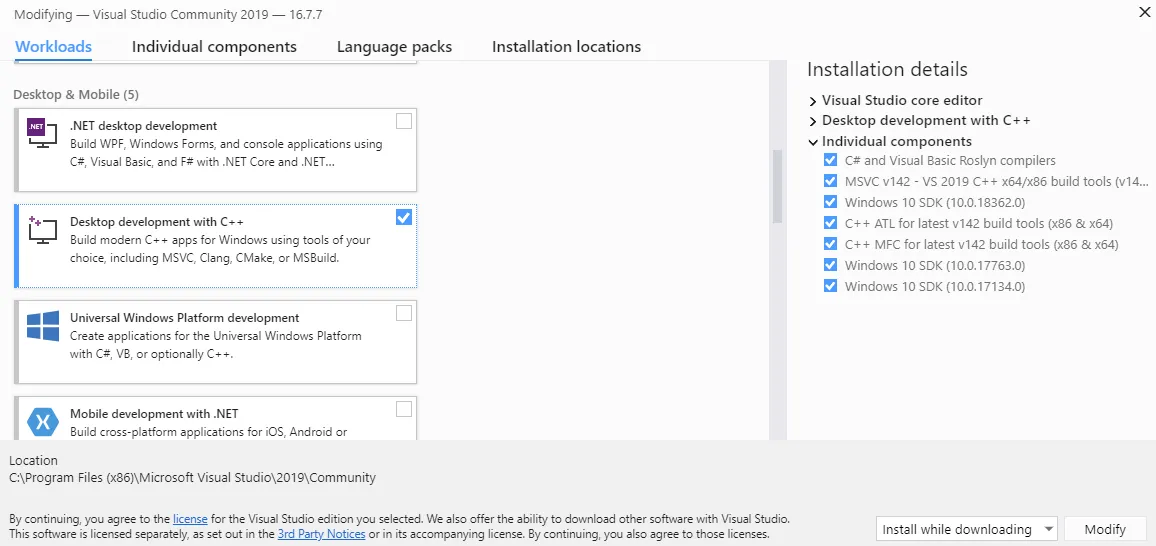
When installing Visual Studio, make sure to select the Visual C++ option.
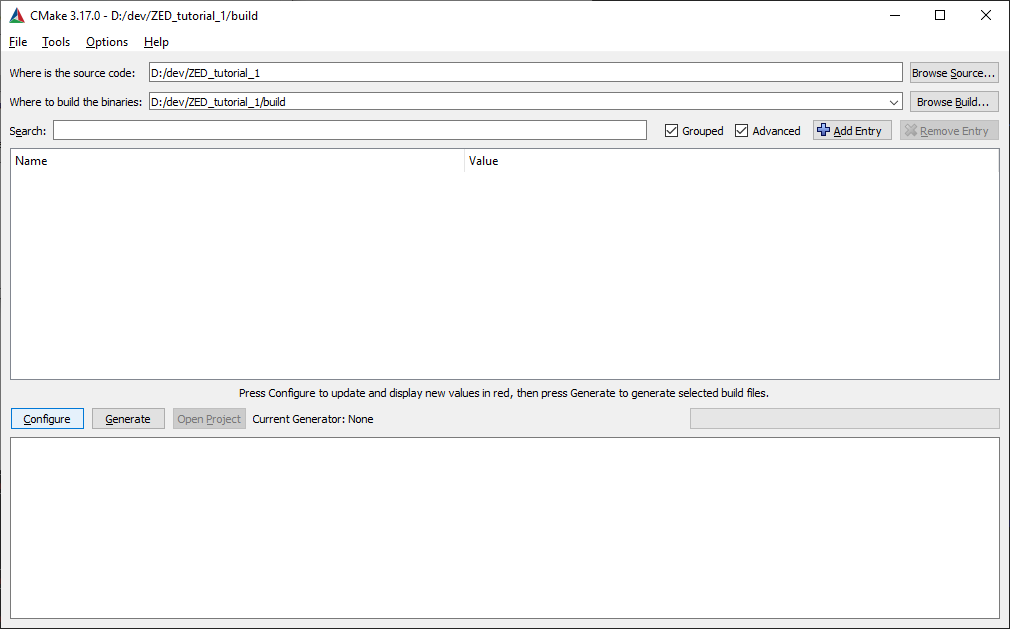
- Open cmake-gui.
- In “Where is the source code“, enter the path of the project folder where the CMakeLists.txt is located. Here we created a project folder “ZED_Tutorial_1” in Documents.
- In “Where to build the binaries“, enter the previous path and add: /build.
- Click on [Configure].
- A dialog window asks you if CMake can create the “build” folder. Say yes.
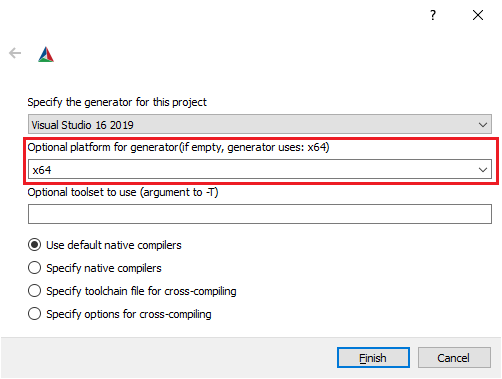
- Another dialog window will ask you to specify a generator for your project. Choose Visual Studio in Win64 and click on [Finish].
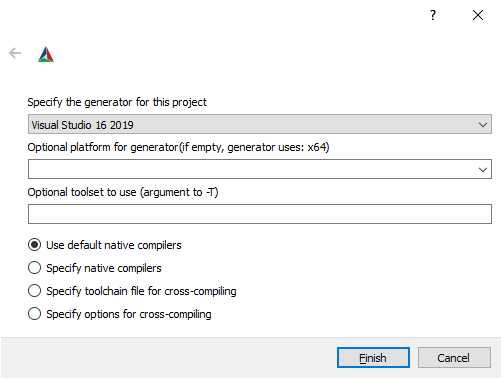
CMake needs to define the target platform as x64. On newer versions it is set by default; if not, you can set it manually.
- CMake may take a few seconds to configure the project.
- Click on [Generate] to build the Visual Studio project files.
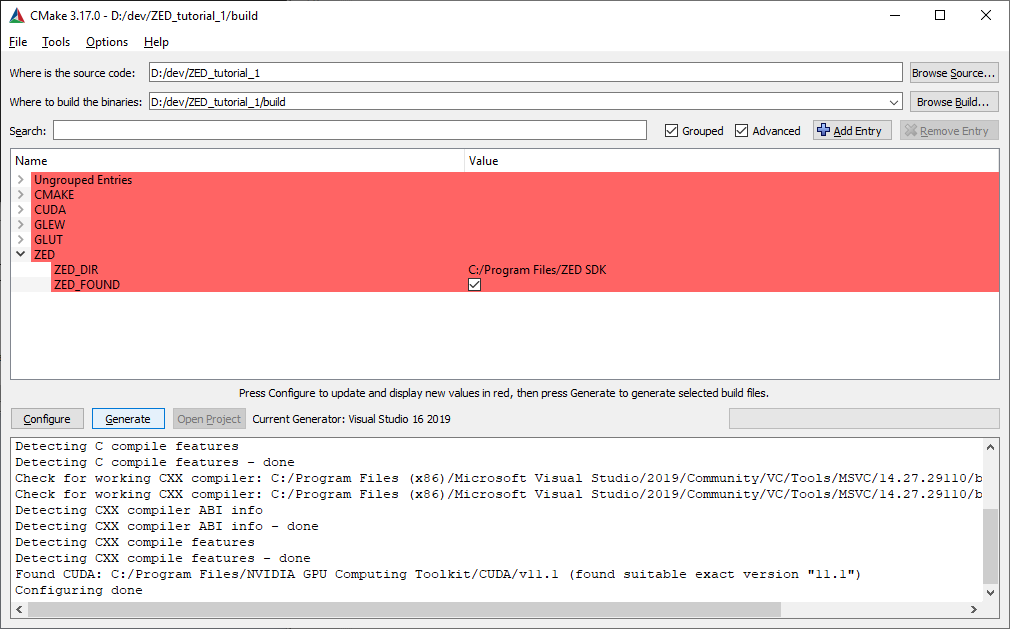
- CMake has now generated your project in the build directory. You can directly open the solution by clicking on [Open Project] or by closing the cmake-gui window and opening the build folder.
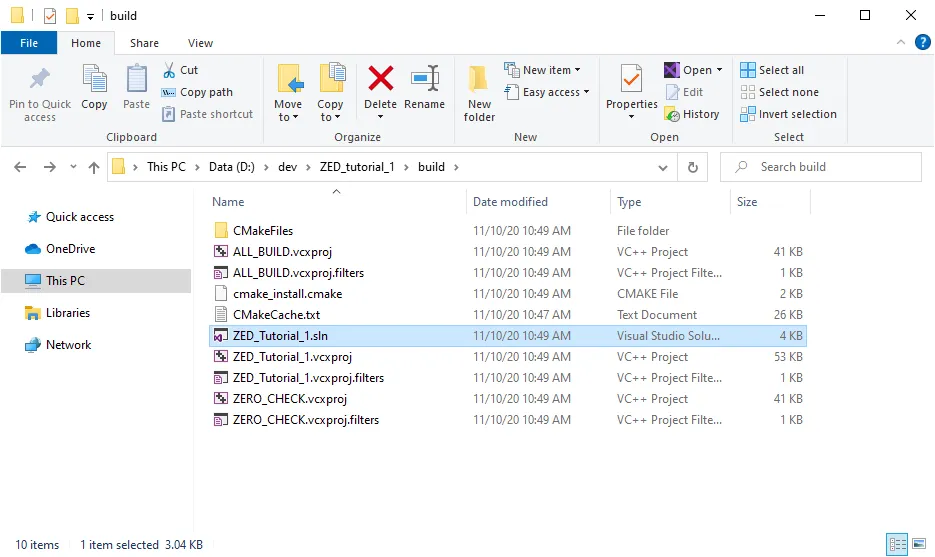
- A Visual Studio solution has been generated. Open ZED_Tutorial_1.sln and set it in
Releasemode.
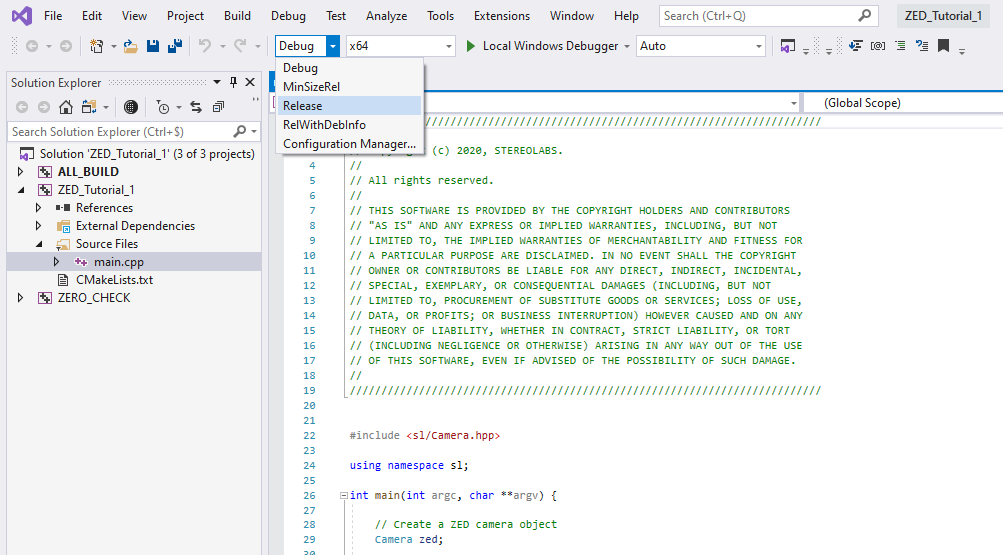
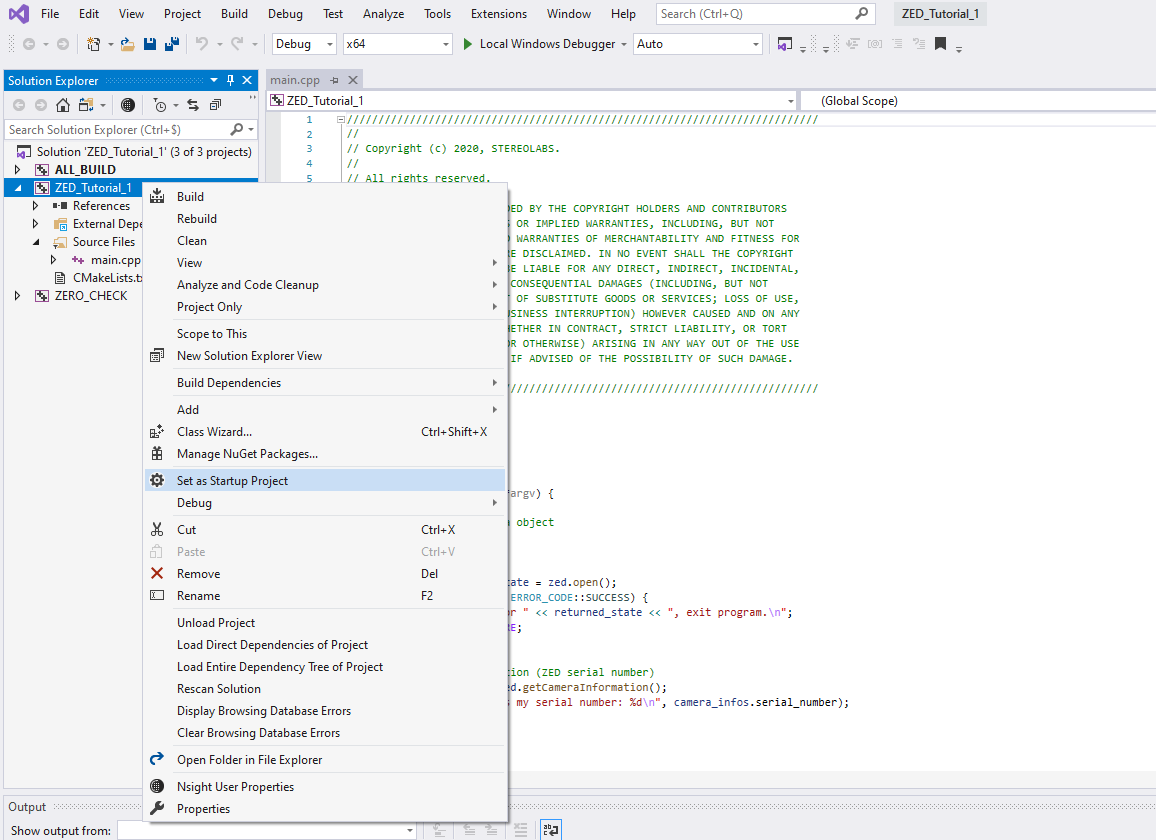
- To run the builds from the Build menu or from keyboard shortcuts, set the
ZED_Tutorial_1target as the startup project.
- You can now edit and compile your program in the Visual Studio IDE. Hit the
Ctrl+F5key to launch the program.