

ZED - USB 3
Congratulations on being the owner of a brand-new ZED USB 3 camera!
You can use it for a wide range of applications, from robotics and drones to virtual reality and augmented reality. The ZED camera provides high-definition stereo video and depth perception, enabling you to create immersive experiences and advanced computer vision applications.
This guide will help you get started with your ZED camera, from unpacking it to running your first application.
If you are the owner of a ZED X stereo camera, please refer to the ZED X Getting Started Guide for specific instructions related to that model.
If you are the owner of a ZED X One monocular camera, please refer to the ZED X One Getting Started Guide for specific instructions related to that model.
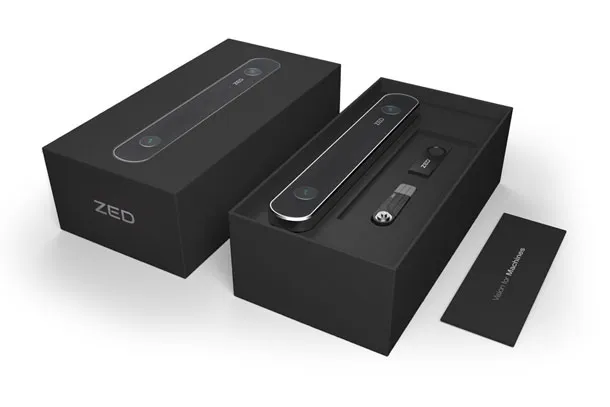
What’s in the Box?
Let’s review the items you have received:
Connect your camera
Unpack your camera, plug it into a USB 3.0 port, and go to the next step. ZED cameras are all UVC compliant, so they should be automatically recognized by your computer.
The IP66 rating of the ZED 2i is guaranteed only when the camera is connected with an official StereoLabs USB 3.0 Type-C dual screw locking cable, straight or right-angle, with both screws fully tightened. With a third-party cable, the standard USB Type-C cable without screws, or loose screws, the USB connector is not sealed and the camera is not IP66 protected.
If you plan to use your ZED 2i outdoors 24/7, we suggest installing a top cover that limits the amount of direct water hitting the case for prolonged periods.
Some frequently asked questions:
- How to use multiple cameras on a single platform.
- How to choose a USB cable and extend the working distance of your camera.
- How to fix USB 3.0 connection issues or drop frames.
- To turn your ZED into an IP camera and transmit video over IP, see the Local Streaming section.
Download and install the ZED SDK
The ZED SDK is available for Windows, Linux and NVIDIA® Jetson™ platforms. It contains all the libraries that power your camera along with tools that let you test its features and settings.
Select your platform and follow the installation guide: Windows, Linux, Jetson.
Test the camera with the ZED Tools
Test the capabilities of your brand new ZED camera with the ZED Tools, a set of applications that provide a user-friendly interface to visualize and interact with the data captured by your new device.
Play with the code samples
The ZED SDK includes several tutorials and samples to learn how to use video, depth, positional tracking, mapping and other information, along with many third-party integrations.
You can also check our GitHub page for the latest updates. Read the API documentation and start experimenting with the samples!
Using ZED with a Virtual Display
For remote access to your ZED system, running on an NVIDIA® Jetson™ device, a virtual display lets you run GUI applications and development tools without a physical monitor or HDMI dongle. This is ideal for headless robotic setups where you need to use the ZED SDK remotely through VNC, NoMachine, or X11 forwarding.
Follow the “Virtual Display on NVIDIA® Jetson™” guide to configure a software-based virtual display for your environment.
Using Docker
For deployment in production environments, we recommend packaging and running your applications and the ZED SDK in Docker containers.
Hardware reference
- Specifications - image sensors, depth sensing, optics, mechanical drawings, part numbers, and compliance.
- Datasheets - the official datasheets.
- 3D models - the STEP models of the ZED 2i and ZED Mini cameras.